Topaz Upscaler Review: Upscale Images to 4K Online
Topaz Upscaler takes images up to 4K, restores detail and removes noise. Here is how to use it in WebTerra AI, what an upscale costs and when another tool is a better fit.
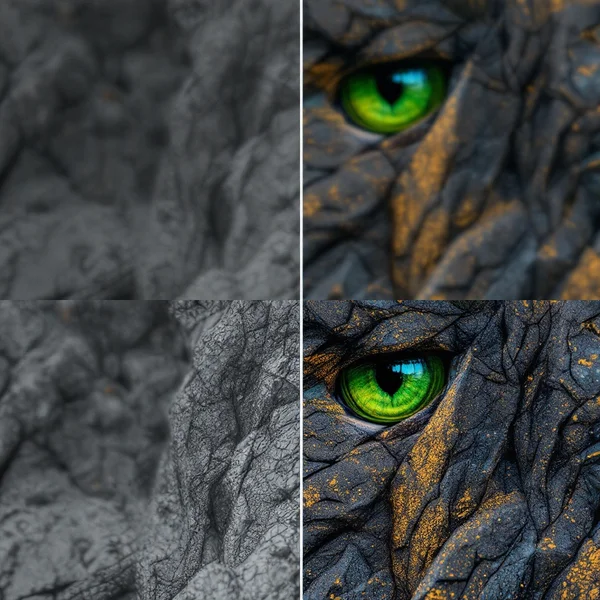
Topaz Upscaler is a professional upscaling model from Topaz Labs that enlarges images to 4K, restores fine detail, removes noise and keeps everything sharp. It is the tool to reach for when a picture is good but its resolution is not: for printing, a large banner, a marketplace product page, or simply to make an AI generation look clean on a big screen. In this Topaz Upscaler review we look at how the model works in WebTerra AI, what one upscale costs and how to get the best results.
Topaz Labs has long been known in photo and video editing for exactly this kind of tool: upscaling, denoising and sharpening. In WebTerra AI their upscaler is available online, with no software to install and no powerful computer required — a browser is enough.
The model is handy for designers, social media managers, online store owners, photographers, and anyone who generates images in other models and wants to take them to a clean, high resolution.
What Topaz Upscaler can do
The model works in image-to-image mode: one image goes in, and the same picture comes out — larger and cleaner. An upscaler’s job is not to invent a new scene but to carry the existing one up to high resolution as faithfully as possible.
- Upscaling to 4K. The core function is raising image resolution to 4K level.
- Detail restoration. The model rebuilds fine texture that gets lost with simple stretching: hair, fabric, foliage, surface texture.
- Noise removal. Grain and digital noise are reduced, so the image looks cleaner.
- Preserved sharpness. Outlines and edges stay crisp, without the soft, smeared look of ordinary resizing.
- One image at a time. The model accepts a single input file.
The dashboard offers four presets for typical jobs: “Upscale: overall quality” for higher resolution and cleaner details; “Upscale: portrait” for skin, hair and eyes without the plastic look; “Upscale: product and labels” for crisp labels, materials and edges; and “Upscale: landscape and architecture” for foliage, stone and sky without noise. They help you quickly pick the right scenario for a given type of image.
Topaz Upscaler specs
| Parameter | Value |
|---|---|
| Developer | Topaz Labs |
| Type | Photo editor, image upscaling |
| Input mode | Image-to-image |
| Input images | 1 |
| Output | Upscale to 4K, detail restoration, noise removal |
| Size used for pricing | 1024 × 1024 |
| Price per upscale | from $0.33 |
How to use Topaz Upscaler in WebTerra AI
- Log in or sign up in the WebTerra AI dashboard. New users get a free trial balance.
- Choose Topaz Upscaler from the model list. You can also find it in the AI photo editor section.
- Upload the image you want to enlarge — a phone photo, a screenshot, an old layout or an output from another AI model.
- Pick the preset that matches the content: portrait, product, landscape or overall quality.
- Run the upscale and wait for the result.
- Compare the result with the original at full zoom: check the eyes, object edges, text and fine textures.
- Download the enlarged image and use it for print, your website or a marketplace listing.
Topaz Upscaler pricing
Prices are calculated for a 1024 × 1024 image — the most common size for AI generations.
| Plan | Price per upscale |
|---|---|
| Any plan or top-up pack | $0.33 |
Topaz Upscaler opens up after your first top-up: the trial covers lower-cost models, and that is where the free trial balance goes. The current price for your file is shown in the dashboard, and all plans are compared on the pricing page.
Scenarios and presets
An upscaler doesn’t need elaborate prompts: the model does the heavy lifting, and your job is to prepare a good source image and pick a preset that matches its content. Here are the typical situations.
Overall quality: an AI generation for print
You created an illustration or poster in an image model at 1024 × 1024, but printing needs much higher resolution. The “Upscale: overall quality” preset suits mixed content where people, objects and background share the frame.
Portrait: a profile photo or avatar
With faces, the key is not to turn skin into smooth plastic. The “Upscale: portrait” preset focuses on natural skin, hair and eye texture — useful for website photos, portfolios and covers.
Product and labels: a marketplace listing
Marketplaces and online stores need large, sharp photos that show material, stitching and labels. The “Upscale: product and labels” preset emphasizes crisp edges, materials and packaging text.
Landscape and architecture: backgrounds, banners, wallpapers
Foliage, stone, clouds and sky are the first things to turn into mush or noise with ordinary resizing. The “Upscale: landscape and architecture” preset helps keep fine natural texture and a clean sky.
The “generate, then upscale” workflow
The most common scenario in WebTerra AI: get a strong composition in an image model first, then enlarge it in Topaz Upscaler. That way you don’t spend money on expensive high-resolution generations before you are sure about the concept.
Tips for the best results
Start from the best original
An upscaler restores detail, but it cannot know what isn’t in the photo at all. If you have several versions of an image, use the largest and least compressed one. A screenshot from a messenger or a heavily compressed JPEG will give a weaker result than the original file.
Edit first, upscale last
Removing an unwanted object, replacing the background or fixing details is best done before enlarging. You work with a lighter file, and the final image goes through the upscaler once and looks coherent.
Match the preset to the content
Using the portrait preset on a product or the product preset on a landscape isn’t an error, but the matching scenario usually looks more natural. If the frame has mixed content, start with “overall quality”.
Check at 100% zoom
Judge the result at full scale, not on a thumbnail: eyes, label text, hair edges, thin architectural lines. That is where the difference between a quality upscale and simple stretching shows.
Don’t upscale repeatedly without a reason
Running the same image through the upscaler several times in a row rarely makes sense — it is better to get 4K once from a good original.
When upscaling is worth it — and when it isn’t
Ordinary enlargement in a graphics editor simply stretches the existing pixels: the image gets bigger but not more detailed, and edges blur. An AI upscaler like Topaz Upscaler analyzes the content of the image and reconstructs plausible fine detail, so the result looks as if it had been shot or generated at high resolution in the first place.
Upscaling pays off when the image is headed for print, a large banner or poster, a product page with a zoom feature, a large monitor or TV, or a projected presentation. It also helps when you need to crop heavily: after cropping, few pixels remain, and upscaling brings the frame back to a usable size.
For stories, a messenger avatar or a small image in a post, upscaling is often unnecessary: social networks compress images anyway, and the difference won’t be visible. In those cases, save your money for another generation or edit.
Use cases
- Marketplaces and online stores — large, sharp product photos with readable labels and visible materials.
- Designers and print — preparing AI illustrations and layouts for posters, banners and flyers.
- Social media and advertising — clean, noise-free creatives for ad platforms and large formats.
- Photographers — enlarging good but small shots and cropping without losing quality.
- Architects and real estate — landscapes, facades and interiors in high resolution.
- Anyone generating images — the final step after any image model.
Comparison with other tools
The WebTerra AI editor section has several models for improving photos. Here is how they relate to Topaz Upscaler.
| Model | Purpose | When to choose it |
|---|---|---|
| Topaz Upscaler | Upscale to 4K, restore detail, remove noise | You need a professional upscale that keeps things sharp |
| Clarity Upscaler | Detail-enhancing upscale | You want the model to add detail more actively |
| Recraft Crisp Upscale | Fast, faithful upscale | You need a quick enlargement that stays as close to the original as possible |
| Photo Restoration | Old photos made new | The photo is damaged, faded or scratched — restore it first |
| Remove Background | Background removal | A product listing needs a transparent or white background |
These tools don’t compete — they complement each other. A typical marketplace workflow: remove the background with Remove Background, then enlarge the result in Topaz Upscaler. For a family archive: Photo Restoration first, then upscale. And if what you need is not an upscale but a substantial change to the content of the image, prompt-based editors are the better choice.
Limitations
- One image at a time. There is no batch processing of several files in a single run.
- Upscaling and enhancement only. The model doesn’t change the subject, remove objects or replace backgrounds — the editor has separate tools for that.
- Dependent on the original. Very small, blurry or damaged photos won’t become perfect: detail that simply isn’t there can only be approximated.
- Price depends on size. The listed cost is for 1024 × 1024; check the current price for your file in the dashboard.
FAQ
How much does Topaz Upscaler cost?
Upscaling a 1024 × 1024 image costs $0.33.
What resolution does it upscale to?
Topaz Upscaler enlarges images to 4K while restoring detail and removing noise.
Can I upscale an image from another AI model?
Yes, that is one of the most common workflows: generate an image in any model, upload the result and upscale it.
Does it work for old photos?
For clean but small photos, yes. If the shot is scratched or faded, run Photo Restoration first and upscale afterwards.
Can I try it for free?
No, this model opens up after your first top-up. You can spend the free trial balance on the lower-cost models in the trial.
Which preset should I use for product photos?
“Upscale: product and labels” — it focuses on crisp labels, materials and edges.
Topaz Upscaler is a simple way to take an image to 4K without losing sharpness or adding noise. Upload your photo in WebTerra AI after your first top-up and test the result.
Try AI models yourself
Models for video, images and audio in one place — a free trial balance when you sign up
Start for free