Photo Restoration Review: Fix Old Photos Online with AI
Photo Restoration in WebTerra AI brings old prints back to life: it removes scratches and creases, fixes faded colors and sharpens blur. Features, pricing and tips.
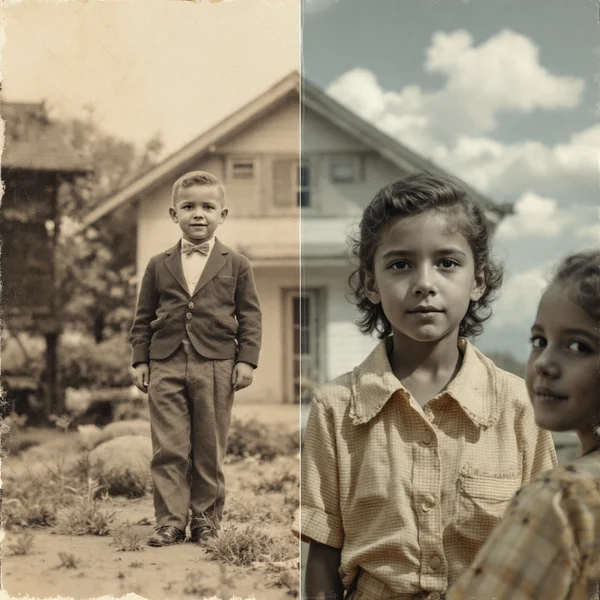
Restoring old photos is one of the most rewarding things you can do with AI. Plenty of families keep a shoebox of prints: cracked portraits of great-grandparents, faded wedding pictures, school class photos with a crease straight through the middle. This Photo Restoration review covers the WebTerra AI model built exactly for that: it removes scratches and creases and restores the colors and sharpness of old photographs. Upload a scan, describe the shot in one word, and the model does the rest — online, in a couple of minutes.
Below we explain what the model actually does, how to use Photo Restoration step by step, how much one restoration costs, how to prepare a print for the best result, and when another tool in the WebTerra AI photo editor — an upscaler or a prompt-based editor — is the better choice.
What Photo Restoration can do
The model works image-to-image: one photo goes in, a restored version comes out. It is powered by fal.ai and sits in the WebTerra AI workspace next to the other photo editing tools.
By default it runs three operations at once:
- Scratch and damage removal — emulsion cracks, creases, stains and small scanning defects disappear.
- Resolution and sharpness enhancement — soft edges become crisper, and faces and details read more clearly.
- Color correction — natural tones return to faded and yellowed prints, and color casts are evened out.
All three options are on by default, so most photos need no setup at all. The key feature is how little effort it takes: you describe the shot in a single word — “portrait”, “family”, “wedding”, “landscape”. That hint tells the model what it is looking at, so it can treat the important details with more care.
Which photos work best
- Old paper prints, scanned or re-photographed with a phone.
- Portraits and group shots with scratches and creases.
- Faded color prints from the 1970s–1990s with shifted colors.
- Photos with stains, dust specks and leftover tape marks.
Specs
| Parameter | Value |
|---|---|
| Developer | fal.ai |
| Type | Photo editor: restoration of old photographs |
| Input | Image-to-image |
| Input photos | 1 |
| Default operations | Scratch removal, resolution enhancement, color correction |
| Description | One word (for example, “portrait”) |
| Price per restoration | $0.13 |
How to use Photo Restoration in WebTerra AI
- Sign up for WebTerra AI and get a free trial balance.
- Scan the old print, or photograph it with your phone in even daylight with no glare.
- Open the generator in your dashboard and pick Photo Restoration.
- Upload the photo.
- Describe it in one word: “portrait”, “family”, “wedding”, “landscape” and so on.
- Run the restoration and compare the result with the original.
- Save the restored version. If needed, finish it with other tools — upscaling, background removal or targeted edits.
All image processing tools are collected on the AI photo editor page.
Photo Restoration pricing
One restoration costs $0.13 on every plan:
| Plan | Cost, USD |
|---|---|
| Any plan or top-up pack | $0.13 |
The free trial balance you receive on sign-up covers 5 restorations — enough to bring back a whole page of a family album without spending anything. Plan details are on the WebTerra AI pricing page.
Compared with manual retouching in a photo studio, where a badly damaged print can take hours, AI restoration costs cents and takes minutes. For museum or archival work where every detail of the original matters, a professional retoucher still has a role — see the limitations section.
Description examples
Here the prompt is not a long description but a single word that tells the model what kind of photo it is. Use English. This is how to pick the word:
1. Portrait
portrait
For a photo of one person: ID photos, studio portraits, pictures from documents. The model will focus on the face.
2. Family photo
family
For group shots of several generations around a table or in front of a house.
3. Wedding
wedding
For wedding portraits and group shots — a popular anniversary gift.
4. Child
child
For children’s portraits and kindergarten or school photos.
5. Landscape or city
landscape
For old street views, cityscapes and nature — when there are no people in the frame, or they are small.
6. Group shot
group
For school class photos, work teams and other large groups with many small faces.
Tips for the best result
Good digitization is half the job
Use a flatbed scanner if you can. If you shoot with a phone, lay the print flat, hold the camera parallel to it and use soft daylight. Glare from glossy paper can be mistaken for damage.
Crop out everything else
Remove the table, the album frame and your fingers from the scan. The fewer stray objects in the frame, the more attention the model gives to the photo itself.
Pick the right word
“Portrait” and “group” suggest different things: focus on one face versus preserving many small faces. The right word helps avoid unwanted “creativity”.
Compare with the original
Check facial features carefully after processing. AI recovers lost detail by reconstructing it, and on heavily damaged prints features can shift slightly. If that happens, run it again or try a different description word.
Finish with other tools
Restoration is step one. Next you can upscale the photo for printing, remove a stray object or replace the background. That is how an old print becomes a finished gift or a photo book page.
Workflow: from a shoebox of prints to a digital album
If you are restoring an entire archive rather than one picture, a simple workflow helps:
- Select your photos. Start with the most valuable and most damaged ones — that is where the difference will be most visible.
- Digitize in batches. Scan or photograph everything under the same conditions: same spot, same light, same distance. The restored results will look more consistent.
- Name files clearly. Year, occasion, who is in the picture — you will need this later for the album and the family tree.
- Restore one by one. Choose a description word for each photo: portrait, group, wedding.
- Review the results. Show them to relatives who remember the people in the photos; they will instantly notice if a face looks different.
- Keep both versions. The original scan as a record, the restored one for printing, a photo book or social posts.
This keeps hundreds of files under control and gives you a tidy digital archive that is easy to share with the whole family.
Use cases
- Family archives. Restoring grandparents’ albums, digitizing family history, anniversary gifts.
- Photo studios and print shops. Fast baseline restoration for clients before printing, with manual touch-ups when needed.
- Genealogy. Cleaner photos for family trees and family websites.
- Museums, libraries and local historians. Images for publications, exhibitions and social posts — as a working copy next to the original.
- Media and social media. Archive photos for history features, nostalgia posts and brand anniversaries.
- Memorial projects. Portraits for commemorative publications and memorial walls.
Photo Restoration vs other editor tools
WebTerra AI has several photo processing models. Photo Restoration is a specialist tool for old prints; others are better at neighboring tasks.
| Model | Best for | Choose it when |
|---|---|---|
| Topaz Upscaler | Upscale to 4K | The photo is already clean but too small for print or a large screen |
| Clarity Upscaler | Detail-enhancing upscale | You want to enlarge an image and add fine detail |
| Object Removal | Removing an object | There is a stray item or person in the photo that needs to go |
| FLUX Kontext Max | Complex photo edits | You need prompt-driven changes: clothing, lighting, scene details |
Photo Restoration’s strength is simplicity: one run tackles the three typical problems of old prints, with no complex instructions to write. If a photo is undamaged but simply low-resolution, an upscaler is the more logical pick. For creative changes, use FLUX Kontext Max or another prompt-based editor.
Limitations
- One photo at a time. The model takes a single image, so an album is processed print by print.
- Reconstructed detail. On badly damaged areas the AI does not “recover” but rebuilds what was lost. Facial features may differ slightly from reality — keep the original for documentary and archival purposes.
- Input quality matters. Glare, strong perspective or motion blur from a phone all reduce the quality of the result.
- Minimal manual control. The model is designed for automatic processing. For targeted edits to specific areas, use a prompt-based editor.
FAQ
How much does it cost to restore one photo?
$0.13 on any plan.
Can I restore photos for free?
Yes: the free trial balance you get on sign-up covers 5 restorations.
What should I type in the description field?
One word describing the photo: “portrait”, “family”, “wedding”, “landscape”. No long prompt needed.
Does it colorize black-and-white photos?
The model corrects colors — it brings natural tones back to faded prints. Full colorization of black-and-white photos is a different task, and we will not promise it. For creative transformations, try a prompt-based editing model.
Will the person’s face change?
On photos in decent condition, only minimally. On heavily damaged ones the model reconstructs missing areas, so features may shift a little. Always compare with the original.
Do I need photo editing skills?
No. There are no masks, layers or sliders to deal with: you upload a photo, type one word and run the model. Scratch removal, sharpening and color correction are already switched on, so the default settings suit most prints. Editing skills only come in handy if you later want to fine-tune the result by hand.
Scan or phone photo — which is better?
A flatbed scan usually gives a cleaner result: no perspective, no glare, even light. A phone shot works too if you hold it straight, use soft daylight and skip the flash. What matters most is that the print fills the frame and is in focus.
Old photographs are memories that fade over time. Photo Restoration in WebTerra AI gives them back their clarity and color in minutes and for a few cents. Open the model in your dashboard, upload the first print from the family album and watch it come back to life.
Try AI models yourself
Models for video, images and audio in one place — a free trial balance when you sign up
Start for free