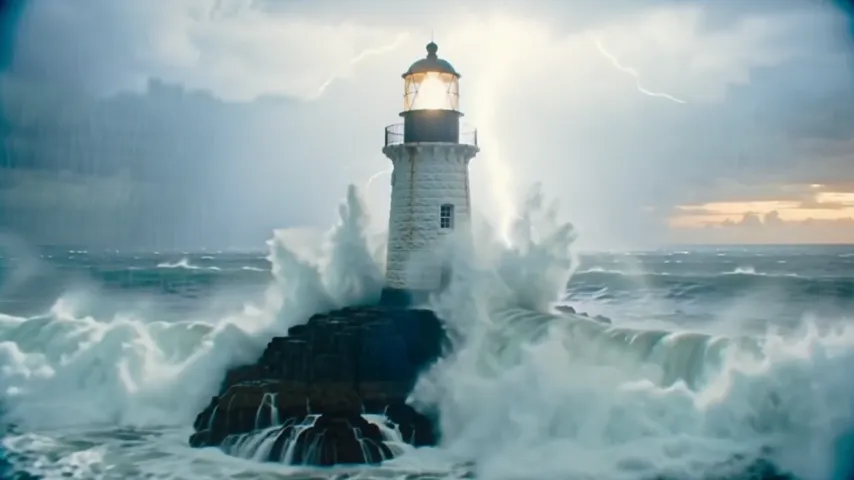
Gemini Omni Flash Review: Google Video With Sound, up to 4K and 15 Seconds
Gemini Omni Flash 1.2 is Google’s video model: 3–15 second clips with sound from text, a photo or two frames, in 720p, 1080p or 4K. Features, pricing, prompts and limits.
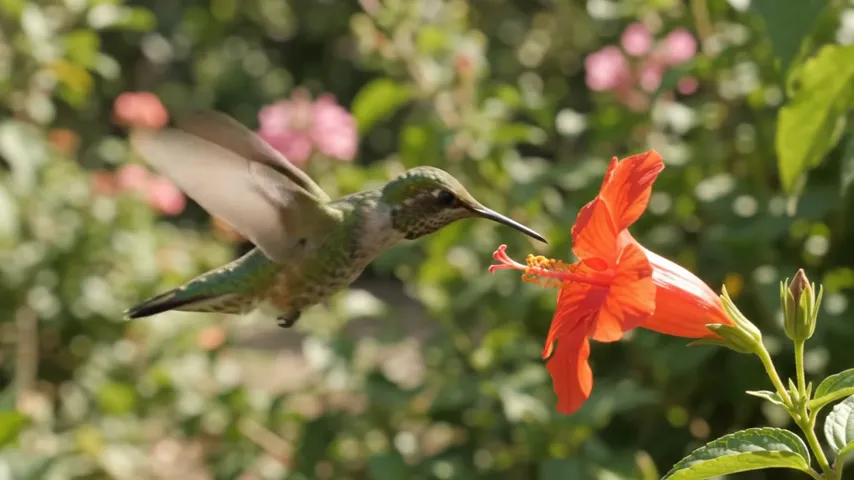
Gemini Omni Flash is Google’s multimodal video model, running in WebTerra AI as Gemini Omni Flash 1.2 since November 11, 2026. It turns a text description, a photo or a pair of first and last frames into a clip with sound. In this Gemini Omni Flash review we look at what the new version can do, which durations and resolutions it supports, what a second of video costs, and how to use Gemini Omni Flash online to get a usable result on the first try.
Gemini Omni Flash in short
- What it is: Google’s video model with a soundtrack built into the finished clip; also searched as Gemini Omni 1.2 Flash.
- Developer: Google.
- Best for: everyday clips for social media, ads and marketplaces when you need sound and a flexible length.
- Modes: text, a photo as the first frame, first and last frame; 16:9 and 9:16.
- Length and quality: 3 to 15 seconds, in 720p, 1080p or 4K.
- Price: from $0.46 for a 3-second 720p clip; you pay per second.
- How to try it: online in the WebTerra AI video generator after a top-up.
Version 1.2 noticeably expands what the model can do. Length is now set in one-second steps from 3 to 15 seconds, and 4K joins 720p and 1080p. You pay for each second of video at a rate that depends on resolution, so a short Stories clip costs very little, while a long 4K scene costs proportionally more.
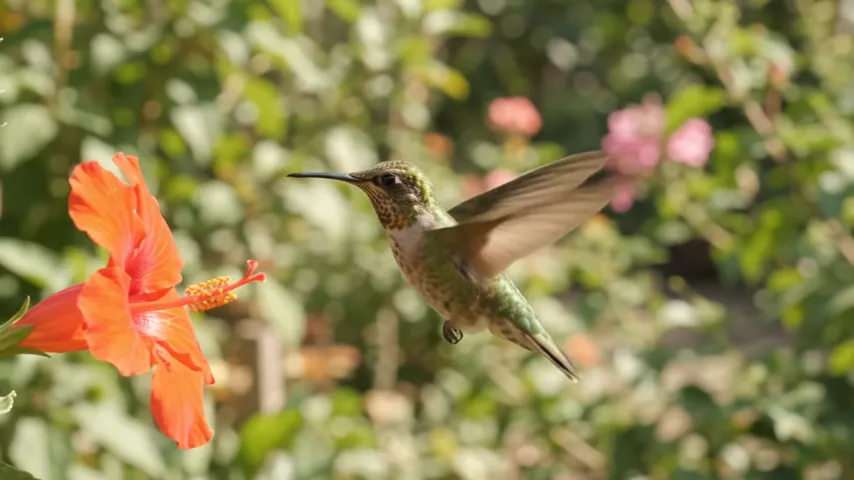
We tested the model in WebTerra AI on October 20, 2026, back when it was version 1.1, in two modes: text-to-video and image-to-video. Both worked, both clips came with generated ambient sound, and a 4-second 720p video was ready in about a minute. The frames below come from that test; the specs and prices in this review are for version 1.2.
What Gemini Omni Flash can do
- Text-to-video. Describe the scene, the action, the lighting and the camera move, and the model builds the clip from scratch.
- Image-to-video. Your uploaded image becomes the first frame, and the model adds motion to subjects, camera and environment. In this mode the clip's aspect ratio follows the photo.
- First and last frame. Set the start and end of a shot with two images and the model generates the transition between them. Clips in this mode run up to 10 seconds.
- Sound in the clip. Videos come with a generated audio track. According to Kie, in version 1.2 it can include lip-synced speech, music and sound effects.
- 3 to 15 seconds. Any whole number of seconds, from a quick accent for Stories to a full scene for an ad.
- 720p, 1080p or 4K. 1080p costs only a little more than 720p, and 4K is there for final cuts and big screens.
- 16:9 and 9:16. Landscape for YouTube and websites, vertical for Reels, Stories and Shorts.
In Google's model naming, "Flash" usually signals a fast, affordable tier, and Gemini Omni Flash fits that description. Google lists a frame rate of 24 frames per second, and according to Kie every clip carries an invisible SynthID watermark. The dashboard also has presets, such as cinematic shot, product video, nature, food close-up and first-person vlog, that give you a ready prompt structure.
Gemini Omni Flash specs
| Parameter | Value |
|---|---|
| Developer | |
| Version | Gemini Omni Flash 1.2 (since November 11, 2026) |
| Type | Video generation with sound |
| Input modes | Text-to-video, image-to-video (first frame), first and last frame |
| Duration | 3–15 seconds in 1-second steps; up to 10 seconds with first and last frame |
| Resolution | 720p, 1080p, 4K |
| Aspect ratio | 16:9, 9:16 (in image mode, follows the photo) |
| Price per second | 720p — $0.15, 1080p — $0.17, 4K — $0.37 |
| Speech languages | The vendor doesn’t publish a language list |
| Default settings | 4 seconds, 720p, 16:9 |
How to use Gemini Omni Flash in WebTerra AI
- Sign up and top up your balance: video opens up after your first top-up.
- Open video generation in the dashboard and pick Gemini Omni Flash.
- Choose a mode: text only, a photo as the first frame, or a first and last frame pair. For the image modes, upload your pictures.
- Set the length from 3 to 15 seconds (up to 10 with two frames), the resolution (720p, 1080p or 4K) and the aspect ratio (16:9 or 9:16). In image mode the format adapts to your photo.
- Write the prompt: who or what is in the frame, what happens, the lighting, how the camera moves and what should be heard.
- Check the cost shown before you start and hit Generate.
If a generation fails for a technical reason, the money is refunded to your balance automatically; there is no need to contact support. You can browse the other video models on the AI video page of WebTerra AI.
Gemini Omni Flash pricing
You pay per second of video, and the price is the same on every plan and for top-up packs. A second costs $0.15 at 720p, $0.17 at 1080p and $0.37 in 4K; image-to-video costs the same as text-to-video. Typical clips:
| Length | 720p | 1080p | 4K |
|---|---|---|---|
| 3 s | $0.46 | $0.50 | $1.10 |
| 4 s | $0.60 | $0.67 | $1.47 |
| 6 s | $0.90 | $1 | $2.20 |
| 8 s | $1.20 | $1.33 | $2.93 |
| 10 s | $1.50 | $1.67 | $3.67 |
| 15 s | $2.26 | $2.50 | $5.50 |
So the default clip, 4 seconds at 720p, costs $0.60, 10 seconds at 1080p cost $1.67, and the full 15 seconds in 4K cost $5.50. The gap between 720p and 1080p is small, so for final social media clips it makes sense to go straight to 1080p and keep 4K for ads, big screens and footage you plan to crop in the edit.
Video opens up after your first top-up, and the free trial balance is handy for a starting frame in the image models. For regular work, compare plans on the WebTerra AI pricing page.
Gemini Omni Flash prompt examples
Each prompt ends with "no text, no captions, no watermark" to keep random lettering out of the frame. Copy them as they are or swap in your own subject.
1. Hummingbird in a garden (the demo clip)
This is the exact prompt we used for the demo: a hummingbird by a red flower as the camera slowly orbits.
A hummingbird hovering next to a bright red flower in a sunlit garden, wings blurred in motion, the camera slowly orbiting, shallow depth of field, vivid natural colors, no text, no captions, no watermark
2. Product video for a marketplace
A short ad clip: the product on a pedestal, soft studio light, a smooth camera push-in. Five or six seconds are enough for a product card.
A glass bottle of cold brew coffee on a matte stone pedestal, soft studio light, droplets of condensation, slow camera push-in, subtle ambient hum, clean premium look, no text, no captions, no watermark
3. Scene with ambient sound
The sound is described together with the visuals, so the model can add rain and city noise to the track.
A rainy evening street in an old European city, warm shop windows reflecting on wet cobblestones, people with umbrellas passing by, sound of steady rain and distant traffic, slow sideways tracking shot, no text, no captions, no watermark
4. A longer 12–15 second scene
Version 1.2 fits several consecutive events into one clip; describe them in order.
A barista prepares a latte in a cozy café: grinds the beans, pulls the espresso shot, then pours steamed milk into a heart-shaped latte art, the camera slowly moves from the grinder to the cup, sounds of the grinder, hissing steam and soft background chatter, warm morning light, no text, no captions, no watermark
5. Animate a photo
For image-to-video: describe only the motion, not what is already in the picture.
Gentle wind moves the hair and the grass, clouds drift slowly across the sky, the camera slowly pushes in, soft ambient sound of wind and distant birds, no text, no captions, no watermark
Tips: how to prompt Gemini Omni Flash
Use a simple structure
A reliable order is subject, action, setting, lighting, camera move, sound, then the "no text" tail. The more specific each piece is, the less the model has to guess.
Describe the sound in words
To steer the audio track, say what should be heard: "sound of rain", "crackling fire", "crowd chatter", "waves crashing". If you leave sound out, the model picks it based on what is in the frame. Keep a character’s line short and in quotes; the vendor doesn’t publish a list of speech languages, so test a line in a language other than English on a short clip first.
In image mode, describe the motion
The picture already defines what is in the frame, so the prompt should answer "what changes": wind, waves, a turn of the head, the camera moving. The aspect ratio follows the photo, so upload a vertical image if you want a vertical video.
Test cheap, render the final in the quality you need
The cheapest option is 3–4 seconds at 720p. Dial in the prompt, lighting and camera move there, and once you like the result, render the final version at the length you need in 1080p or 4K. A second of 4K costs about 2.4 times as much as 720p, so drafts in 4K are not worth it.
First and last frame for controlled transitions
When you need a precise outcome, such as a product closed and then open, or a room before and after a makeover, prepare two frames and let the model build the transition. Use the prompt to describe how the change should happen, and keep in mind the 10-second limit for this mode.
Who Gemini Omni Flash is for
- Social media managers and creators. Vertical 9:16 clips for Reels and Stories with sound already in place, no editing or background music hunt required.
- Marketplace sellers. Short product videos from a photo: upload a product shot and the model adds camera and light movement.
- Advertising and performance marketing. The low price per second makes it easy to produce several creative variants for A/B tests, then render the winner in 4K.
- Cafes, restaurants and delivery services. Food close-ups with sizzling sound for menus, websites and social media.
- Bloggers and YouTubers. Atmospheric inserts, cutaways and B-roll, up to 15 seconds in one take.
Gemini Omni Flash compared with other models
| Model | In short | When to choose it |
|---|---|---|
| Gemini Omni Flash | With sound, 3–15 s, up to 4K | Affordable clips with sound at any length up to 15 seconds |
| Veo 3.1 | 4K, synced sound, references | Premium final scenes and generation from reference photos |
| Veo 3.1 Lite | Budget Veo, up to 1080p | The shortest clips in the Veo family on a smaller budget |
| Kling O3 Pro | Up to 15 s, up to 7 references, 1:1 | When you need to keep a character or product consistent across photos |
| Seedance 2.0 | Audio + multi-scene | Several shots in one clip and more aspect ratios |
Veo 3.1 is Google's flagship video model with 4K and synced sound. Gemini Omni Flash now offers 4K too, at a fraction of the price: 4 seconds in 4K cost $1.47, while 4 seconds at 720p in Veo 3.1 cost $4.17. Choose Veo 3.1 when you need reference photos or premium quality for a high-budget campaign.
Veo 3.1 Lite is the budget version of Veo, with resolution up to 1080p and clips of 4, 6 or 8 seconds. Both models come from Google, so compare them on your own prompts. Gemini Omni Flash has the edge with clips up to 15 seconds, 4K and per-second billing.
Kling O3 Pro also generates scenes up to 15 seconds with sound and accepts up to 7 references, which makes it the pick for a series with the same character. For several shots in one clip, take a look at Seedance 2.0.

Gemini Omni Flash limitations
- Up to 15 seconds per generation. With first and last frame, up to 10 seconds. Build longer videos from several clips in an editor.
- Two aspect ratios only. 16:9 and 9:16; no square or 4:3. In image mode the photo sets the format.
- No references or video editing. Google and Kie also describe reference-based generation and editing of existing video for version 1.2, but in WebTerra AI this model offers text, a first frame and a first and last frame pair only. To keep a character consistent across several shots, choose a model with references.
- No published speech languages. The vendor doesn’t publish a language list, so lines in languages other than English are not guaranteed. Dedicated voiceover tools are more reliable for exact narration.
- 4K costs noticeably more. A second of 4K costs $0.37, more than twice the 720p or 1080p rate.
Gemini Omni Flash FAQ
Does Gemini Omni Flash generate sound?
Yes. The finished clip includes a generated audio track. In our tests, still on version 1.1, it was ambient sound that matched the scene; according to Kie, version 1.2 can also add speech, music and sound effects.
How much does Gemini Omni Flash cost?
You pay per second: $0.15 at 720p, $0.17 at 1080p and $0.37 in 4K. The shortest clip, 3 seconds at 720p, costs $0.46, and 15 seconds in 4K cost $5.50. The price is the same on every plan.
Does Gemini Omni Flash support 4K?
Yes, since version 1.2. You can choose 720p, 1080p or 4K.
What is the maximum clip length?
15 seconds in text and image modes, 10 seconds when you set a first and last frame. The minimum is 3 seconds.
Can I make a video from a photo?
Yes. Upload an image and it becomes the first frame, which the model brings to life. You can also set both a first and a last frame so the model builds the transition between them.
What happens if a generation fails?
If the failure is technical, the money is refunded to your balance automatically. Adjust the prompt and try again.
Can I try Gemini Omni Flash for free?
No, video opens up after your first top-up. You can use the free trial balance for a starting frame in the image models.
Gemini Omni Flash is a practical choice when you need clips with sound at the length you want, from 3 to 15 seconds, and in the quality you need, up to 4K: for social media, marketplaces and ads. Sign up, top up your balance and create your first video in the WebTerra AI dashboard.
Read also: Veo 3.1 review, Veo 3.1 Lite review, Kling O3 Pro review, Seedance 2.0 review and all video generation models.
Try AI models yourself
Models for video, images and audio in one place — a free trial balance when you sign up
Start for free