Clarity Upscaler Review: Creative AI Image Upscaling up to 4×
Clarity Upscaler enlarges images up to 4× and invents fine detail along the way. Here is how creativity and resemblance work, what an upscale costs and when another tool fits better.
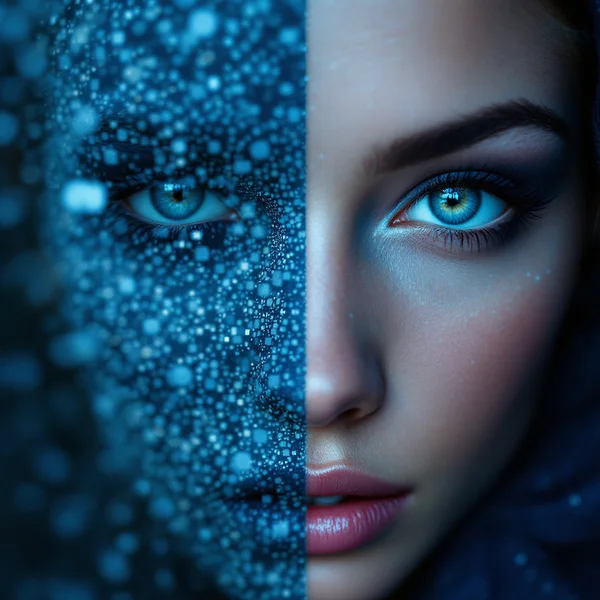
Clarity Upscaler is a creative image upscaler from ClarityAI that enlarges a picture up to 4× while adding fine detail: skin texture, fabric weave, individual strands of hair. In this Clarity Upscaler review we cover how to upscale images online without the usual blur, what one upscale costs, and how this tool differs from upscalers that stay strictly faithful to the source.
Plain resizing just stretches pixels, so a large image ends up soft and mushy. Clarity Upscaler works differently: it analyzes the image and generates new detail where it was missing. The difference is most visible on AI-generated art, smartphone photos, compressed images pulled from social media and frames you want to print or show on a big screen.
The key thing to understand up front: Clarity is a creative upscale. It is cheaper than Topaz, but less faithful to the original. The model may add details that were never in the source photo. For art projects, AI generations and social content that is an advantage; for documentary photos it is a reason to check the result carefully.
What Clarity Upscaler can do
The model works in image-to-image mode: you upload one image and get back an enlarged, more detailed version.
- Upscaling up to 4×. The default is 2×, which covers most jobs. Higher factors are useful for print and large banners.
- Texture generation. Skin, fabric, hair, foliage and stone gain fine surface detail instead of simply looking sharper.
- Adjustable creativity. The creativity setting (0.35 by default) controls how boldly the model invents new detail.
- Resemblance control. The resemblance setting (0.6 by default) keeps the output close to the source: the higher the value, the less the model drifts.
- Ready-made presets. The dashboard offers presets for overall quality, portraits, products with labels, and landscapes and architecture.
The balance between creativity and resemblance is your main lever. Low creativity with high resemblance gives a careful upscale close to the original. High creativity with low resemblance turns the upscale into a partial re-generation: more detail, but a higher chance of changes.
Matching settings to the image
| Image type | Creativity | Resemblance | Why |
|---|---|---|---|
| Portrait | Below default | Above default | Keep facial features, add only skin texture |
| Product with a label | Below default | Above default | Avoid distorting letters and logos |
| Landscape, nature | Default or higher | Default | Foliage and stone benefit from new texture |
| AI art, illustration | Above default | Below default | Rich detail matters more than precision |
Treat these as starting points rather than rules: every image reacts differently, so run two or three variants and keep the one that looks most natural.
Clarity Upscaler specs
| Parameter | Value |
|---|---|
| Developer | ClarityAI |
| Model type | Creative image upscaler |
| Input | Image-to-image, 1 image |
| Upscale factor | Up to 4× (2× by default) |
| Settings | Creativity 0.35, resemblance 0.6 by default |
| Price | From 17 credits for a 1024×1024 image (about $0.20–0.24) |
How to use Clarity Upscaler in WebTerra AI
- Sign up for WebTerra AI and receive 60 free credits.
- Open the image generator in your dashboard and select Clarity Upscaler.
- Upload the single image you want to enlarge.
- Pick a preset that matches the shot: overall quality, portrait, product and labels, or landscape and architecture.
- Choose the upscale factor. Start with 2× — it is the quickest way to see how the model handles your particular image.
- Adjust creativity and resemblance if needed. For a first run, keep the defaults.
- Check the cost shown in the dashboard and start processing. Compare the result with the original at 100% zoom, paying attention to faces, text and small elements.
Other tools for working with existing photos — background removal, object removal, restoration — live in the AI photo editor section.
Clarity Upscaler pricing
The cost of one upscale for a 1024×1024 image with default settings:
| Plan | Credits | Cost in USD |
|---|---|---|
| Starter | 19 | about $0.24 |
| Pro | 18 | about $0.22 |
| Ultra | 17 | about $0.20 |
Images of other sizes may cost a different amount; the dashboard shows the exact figure before you start. The 60 credits you get on sign-up cover three upscales on the Starter plan — enough to test the model on a portrait, a product and a landscape and decide whether the creative approach suits you. Compare plans on the WebTerra AI pricing page.
Prompt and preset examples
With an upscaler, the preset and settings matter more than a long prompt. If you do refine the result with text, keep it short and in English, and describe materials and surface texture rather than a new scene. The examples below follow the built-in presets.
Overall quality
high resolution, sharp details, clean textures, natural colors
Portrait
Skin, hair and eyes without the plastic look. Keep creativity lower and resemblance higher:
natural skin texture with visible pores, detailed hair strands, sharp eyes, no plastic look
Product and labels
Crisp labels, materials and edges. Lower creativity so the model does not invent letters:
crisp product edges, sharp label, clean packaging, realistic material texture
Landscape and architecture
Foliage, stone and sky without noise — here the model can work more boldly:
detailed foliage, stone texture, clear sky without noise, crisp architectural lines
AI artwork for print
fine details, rich textures, sharp focus, print quality
Tips for the best upscale
Start with the defaults
Creativity 0.35 and resemblance 0.6 are a balanced starting point. Look at that result first, then move one setting at a time so you know exactly what changed.
Be careful with faces and text
A creative upscale can subtly alter facial features or small lettering. For portraits and labels, lower creativity and raise resemblance. If you need maximum accuracy, a faithful upscaler from the comparison below is the better choice.
Go bold on textures and landscapes
Forests, stone, fabric, fur and water benefit from higher creativity: the model adds texture that the eye reads as natural detail.
Do not upscale more than you need
For social media and websites, 2× is usually enough. Going up to 4× makes sense for print, large banners and cropping, when you want to cut a fragment out of the image.
Clean up first, upscale last
If the photo has unwanted objects or a background to remove, do that before enlarging, so the model does not spend detail on things that will be thrown away anyway.
Judge the result at 100% zoom
A downscaled preview hides both the gains and the problems. Open the upscaled file at full size and scan the areas that matter most — eyes, hands, text, logos, edges of the product. If something looks invented in the wrong place, lower creativity a notch and run it again rather than accepting a flawed result.
Use cases
- AI artists — enlarging generations for print, posters, covers and portfolios.
- Social media teams and creators — lifting compressed photos and screenshots to publishable quality.
- Marketplaces and online stores — giving product photos more material texture; double-check labels.
- Designers and architects — adding detail to interior, exterior and landscape visualizations.
- Photographers — creative processing where the feel of texture matters more than documentary accuracy.
A typical workflow
For a product catalog, a handy order is: remove distractions from the frame, cut out or replace the background, then upscale the finished image in Clarity. For AI art it is the other way round: generate several variants at normal size, pick the best one and send only that to the upscaler, so you do not spend credits on drafts.
Comparison with other tools
| Tool | Approach | When to choose it |
|---|---|---|
| Clarity Upscaler | Creative upscale up to 4×, adds texture | AI art, textured scenes, budget upscaling |
| Topaz Upscaler | Upscale to 4K, more faithful to the source | When fidelity to the original matters |
| Recraft Crisp Upscale | Fast, faithful upscale | Products, labels, documentary photos |
| Photo Restoration | Restores old photos | Scratches, fading, damaged archive images |
Clarity is stronger when you want not just a bigger image but a livelier one with extra texture, and it costs less than Topaz. When every pixel must match the original, read our Topaz Upscaler review or try Recraft Crisp Upscale. For old family photos, start with Photo Restoration and upscale the restored result afterwards if needed.
Limitations
- Less faithful to the original. The model invents detail and may change small elements such as facial features, text or patterns.
- One image at a time. The input is a single picture.
- Maximum 4×. Going further means processing the result again, and every pass adds more invented detail.
- Price depends on size. The base cost is calculated for 1024×1024; the dashboard shows the cost for other sizes.
- Not a restoration tool. Heavy damage, scratches and stains are better handled by a dedicated model.
FAQ
How much does Clarity Upscaler cost?
Upscaling a 1024×1024 image with default settings costs 17–19 credits depending on your plan, roughly $0.20–0.24.
How much can I enlarge an image?
Up to 4×. The default is 2×.
How is Clarity different from Topaz?
Clarity is a creative upscaler: it adds texture and costs less, but follows the original less strictly. Topaz is the pick when fidelity to the source matters.
What do creativity and resemblance mean?
Creativity sets how boldly the model adds new detail (0.35 by default). Resemblance keeps the result close to the original (0.6 by default).
Can I upscale portraits?
Yes, there is a dedicated preset. Lower the creativity and check the facial features in the result, since the model can alter them slightly.
Is Clarity good for old family photos?
For heavily damaged prints, run a restoration model first and apply Clarity to the restored result. Keep in mind that a creative upscale can change small facial features, so keep resemblance higher for archive photos.
Which upscale factor should I pick for social media?
For posts, stories and website images, 2× is usually plenty. Save 4× for print, large-format banners and situations where you plan to crop a small area out of the image.
Can I try it for free?
You get 60 credits when you sign up — enough for several test upscales.
Clarity Upscaler is an affordable way to get a large image with rich texture where ordinary resizing only gives you blur. Sign up, claim your 60 free credits and upscale your first image in WebTerra AI.
Try AI models yourself
Models for video, images and audio in one place — 60 credits free when you sign up
Start for free