Recraft Crisp Upscale Review: Fast, Faithful Image Upscaling
Recraft Crisp Upscale boosts resolution and sharpness while staying true to the original. When it beats Clarity and Topaz, what it costs and how to use it online.
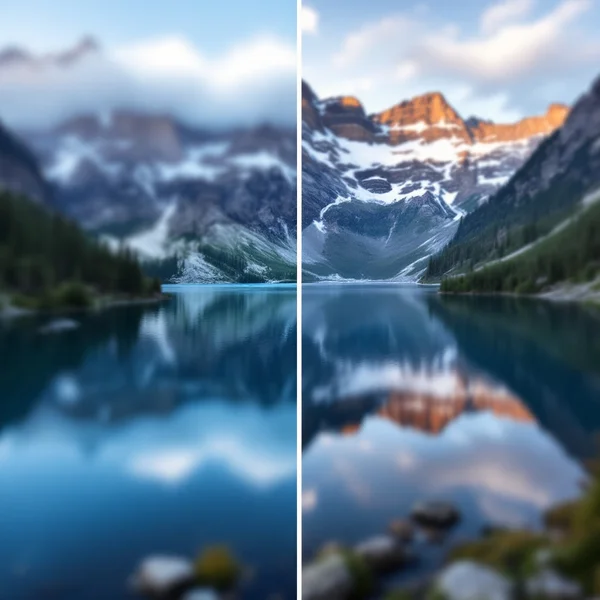
Recraft Crisp Upscale is an image upscaler from Recraft that increases resolution and sharpness while staying faithful to the original — no invented detail. In this Recraft Crisp Upscale review we explain the difference between a faithful and a generative upscaler, what one image costs, how to use the model online in WebTerra AI, and when another tool is the better call.
Many modern upscalers don't just enlarge an image; they hallucinate texture. They add skin pores, fabric weave and extra leaves on trees. Sometimes that looks great. Other times it changes a facial expression, warps the lettering on a label or introduces details that were never in the shot. Recraft Crisp Upscale takes the opposite approach: it makes the image bigger and crisper without rebuilding its content. For product photos, screenshots, logos and any image where accuracy matters, that's exactly what you want.
Its other strength is cost. In the WebTerra AI catalog it is tagged as a budget tool: one upscale costs $0.01, which makes it many times cheaper than Clarity Upscaler and Topaz Upscaler. That's why it works well as an everyday default, with the pricier upscalers saved for special cases.
What Recraft Crisp Upscale does
The model runs in image-to-image mode: upload one file and get back a larger, sharper version. There's nothing complicated to configure — it does one narrow job and does it reliably.
- Higher resolution — use the image on a website, in print or in a deck without visible pixel mush.
- Sharper edges — contours and small elements become more defined.
- Faithful to the source — no new details are invented, so faces, text and shapes stay as they were.
- Fast — the catalog describes it as a fast upscaler, which makes it practical for batches.
It's equally useful for regular photos and for images made by other AI models. A typical case: you generate a 1024×1024 image, then need more pixels for a banner or a print layout — one pass through Recraft Crisp Upscale for $0.01 solves it.
Faithful or generative: a quick way to decide
Before you pick an upscaler, ask what would hurt more: a slightly soft result, or a result that looks sharp but isn't true to the source. A few questions settle it fast.
- Is there text in the image? Labels, signs, UI screenshots and infographics need a faithful upscale — invented strokes turn letters into gibberish.
- Is it a real person or a real product? If the result has to match reality (a team photo, a catalog item), avoid tools that redraw detail.
- Is the source already decent? A reasonably clean image only needs more pixels and crisper edges, which is exactly what Recraft Crisp Upscale delivers.
- Is the source very soft and you just want it to look good? Then a detail-enhancing upscaler may give a more impressive result, at a higher price and with less fidelity.
For most day-to-day work — product cards, blog images, social posts — the first three answers point to a faithful upscale.
Recraft Crisp Upscale specs
| Parameter | Value |
|---|---|
| Developer | Recraft |
| Model type | Image upscaler (photo editor) |
| Input | Image to image |
| Input images | 1 |
| Approach | No invented detail, focus on sharpness |
| Price (1024×1024) | $0.01 |
How to use Recraft Crisp Upscale in WebTerra AI
- Sign up for WebTerra AI and get a free trial balance.
- Open the image generator in your dashboard and select Recraft Crisp Upscale.
- Upload the single image you want to enlarge.
- Optionally pick a preset that matches the content: overall quality, portrait, product and labels, or landscape and architecture.
- Run it — $0.01 is charged.
- Zoom in to compare with the original, then download.
If the image also needs edits — removing the background or a stray object — do those first. You'll work on a smaller file and upscale only the final version.
Recraft Crisp Upscale pricing
This is one of the most affordable models in WebTerra AI. Prices below are for a 1024×1024 image.
| Plan | Price in USD |
|---|---|
| Any plan or top-up pack | $0.01 |
The free trial balance you get at sign-up covers roughly 60 upscales of a typical image — enough to process a small store's product catalog or every illustration in a long article, and to decide whether the model fits your workflow. See the pricing page for plan details.
In practice, a price this low changes the habit: you can upscale every image that goes into production as a matter of routine, not only the ones that turned out too small.
Use cases and presets
Recraft Crisp Upscale doesn't need a prompt — what matters is a good source file. The dashboard offers four presets that map to the most common jobs.
1. Upscale: overall quality
The all-rounder: higher resolution and cleaner details. Use it for most photos and generated images when there's no special subject to protect.
2. Upscale: portrait
Skin, hair and eyes without the plastic look. Because nothing is invented, the person still looks like themselves — important for team photos, avatars and website portraits.
3. Upscale: product and labels
Crisp labels, materials and edges. The most valuable preset for marketplace sellers: generative upscalers often mangle small text on packaging, while a faithful upscale keeps it intact.
4. Upscale: landscape and architecture
Foliage, stone and sky without noise. Good for real estate listings, travel content, covers and presentation backgrounds.
Tips for the best results
Start from the best source you have
The model works with what's in the file. If you have several versions, use the least compressed original rather than a copy pulled from a messenger or social feed.
Edit first, upscale last
Cropping, background removal and object cleanup are best done at the original size. Upscaling should be the final step before publishing or printing.
Don't expect it to recover lost detail
A faithful upscaler doesn't paint in what isn't there. A badly blurred or damaged photo will come out larger and sharper, but missing detail won't reappear — other tools handle that, covered below.
Check at 100% zoom
Judge the result at actual size, especially small text and fine edges. You'll see immediately whether it's good enough for print or a large banner.
Match the preset to the subject
Use "product and labels" for packaging and "portrait" for faces. It's an easy way to tell the model what to prioritize.
A typical workflow: from raw image to final file
Upscaling pays off most as the last step in a chain. Here's an example for a marketplace product card.
- Shoot or generate. Photograph the product on your phone or create a scene with an image model.
- Clean up. Remove stray objects with Object Removal, or cut out the background with Remove Background.
- New background. If needed, drop in a prompt-based backdrop with Background Replace — a bright studio or a kitchen counter.
- Upscale. Run the final version through Recraft Crisp Upscale with the "product and labels" preset so the label and edges come out crisp.
- Review. Check at 100% and download for publishing.
The whole chain takes minutes and costs just cents, and the upscale is the cheapest step in it. The same logic works for blog illustrations: generate, fix details with a prompt-based editor, then enlarge for the cover. Just keep the order — all content changes before the upscale, because the model enlarges exactly the frame it receives.
Who it's for
- Marketplace sellers. Meet platform image requirements without distorting labels.
- Social media teams and designers. Bring generated images up to banner, cover and poster size.
- Web studios and site owners. Refresh old site images without a reshoot.
- Real estate agencies. Sharper interior and exterior photos for listings.
- Course creators and presenters. Screenshots, diagrams and illustrations that hold up on a big screen.
Recraft Crisp Upscale vs other upscalers
WebTerra AI includes several upscalers and related editing tools. They complement rather than replace each other.
| Model | Approach | Pick it when |
|---|---|---|
| Recraft Crisp Upscale | Fast upscale, no invented detail | Products, text, logos, bulk work at $0.01 |
| Clarity Upscaler | Detail-enhancing upscale | A weak frame needs added texture |
| Topaz Upscaler | Upscale to 4K | You need a large final resolution for print or screens |
| Photo Restoration | Restoring old photos | The photo is damaged, faded or very old |
If a frame is soft and lacks texture, look at Clarity Upscaler — it deliberately adds detail. For a large final resolution, read the Topaz Upscaler review. For old family photos, Photo Restoration is the right tool. Recraft Crisp Upscale is the sensible choice when accuracy and budget matter: it won't change what's in the frame, and it costs a fraction of the alternatives.
All of these live in the AI photo editor section and share one balance, so chaining them — remove background, replace it, then upscale — is straightforward.
Limitations
- One image per run. The model accepts a single input file.
- No recovery of lost detail. Without invented detail, heavily blurred or damaged photos won't come out like new.
- No content editing. It can't change the background, remove objects or fix colors — use the dedicated editor tools for that.
- Price quoted for 1024×1024. The $0.01 price applies to an image of that size; other sizes may cost differently.
FAQ
How much does Recraft Crisp Upscale cost?
Upscaling a 1024×1024 image costs $0.01 on any plan.
How is it different from Clarity Upscaler?
Clarity adds new detail and texture; Recraft Crisp Upscale only raises resolution and sharpness while keeping the original intact. It's also many times cheaper.
Will it change faces in a portrait?
It doesn't invent detail, so facial features stay as they are in the source. There's also a dedicated portrait preset.
Does it work for product photos with text?
Yes — that's one of its main use cases. The "product and labels" preset focuses on crisp labels, materials and edges.
Do I need to write a prompt?
No. Upload the image and optionally pick a preset. The model has one job — enlarge and sharpen — so a text description isn't required.
How many images can I upscale for free?
The free trial balance covers about 60 upscales of a typical image.
Recraft Crisp Upscale is a simple, honest tool worth keeping close if you work with images every day. Create a WebTerra AI account, claim your free trial balance and upscale your first photos online right now.
Try AI models yourself
Models for video, images and audio in one place — a free trial balance when you sign up
Start for free