FLUX Kontext Max Review: AI Photo Editing by Instruction
The senior model in Black Forest Labs’ Kontext line handles complex multi-step photo edits while keeping the original composition. Features, pricing, prompts, tips and comparisons.
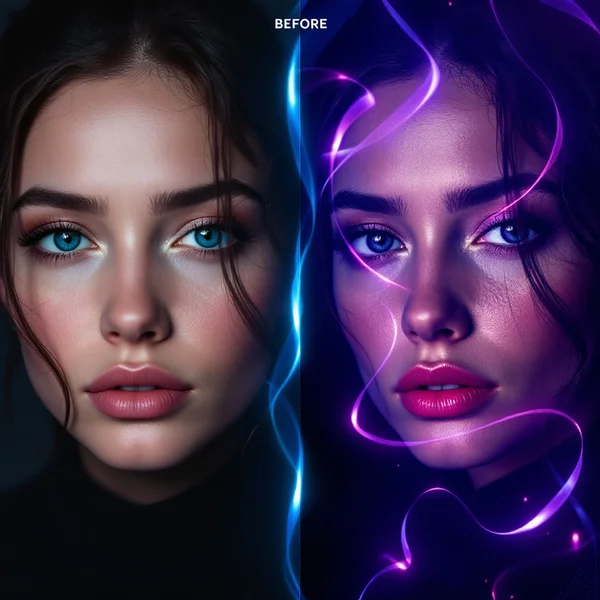
FLUX Kontext Max is the senior model in the Kontext line from Black Forest Labs, the team behind the FLUX family of generative models. It is not a from-scratch image generator but an editor: you upload a photo and describe what to change. In this FLUX Kontext Max review we cover the edits it handles, how to use it online in WebTerra AI, what one edit costs and when a different model is the better pick.
Max’s main strength is complex instructions. It understands multi-step commands like “remove the background, change the lighting, add a caption” and carries them out in a single run while keeping the original composition: camera angle, proportions and object placement. The shot stays yours — only what you asked for changes.
It is a practical tool for marketplace sellers, social media managers, photographers, designers and anyone who regularly needs to fix up photos without spending hours in a graphics editor.
What FLUX Kontext Max can do
The model works in image-to-image mode: your image (or several) plus a text instruction go in, an edited photo comes out. Based on the model card and the ready-made scenarios in the dashboard, it covers these jobs:
- Remove an object. Name what to delete — the background fills in.
- Clean up the shot. Wires, passersby, litter, stray text — anything that distracts from the subject.
- Replace the background. Same subject, new setting: studio, city, nature, interior.
- Portrait retouch. Subtle touch-ups to skin and lighting without the plastic look.
- Change outfit or setting. Several edits in one instruction.
- Product listing background. A selling backdrop for marketplaces.
- Remove text and signs. Clean walls, shop windows and packaging.
- Quality boost. Richer colors, sharpness and detail — same shot.
Reference images deserve a mention too: you can attach up to 4 images to one request. That helps when it is easier to show the model the source photo plus an example of the background or style you want than to describe everything in words.
FLUX Kontext Max specifications
| Parameter | Value |
|---|---|
| Developer | Black Forest Labs |
| Model type | Instruction-based image editor |
| Input | Image-to-image (photo + text) |
| Images per request | Up to 4 |
| Key feature | Multi-step instructions, composition preserved |
| Price per 1024×1024 edit | 12–13 credits (about $0.14–0.17) |
How to use FLUX Kontext Max in WebTerra AI
- Sign up for WebTerra AI — you get 60 free credits.
- Open the image generator in your dashboard and choose FLUX Kontext Max.
- Upload the photo you want to edit. Add more references if needed — up to 4 images in total.
- Write the instruction: what to change and what to keep. You can start from a ready-made scenario such as “Remove an object”, “Replace background” or “Portrait retouch”.
- Run the generation and compare the result with the original.
- If something is off, refine the instruction or run the next edit on the result you just got.
A workflow for photo series
When you need to process a whole series — say, twenty product photos for a catalog — perfect the instruction on one shot first. Once you like the result, save the prompt and reuse it for the rest, changing only the product name. Every listing then gets the same background, lighting and mood, and the catalog looks consistent.
The same rule works for portrait sets: one tested instruction gives the same retouching style across all frames. If you need the photos at a large size, upscale them with a dedicated upscaler after all the edits, not before.
More photo tools are collected on the AI photo editor page.
FLUX Kontext Max pricing
Cost of one 1024×1024 edit on each plan:
| Plan | Credits | Price in USD |
|---|---|---|
| Starter | 13 | about $0.17 |
| Pro | 12 | about $0.15 |
| Ultra | 12 | about $0.14 |
The 60 free credits you receive on sign-up cover roughly four Max edits — enough to test the model on your own photos: remove an unwanted object, swap a background and judge the retouching. Credit packs and discounts on higher plans are on the pricing page.
FLUX Kontext Max prompt examples
Write instructions in English — the model understands it most precisely. Each prompt comes with a short note on when to use it.
Multi-step edit
Remove the background and replace it with a soft beige studio backdrop, make the lighting warmer and softer, and add the text "NEW COLLECTION" in thin white letters at the top. Keep the person, pose and framing unchanged.
The classic Max scenario: three changes in one command, composition preserved.
Clean up a travel shot
Remove all people in the background, the power lines across the sky and the trash bin on the left. Fill the areas naturally to match the surrounding street. Keep everything else exactly as it is.
Passersby, wires and clutter disappear in a single pass.
Product listing background
Place this sneaker on a light concrete podium with a pastel blue background, soft shadow under the product, clean e-commerce look. Do not change the shoe’s shape, color or logo.
A marketplace backdrop. Explicitly forbid changes to the product itself.
Subtle portrait retouch
Subtly even out the skin tone, reduce under-eye shadows and add soft natural window light from the left. Keep the face shape, features and skin texture realistic.
Retouching without the plastic look: asking to keep skin texture makes a real difference.
Remove text and signs
Remove all text, stickers and logos from the shop window and the wall, leaving clean glass and plain painted surface. Keep reflections and lighting.
Clean storefronts and walls for interior or facade photos.
Change outfit and setting
Change her outfit to a camel wool coat and a white turtleneck, and move the scene to an autumn city street with fallen leaves. Keep her face, hairstyle and pose the same.
Two big changes while the person and pose stay intact.
Tips for writing FLUX Kontext Max instructions
Name objects precisely
“Remove the clutter” is a weak instruction. “Remove the red car on the right and the man in the blue jacket” is a strong one. The more precisely you identify an object — color, position, size — the less likely the model is to touch anything else.
Say what must stay the same
Phrases like “Keep the person, pose and framing unchanged” or “Do not change the product” are the easiest way to protect what matters. Max already preserves composition, but an explicit note makes results more predictable.
Structure multi-step edits
List actions in a logical order: remove first, then replace, and finally add text or lighting. Separate steps with commas or “and”. If the steps feel cramped in one sentence, write several short ones.
Put on-image text in quotes
If you need a caption, put it in quotes and describe the style: size, color, placement. Short captions tend to come out more reliably than long passages.
Use reference images
If a background or style is hard to describe, attach an example as a separate image (up to 4 in total) and say in the instruction what to take from it.
Tackle heavy edits in passes
When there are a lot of changes, two or three passes are sometimes more reliable: each new run works on the previous result.
Who FLUX Kontext Max is for
- Marketplace sellers. Listing backgrounds, clean shots and a consistent style across the catalog.
- Social media and content marketing. Quickly adapting photos for posts, stories or banners with captions.
- Photographers. Portrait retouching, removing passersby and wires, background swaps without complex compositing.
- Designers and agencies. Fast mockups and variations for client presentations.
- Real estate and hospitality. Clean facades and interiors without stray signs or objects.
- Travelers. Holiday photos without crowds in the frame.
FLUX Kontext Max vs. other tools
| Model | Job | Choose it when |
|---|---|---|
| FLUX Kontext Max | Complex photo edits | Multi-step instructions, composition matters |
| FLUX Kontext Pro | Targeted photo edits | One simple change at a lower price |
| Seedream 4.5 Edit | Prompt-based editor | An alternative text-driven editor |
| Object Removal | Remove an object | You only need to delete something |
| Remove Background | Background removal | You need a transparent background, not a new scene |
| Topaz Upscaler | Upscale to 4K | The edited photo needs to be larger |
FLUX Kontext Pro is the younger model in the same line, built for targeted edits. It costs less and is enough for a single simple change. Max earns its price when there are several edits or they are complex.
Seedream 4.5 Edit is another text-driven editor. If Max’s take doesn’t suit you, run the same instruction through Seedream and compare.
Single-purpose tools — Object Removal and Remove Background — do one job without needing an instruction at all. And Topaz Upscaler fits nicely after Max when the photo has to go large for print or a banner.
Limitations of FLUX Kontext Max
- Editing only. The model card lists no text-to-image mode — you need a source photo.
- Up to 4 images per request. That may not be enough for complex collages from many sources.
- Pricier than Pro. For simple targeted fixes there is no reason to pay more.
- Results depend on the instruction. Vague wording gives vague results; sometimes a few attempts are needed.
- No upscaling built in. For large output, use a separate upscaler.
FLUX Kontext Max FAQ
How is FLUX Kontext Max different from Kontext Pro?
Max is the senior version: it handles multi-step instructions better and accepts up to 4 images per request. Pro is designed for targeted edits and costs less.
How much does one edit cost?
For a 1024×1024 image: 13 credits on Starter (about $0.17), 12 credits on Pro (about $0.15) and on Ultra (about $0.14).
Can it create images from scratch?
No. FLUX Kontext Max works with your photo: upload an image and describe the changes. For text-to-image, pick another model in the dashboard.
What language should instructions be in?
English works best — the model understands it most precisely. See the prompt examples above for ready-made instructions.
Will the composition change?
The model keeps the original composition and changes only what you specify. For extra safety, add what must remain unchanged to your instruction.
Is there a free trial?
Yes, every new account gets 60 credits — roughly four Max edits.
FLUX Kontext Max is the tool for edits that go beyond “remove that spot”: several changes at once, preserved composition and a clean result. Try FLUX Kontext Max in WebTerra AI on your own photo — the free credits cover your first edits.
Try AI models yourself
Models for video, images and audio in one place — 60 credits free when you sign up
Start for free