Seedream 4.5 Edit Review: Edit Photos With a Text Prompt
Seedream 4.5 Edit by ByteDance changes a photo from a written instruction: remove clutter, swap the background, outfit or style while keeping the face and lighting. Features, pricing and prompts.
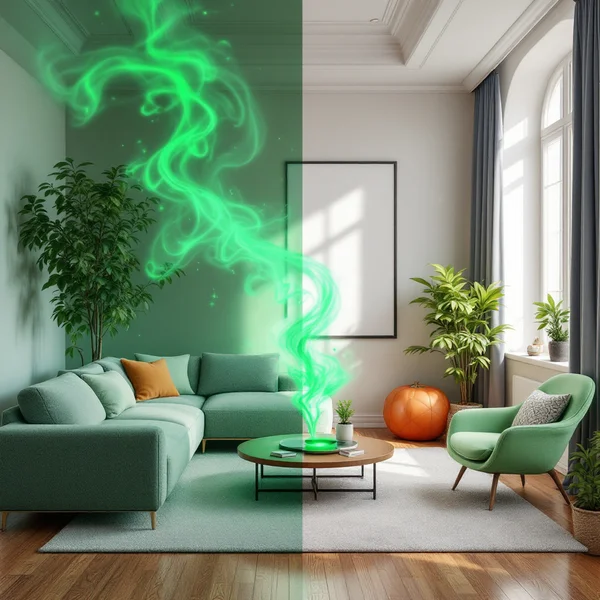
Seedream 4.5 Edit is ByteDance's model for editing photos with text. You upload an image and describe the change: remove passersby, replace the background, put the person in a new outfit, move a product into a different setting. The model applies the edit while keeping the face and lighting of the original shot. In this Seedream 4.5 Edit review we look at how to use it online in WebTerra AI, what a single edit costs and how to phrase instructions so the result is predictable.
Traditional retouching in a graphics editor takes skill: selections, masks, clone stamps, colour matching. Seedream 4.5 Edit takes a different route. You describe the outcome in plain words and the model works out how to get there. For everyday jobs such as cleaning litter out of a shot, swapping the background on a product photo or a light portrait touch-up, that is many times faster than doing it by hand.
Seedream is ByteDance's family of image models, known for strong generation and editing. The Edit version on WebTerra AI focuses specifically on changing existing photos and sits in the AI photo editor section.
What Seedream 4.5 Edit can do
The model works in image-to-image mode and accepts up to 5 input images. The core idea is a targeted change to whatever you name, without wrecking the rest of the frame. The most common jobs are:
- Remove an object. Name what should go and the background fills in.
- Clean up the shot. Wires, passersby, litter and stray text disappear with one instruction.
- Replace the background. Same subject, new setting: studio, city or nature.
- Product cutout. A clean cutout for marketplaces.
- Portrait retouch. Subtle touch-ups to the face and light without the plastic look.
- Change outfit or setting. Several edits in a single instruction.
- Product listing background. A backdrop that helps a listing sell.
- Portrait background. A studio or city backdrop behind the person.
- Remove people from the background. A travel shot without the crowds.
- Remove text and signs. Clean walls, shop windows and packaging.
All of these are available as ready-made presets in the dashboard. Treat them as templates: open a preset, add your photo and tweak the wording to fit the job. Being able to upload several images (up to 5) lets you give the model extra context, for example a product photo plus a picture of the kind of setting you have in mind.
Specifications
| Parameter | Value |
|---|---|
| Developer | ByteDance |
| Type | Text-guided image editing |
| Input mode | Image-to-image |
| Input images | up to 5 |
| Size used for pricing | 1024 × 1024 |
| Price per generation | $0.11 |
How to use Seedream 4.5 Edit in WebTerra AI
- Sign up for WebTerra AI and receive a free trial balance.
- Open the image generator in your dashboard and select Seedream 4.5 Edit.
- Upload the photo you want to change. For more involved edits, add supporting images, up to 5 in total.
- Pick a preset (for example Remove an object or Product listing background) or write your own instruction.
- Run the generation and compare the result with the original.
- If the edit is off, refine the instruction and try again. A complex change often works better in two passes, feeding the edited result back in as the new input.
Seedream 4.5 Edit pricing
One edit at default settings (1024 × 1024) costs $0.11 on every plan.
| Plan | Price per generation |
|---|---|
| Any plan or top-up pack | $0.11 |
The free trial balance on sign-up covers 6 edits: enough to clean up a few shots, swap the background on a product photo and see how the model handles your typical tasks. Top-up packs and plans are listed on the WebTerra AI pricing page.
The low price per edit is especially useful for catalogues: you can process a whole series of product photos in a consistent style without booking a separate shoot for every item.
Prompt examples
English instructions give the most reliable results. Here are ready-to-use examples.
1. Remove passersby. A travel shot without strangers.
Remove all people in the background, keep the main subject unchanged, fill the empty areas naturally with the surrounding street and buildings
2. Product listing background. The product on a clean surface with soft light.
Place the product on a light marble countertop with soft morning window light and a subtle shadow, keep the product shape, label and colors exactly the same
3. Studio portrait background. A business look without touching the face.
Replace the background with a neutral grey studio backdrop, keep the person's face, hair and lighting unchanged
4. Outfit and setting in one instruction.
Change the outfit to a beige trench coat and white sneakers, move the person to an autumn park with yellow leaves, keep the face and pose identical
5. Remove text. A clean shop window or wall without signage.
Remove all text, logos and signs from the shop window, keep the reflections and glass texture realistic
6. Subtle retouch. Better light without plastic skin.
Subtle portrait retouch: even out the lighting on the face, reduce harsh shadows, keep natural skin texture and all facial features
Tips for writing Seedream 4.5 Edit instructions
Say what to change and what to keep
The most reliable structure is an action plus a constraint: "replace the background with…, keep the face and pose unchanged". An explicit "keep … unchanged" noticeably lowers the chance that the model touches something you wanted to preserve.
Name objects precisely
"Remove the red car on the left" works better than "remove the car" when there are several cars in frame. Mention colour, position and size, anything that pins the object down unambiguously.
Describe the new setting like a photographer
When replacing a background, mention the type of light (soft daylight, evening, studio), the surface and the mood. That helps the new background blend with the subject so shadows and reflections look natural.
Break complex edits into steps
The model can handle several changes in one instruction, but if the result is off, split the job: clean up the shot first, then swap the background, then change the outfit. Each step is cheap and you keep tighter control over the outcome.
Check the small details
After each edit, look closely at packaging text, fingers and object edges. If something changed, add an explicit requirement to preserve that element.
Who Seedream 4.5 Edit is for
- Marketplace sellers. Listing backgrounds, cutouts and cleaning clutter out of product photos.
- Social media managers. Quick variations of one shot for different posts and seasons.
- Travel creators. Shots without tourist crowds, wires and litter.
- Real estate agents and interior designers. Decluttering rooms of personal items in listing photos.
- Photographers. A fast draft retouch or background swap before final processing.
- Marketers. Adapting one product photo to several ad scenarios.
Workflow: a product listing in three steps
Photograph the product on your phone anywhere with even light. Use the first edit to clean up the frame: a hand, a cable, stray items on the table. Use the second to place the product on a neutral surface with a soft shadow, or into a scene that suits the category: a kitchen for cookware, a bathroom for cosmetics, a desk for gadgets. If the marketplace wants large images, upscale the result as a third step. That is three inexpensive generations instead of a dedicated product shoot.
Workflow: a travel photo without the crowd
Popular landmarks are rarely empty. Upload the shot and ask the model to remove the people in the background while keeping you and the architecture unchanged. If there are also wires or construction fences, remove them in a follow-up edit rather than the same instruction, so the model can focus on one task at a time.
Comparison with other editing tools
The WebTerra AI editor has several models, and each one is strongest at its own job.
| Model | Job | When to choose it |
|---|---|---|
| Seedream 4.5 Edit | Prompt-based editor | Varied text-driven edits: background, outfit, objects, retouch |
| FLUX Kontext Max | Complex photo edits | Multi-step changes when you want an alternative take |
| Object Removal | Remove an object from a photo | You only need to delete something, nothing else |
| Remove Background | Background removal | You need a transparent background, not a new one |
| Topaz Upscaler | Upscale to 4K | You need high resolution after editing |
Seedream 4.5 Edit is the all-rounder: one model covers object removal, background replacement and outfit changes. If you only need a single narrow operation, a specialised model can be simpler. For complex multi-step edits it is worth comparing the result with FLUX Kontext Max. For removing just one item there is Object Removal, and for a transparent background without generating anything new, Remove Background. Once editing is done, you can enlarge the image in Topaz Upscaler if you need print or banner resolution.
Limitations and what to keep in mind
- You need a source photo. The model edits existing images; it does not generate from scratch from text alone.
- Pricing is quoted for 1024 × 1024. Other sizes may cost differently, so check in the dashboard before running.
- Small text and logos. Text on packaging or signs can get distorted during an edit. Ask the model to preserve it, or check the result carefully.
- Ambiguous instructions. With several similar objects in the frame, the model may change the wrong one. Be specific about position and features.
- Image rights. Edit photos you have the rights to, and do not use the model for misleading changes to other people's pictures.
FAQ
How much does one Seedream 4.5 Edit generation cost?
$0.11 per generation on any plan. The free trial balance covers 6 edits.
How many images can I upload?
Up to 5. The main photo is the one being edited; the others provide extra context.
Does the person's face stay the same?
The model is designed to keep the face and lighting. To be safe, state in the instruction that the face must remain unchanged.
Can I make several changes at once?
Yes, for example changing both outfit and setting in one instruction. If the result is imprecise, split the task into steps.
What language should I write instructions in?
English gives the most accurate results. Short, simple sentences beat long, convoluted ones.
How is it different from Remove Background?
Remove Background only cuts out the background. Seedream 4.5 Edit can generate a new background, remove objects and change outfits and style.
Seedream 4.5 Edit lets you edit photos with words instead of masks and brushes. Claim your free trial balance on sign-up and try your first edit in the WebTerra AI dashboard.
Try AI models yourself
Models for video, images and audio in one place — a free trial balance when you sign up
Start for free