FLUX 3 Video Review: Video with Sound from the FLUX Team
FLUX 3 Video is Black Forest Labs’ first video model: the recognizable FLUX look, synchronized sound and clips up to 20 seconds. We cover modes, pricing, prompts and limits.
FLUX 3 Video is the first video model from Black Forest Labs, the team behind the popular FLUX line of image generators. It brings the recognizable FLUX look to motion, generates synchronized sound on its own and produces clips up to 20 seconds long. In this FLUX 3 Video review we look at what the model can do, what a generation costs in WebTerra AI, how to use keyframes, and how to write prompts for a cinematic result.
Black Forest Labs made its name with the FLUX image models, valued for photorealism and fine detail. So the main expectation from the video version is the look of the frame — and that is the right lens for deciding whether this model fits your project.
FLUX 3 Video is useful for advertisers, social media managers, online store owners, bloggers and anyone who needs short, atmospheric clips with sound without a film crew. It runs online, in your browser.
What FLUX 3 Video can do
The model supports two main modes and several control tools that make it flexible across different tasks.
- Text to video. Describe a scene in words and get a clip.
- Image to video. Upload a picture and the model brings it to life.
- Synchronized sound. Audio generation is on by default: the model adds sound that matches the scene.
- Duration from 5 to 20 seconds. You can choose the length in one-second steps.
- Two resolutions. 720p for quick tests and social media, 1080p for final cuts.
- Seven aspect ratios. 16:9, 9:16, 1:1, 4:3, 3:4, 21:9 and 2:1 — from vertical Reels to widescreen cinema.
- First and last frame. You can set how the clip starts and how it ends.
- Up to 10 keyframes. For tighter control over how the scene develops.
The dashboard has presets for common jobs: “Cinematic shot”, “Product video”, “Nature / time-lapse”, “Animate a photo (image-to-video)”, “Character line with sound”, “Scene with ambient sound”, “First-person vlog”, “Food close-up”, “Fantasy scene” and “Sports slow motion”.
FLUX 3 Video specs
| Parameter | Value |
|---|---|
| Developer | Black Forest Labs |
| Type | Video generation with sound |
| Input modes | Text to video, image to video |
| Duration | 5–20 seconds (1 s steps) |
| Resolution | 720p, 1080p |
| Aspect ratios | 16:9, 9:16, 1:1, 4:3, 3:4, 21:9, 2:1 |
| First / last frame | Yes |
| Keyframes | Up to 10 |
| Audio | Generated with the video (on by default) |
| Default settings | 5 s, 720p, 16:9, with sound |
| Default price | 123–137 credits (about $1.42–1.75 depending on plan) |
How to use FLUX 3 Video in WebTerra AI
- Log in or sign up and open the video generation dashboard.
- Choose FLUX 3 Video from the model list. Other video models are collected on the AI video generation page.
- Pick a mode: text to video or photo animation. For the latter, upload a starting image.
- If needed, set the first and last frame or add keyframes — up to ten.
- Choose the duration (5–20 s), resolution (720p or 1080p) and aspect ratio.
- Write a prompt or pick a preset. If sound matters, describe it right in the text.
- Check the cost and start the generation. You can then preview and download the clip.
FLUX 3 Video pricing
The price depends on duration and resolution. With the default settings (5 seconds, 720p, 16:9, with sound), one generation costs:
| Plan | Credits per clip | Price in USD |
|---|---|---|
| Starter | 137 | about $1.75 |
| Pro | 130 | about $1.57 |
| Ultra | 123 | about $1.42 |
The base rate is 28.8 credits per second at 720p and 49.16 credits per second at 1080p, and your plan discount is applied on top. Approximate base amounts before the discount:
| Duration | 720p | 1080p |
|---|---|---|
| 5 s | 144 credits | about 246 credits |
| 10 s | 288 credits | about 492 credits |
| 20 s | 576 credits | about 983 credits |
To be upfront about the welcome bonus: the 60 free credits you get on sign-up aren’t enough for a FLUX 3 Video clip. They are well spent on image models instead — for example, to prepare a starting frame for image-to-video mode. Credit packs and discounts are on the WebTerra AI pricing page.
Prompt examples
Write prompts in English. Here are ready-to-use examples; the first one is the prompt from the model’s demo clip.
Macro time-lapse (model demo)
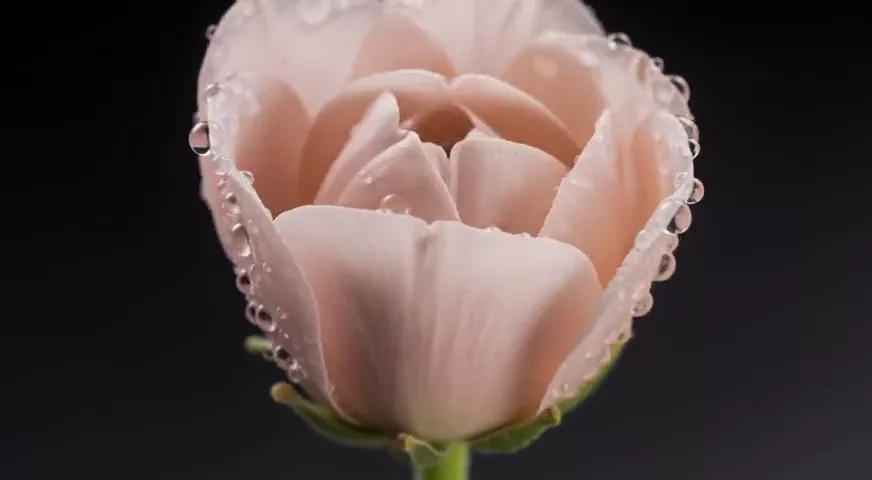
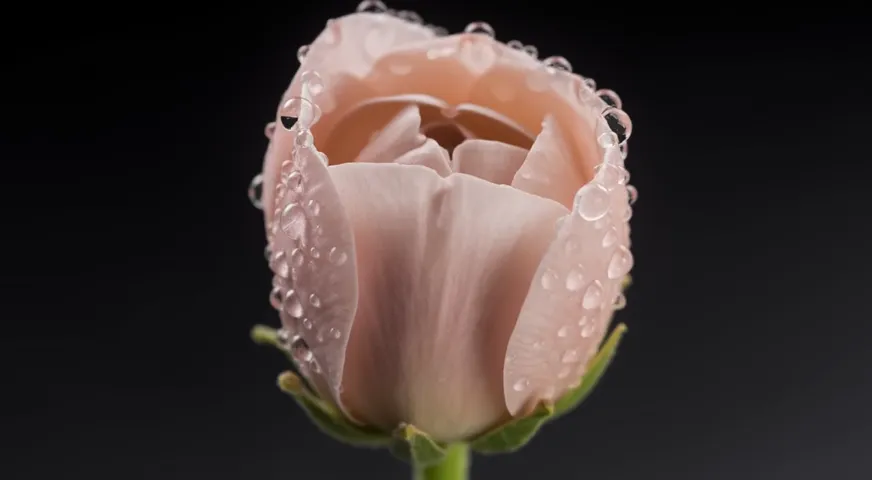
Macro shot of a flower blooming in timelapse, petals unfolding, dew drops, soft studio light on a dark background, no text, no captions, no watermark
A flower blooming in time-lapse, dew drops, soft light on a dark background. The “no text, no captions, no watermark” ending helps avoid stray lettering in the frame.
Product video
Slow 360-degree orbit around a glass perfume bottle on a black mirror surface, golden rim light, subtle reflections, soft whoosh sound, premium commercial style, no text
An ad clip for a marketplace or social media with a light sound accent.
Scene with ambient sound
A cozy mountain cabin during a thunderstorm, rain hitting the window, fireplace crackling, a cat sleeping on a blanket, warm firelight, sound of rain and distant thunder
Sound is described along with the visuals — the model generates them in sync.
Character line
Close-up of an old fisherman on a wooden pier at dawn, he looks at the camera and says: "The sea always gives back.", seagulls and waves in the background, cinematic lighting
A short quoted line for clips that need a voice.
First-person vlog
First-person POV walking through a busy night market, handheld phone camera, sizzling street food stalls, lanterns overhead, crowd chatter, vlog style
A POV shot that looks filmed on a phone, with background chatter.
Sports slow motion
Slow motion of a basketball player dunking, sweat drops in the air, arena spotlights, crowd roaring, dramatic low angle, cinematic
A dynamic slow-motion moment for sports content.

Tips for prompting FLUX 3 Video
Describe motion, not just the picture
A video prompt should answer “what happens”: how the camera moves (orbit, dolly in, tracking shot, static), what the characters do, how the light changes. A static description often produces a static clip.
Give sound its own phrase
Because the model generates audio, describe it explicitly: “sound of rain”, “crowd chatter”, “soft piano music”, “footsteps on gravel”. Put a character’s line in quotes and keep it short.
Test at 720p and 5 seconds
The cheapest way to check an idea is the default settings. Once composition and motion work, move up to 1080p and a longer duration.
Use the first and last frame
If the clip needs to land on a specific ending — a product package or a logo, say — set the last frame. That makes the result predictable and stitching several clips together easier.
Keyframes for longer scenes
For 15–20 seconds, placing several keyframes helps keep the story on track and stops the scene from drifting.
Rule out the extras
Ending a prompt with “no text, no captions, no watermark” helps you get a clean frame without random lettering.
Choosing aspect ratio and duration
Seven aspect ratios and durations from 5 to 20 seconds make for plenty of combinations. To avoid paying for more than you need, start from where the clip will be published.
| Task | Aspect ratio | Duration |
|---|---|---|
| Reels, Stories, short vertical video | 9:16 | 5–10 s |
| Social feed, product card | 1:1 or 3:4 | 5–8 s |
| Website, presentation, YouTube | 16:9 or 4:3 | 8–15 s |
| Cinematic teaser, intro | 21:9 or 2:1 | 10–20 s |
For in-feed ads, 5–8 seconds is usually enough: people scroll fast, so the key moment has to happen early. Longer 15–20-second clips make sense for atmospheric scenes, time-lapses and stories that develop through keyframes.
Use cases
- Advertising and e-commerce — product clips for marketplaces, websites and ad platforms.
- Social media and bloggers — vertical Reels and Stories in 9:16, POV vlogs, atmospheric intros.
- Restaurants and cafés — mouth-watering close-ups of dishes for menus and social media.
- Film and music — widescreen 21:9 or 2:1 shots for teasers and music videos.
- Sports and events — dynamic moments in slow motion.
- Photographers and designers — animating their own images in image-to-video mode.
Comparison with other video models
WebTerra AI offers many video models, and FLUX 3 Video is best compared with those closest in purpose.
| Model | Profile | When to choose it |
|---|---|---|
| FLUX 3 Video | FLUX look, sound, up to 20 s, up to 10 keyframes | A longer atmospheric clip with sound and story control |
| Veo 3.1 | 4K, with sound | You need resolution above 1080p |
| Seedance 2.0 | Audio + multi-scene | You need a clip made of several scenes |
| Kling 3.0 | Top motion quality | Complex dynamics and motion are the priority |
| Wan 2.7 | Open source, affordable | Budget and high-volume testing matter |
The plain summary: FLUX 3 Video isn’t the cheapest model, and for bulk drafts a more affordable one makes more sense. If you need 4K, look at Veo 3.1. FLUX 3 Video’s strengths are durations up to 20 seconds, synchronized sound, a wide choice of aspect ratios, control through first, last and keyframes, and the frame aesthetics the FLUX line is valued for.
Limitations
- 20 seconds maximum. Longer videos have to be assembled from several generations.
- Resolution up to 1080p. The model doesn’t offer 4K.
- Price grows with duration. 20 seconds at 1080p costs several times more than the standard 5 seconds at 720p.
- Free credits won’t cover a clip. Your first video requires a plan or a credit top-up.
- Listen to the audio. Check that the sound matches your intent before publishing; if you need professional narration in a specific voice, generate it separately and edit it in.
FAQ
How much does FLUX 3 Video cost?
A default clip (5 s, 720p, with sound) costs 137 credits (about $1.75) on Starter, 130 (about $1.57) on Pro and 123 (about $1.42) on Ultra. Longer clips and 1080p cost more.
What is the maximum video length?
20 seconds. The minimum is 5 seconds, adjustable in one-second steps.
Does the model generate sound?
Yes, synchronized sound is generated together with the video and is on by default.
Can I animate my own photo?
Yes, in image-to-video mode: upload an image and describe what should happen.
Which aspect ratios are supported?
16:9, 9:16, 1:1, 4:3, 3:4, 21:9 and 2:1.
What are keyframes?
Reference images the clip passes through. FLUX 3 Video supports up to 10 keyframes, plus a separate first and last frame.
FLUX 3 Video is a new way to get the recognizable FLUX aesthetic in motion and with sound. Open the WebTerra AI dashboard, start with 5 seconds at 720p and watch your idea come to life.
Try AI models yourself
Models for video, images and audio in one place — 60 credits free when you sign up
Start for free