Face Swap Review: Put Your Face on Any Photo Online
Face Swap puts your face on any photo: two images in, one finished picture out. Here is how to use it, what it costs per swap and how to avoid the mistakes that make swaps look fake.
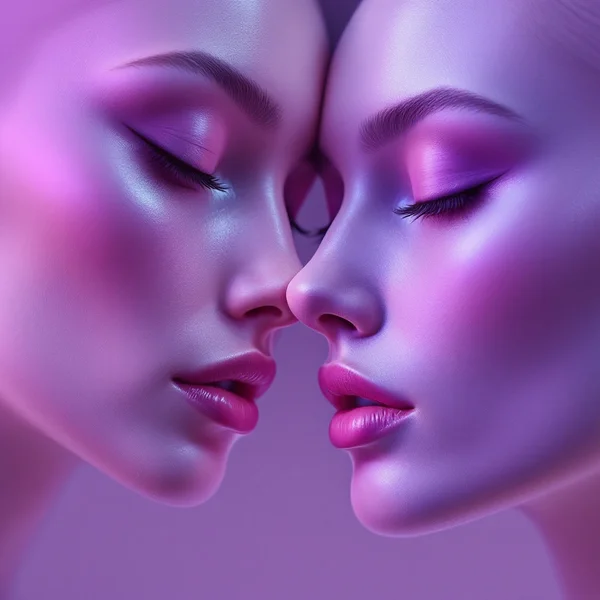
This Face Swap review covers a tool that does one job and stays focused on it: moving a face from one photo onto another. You upload a photo of yourself and a base image — a shot with the outfit, costume, location or pose you want — and the model returns a new picture in which that person is now you. No Photoshop, no masks, no manual skin-tone matching and no hours of retouching. Face Swap runs online, right in your browser, inside the WebTerra AI dashboard.
It is handy for anyone who needs a personalized image: creators who want to try on a look without a photo shoot, social media managers building playful posts, people planning parties and quests, and designers who need a mockup with a client’s real face. The model card in WebTerra AI puts it simply: “Put your face on any photo. High accuracy, details preserved.” Below we look at what that means in practice, how to use Face Swap step by step, what a swap costs and where the tool’s limits are.
What Face Swap can do
Face Swap lives in the avatars section of WebTerra AI. It works in an “image pair to image” mode: you provide exactly two files and get back one finished picture. There is no text prompt — everything the model needs comes from the images themselves.
- Face replacement on a photo. The face from your shot is transferred onto the person in the base image.
- Details preserved. Everything else — clothing, hair, background, lighting, composition — stays from the base image, so the result reads as a single photo rather than a collage.
- One face reference. The model takes a single source image for the face, so each swap is driven by one clear portrait.
- Square output by default. The price on the model card is calculated for a 1024×1024 image.
- No prompt needed. You don’t have to describe anything — you just need to choose the two photos well.
The core idea is speed and predictability. You can see the base image before you start, so you already know what the shot will look like: same pose, same outfit, same background, just with your face. That sets Face Swap apart from generative models that create a picture from scratch based on a description, where the result can drift far from what you had in mind.
Face Swap specs
| Parameter | Value |
|---|---|
| Developer | WebTerra AI |
| Type | Image, face swap |
| Section | Avatars |
| Input mode | Image pair → image |
| Face source images | 1 |
| Size used for pricing | 1024×1024 |
| Prompt | Not required |
| Price per swap | from 17 credits (about $0.20 on the Ultra plan) |
How to use Face Swap in WebTerra AI
How do you use Face Swap so the first attempt already looks right? The whole process takes a few minutes, and most of that time goes into picking the photos.
- Sign up or log in to WebTerra AI — new users get 60 free credits.
- Open the image pair generator in the dashboard and choose Face Swap.
- Upload your face photo — a portrait where the face is clearly visible, evenly lit and not covered by hands, hair or glasses.
- Upload the base image — the shot you want your face placed into: a look, a costume, a scene.
- Check the cost shown before launch and press generate.
- Review the result. If something is off, it usually pays to change one of the photos rather than simply rerunning.
- Download the finished image and use it in a post, mockup or card.
Other face and avatar tools are collected on the AI avatars page, including models that animate a photo and make a character talk.
Face Swap pricing
Face Swap pricing is a flat rate per swap, calculated for a 1024×1024 image. Credits are charged with your plan’s discount, so a generation is slightly cheaper on higher plans.
| Plan | Credits per swap | Cost in USD |
|---|---|---|
| Starter | 19 | about $0.24 |
| Pro | 18 | about $0.22 |
| Ultra | 17 | about $0.20 |
You get 60 free credits when you sign up. That covers roughly three face swaps on the Starter plan — enough to see how the model handles your own photos and learn which shots work best. You can compare plans on the WebTerra AI pricing page.
A budgeting tip: since every swap costs the same, savings come from preparation rather than settings. A well-chosen pair of photos gets you the right result on the first try; a poor pair means rerunning.
Face swap ideas
Face Swap has no text prompt, so instead of prompts here are ready-made scenarios: which base images to use and what to expect. If you don’t have the right base image, you can first generate one with any image model in WebTerra AI and then put your face into it.
1. A photo-shoot look without the shoot
Find or generate a photo in the style you want — a business suit in a bright office, an evening dress, streetwear. A front-facing portrait of you in daylight gives the most natural swap. For example, you could create the base image with an image model using this prompt: “Studio fashion portrait of a woman in a beige trench coat, soft daylight, plain light-grey background, front-facing, shoulders up” — the frontal angle matters here.
2. A costume character for a party
Pirate, astronaut, knight, fairy-tale heroine — for a card, an invitation or a kids’ quest. Choose a base where the character’s face isn’t hidden by a helmet or mask: the model replaces the face, it doesn’t invent one. Base prompt: “Portrait of an astronaut in a white spacesuit with the helmet off, standing in front of a rocket, bright cinematic light, face clearly visible”.
3. A fun social media post
You as a meme hero, on the cover of an imaginary magazine or in a retro era. These images tend to get reactions. Base prompt: “1970s retro photo of a man in a brown suit with wide lapels, film grain, warm tones, waist-up, looking at the camera”.
4. A mockup for a client pitch
A designer or photographer can show a client how they would look in a planned outfit or setting before the actual shoot. It doesn’t replace the session, but it helps agree on the concept.
5. A series in one style
If you need several shots in a consistent look — say, a team page with matching design — prepare base images with the same lighting and background, then swap in each team member’s photo one by one (with their consent).
Tips for a natural-looking face swap
The face photo
- The face should be sharp and take up a noticeable part of the frame. A tiny face in a wide shot carries little detail.
- Even, soft light without hard shadows is ideal. Harsh side light will carry over into the result.
- Nothing should cover the features: hair, hands, sunglasses, masks, heavy filters.
- A neutral or slight expression blends with almost any base image more easily than a wide grin or a grimace.
The base image
- The head angle in the base should be close to the angle in your portrait. Front to front, slight turn to slight turn.
- Lighting in the base should ideally match in direction and warmth. A warm sunset and cold studio light are hard to blend invisibly.
- The face in the base shouldn’t be covered or too small.
- The more natural the scene, the more realistic the result. Heavily stylized illustrations can behave less predictably.
What to do if you don’t like the result
First pin down what exactly is wrong. If the face looks “foreign”, try a different portrait of yourself — better quality, similar angle. If lighting or color don’t match, look for another base image. Rerunning with the same files rarely changes the picture dramatically, so credits are better spent on a new pair of photos.
Finishing touches
You can polish the finished shot with other WebTerra AI tools — for example, increase the resolution with an upscaler or clean up the background with the photo editor. And if you want the person in the photo to speak, that’s a job for the avatar models covered below.
Who Face Swap is for
- Bloggers and creators — looks for covers, themed posts and fun recurring series without a separate shoot.
- Social media and marketing teams — interactive campaigns where the audience “tries on” a role, personalized cards, holiday creatives.
- Event organizers — invitations, quests, digital photo booths.
- Designers and photographers — quick mockups to agree on a concept with a client.
- Everyday users — gifts, greeting cards for friends, jokes for the family chat.
All these scenarios share one need: an image with a specific face in a specific context, which is faster and cheaper to make in a couple of minutes in the browser than to stage as a real shoot.
Face Swap vs other avatar models
Face Swap is the simplest tool in the avatars section: two photos in, a still image out. Other models solve neighboring tasks.
| Model | What it does | When to choose it |
|---|---|---|
| Face Swap | Swaps a face on a photo | You want yourself in a specific scene or costume |
| Business Headshot | Photos for avatars and CVs | You need a professional portrait rather than a look in someone else’s scene |
| Ideogram Character | One character, any scene | You want many new scenes with one character, described in words |
| Kling Avatar 2.0 | Talking avatar | The portrait needs to speak — for a video message or explainer |
| OmniHuman 1.5 | Gestures and expressions from audio | You need lively video with movement driven by audio |
To be honest about it: if you need a brand-new scene that doesn’t exist yet, a generative model such as Ideogram Character gives you more freedom — you describe the scene in words. Face Swap is stronger when the base image already exists and keeping it intact down to the details matters. If the shot needs to move, switch to video avatars such as Kling Avatar 2.0 or OmniHuman 1.5. And for a CV or a LinkedIn profile, Business Headshot is simpler than hunting for a base image with a suit.
Face Swap limitations
- Still images only. The model doesn’t work with video and doesn’t animate faces.
- One source face. Each generation uses a single portrait.
- Quality depends on the input photos. A blurry, dark or partly covered shot gives a weak result, and the model can’t make up for it.
- Mismatched angles and lighting between the two photos are the most common reason a swap looks unnatural.
- No text controls. The only way to steer the result is through your choice of photos.
A word on ethics. Use photos you have the right to use: your own face or the faces of people who have agreed to it. Don’t create images that could mislead, humiliate or impersonate someone. Face swapping is a creative tool, not a way to forge documents or discredit people.
FAQ
Does Face Swap need a prompt?
No. The model works with two images only: the face photo and the base image. The result depends entirely on the shots you upload.
How much does one face swap cost?
19 credits (about $0.24) on Starter, 18 credits (about $0.22) on Pro and 17 credits (about $0.20) on Ultra, for a 1024×1024 image.
How many swaps do the free credits cover?
The 60 credits you get at sign-up cover roughly three swaps on the Starter plan.
Can I swap a face in a video?
Face Swap works with photos only. For video with a face, look at the avatar models — for example, Kling Avatar 2.0 or OmniHuman 1.5.
Why does my result look unnatural?
Usually because the two photos differ in angle or lighting, or the portrait is low quality. Pick a pair of shots with a similar head turn and similar light.
Can I use photos of other people?
Only with the permission of the person whose face you use, and with respect for the rights to the base image. Don’t create images that mislead.
Face Swap is the quickest way to see yourself in a different look: two photos, a few minutes and well under a dollar per shot. Sign up for WebTerra AI, claim your 60 free credits and make your first face swap right now in the dashboard.
Try AI models yourself
Models for video, images and audio in one place — 60 credits free when you sign up
Start for free