OmniHuman 1.5 Review: Talking Photos with Gestures and Emotion
OmniHuman 1.5 by ByteDance animates a whole photo to your audio track: lips, gestures, gaze and emotion, up to 30 seconds. Features, pricing, tips and use cases.
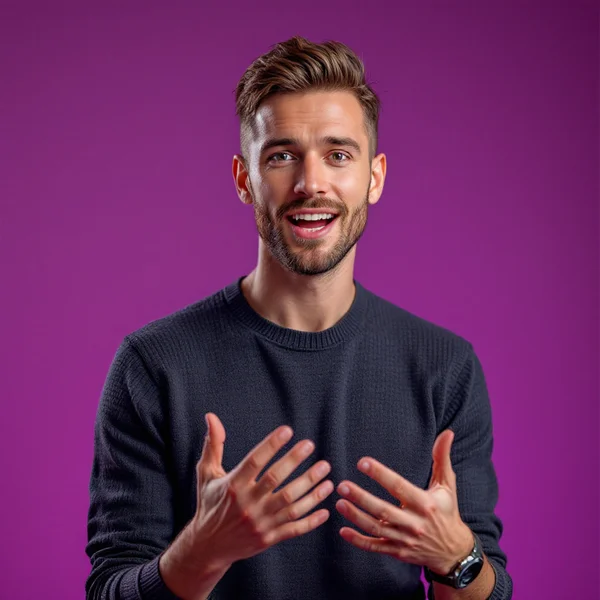
OmniHuman 1.5 is a ByteDance model that turns a single photo and an audio track into a video of that person speaking. Unlike basic lip-sync, it animates the whole frame: not just the mouth, but the hands, head and gaze, with facial expressions that follow the voice. In this OmniHuman 1.5 review we cover how the model works, what a second of video costs, which photos and recordings give the best results, and who will actually benefit from it.
ByteDance is a technology company that invests heavily in generative models for video and avatars. OmniHuman is its line of “digital humans”, and version 1.5 focuses on making the avatar feel less like a frozen mask with a moving mouth. A clip can run up to 30 seconds — enough for a greeting, a short product pitch, an answer to a customer question or an ad spot.
The model is useful for creators and experts who want to publish video regularly without filming, for marketers, online schools, support teams and anyone producing talking-head content. In WebTerra AI, OmniHuman 1.5 runs online in the browser, with nothing to install and no extra accounts.
What OmniHuman 1.5 can do
The workflow is simple: you give the model an image of a person and an audio file, and it syncs the movement to the track. Key capabilities:
- Whole-frame animation. Not only lip articulation, but gestures, head tilts and shoulder movement.
- Gaze and emotion. The avatar looks into the camera or glances away, smiles or frowns in line with the intonation of the voice.
- Up to 30 seconds of video. Enough for a complete short message.
- High resolution by default. The default setting in the dashboard is 1080p.
- Turbo mode. There is a turbo mode toggle in the settings; it is off by default.
To set the delivery style quickly, the dashboard offers presets:
- Calm presenter — steady delivery, eyes on the camera.
- Expressive blogger — lively expressions and energy.
- Product presentation — a confident speaker with gestures.
- Warm greeting — smiles, nods and a friendly gaze.
OmniHuman 1.5 specs
| Parameter | Value |
|---|---|
| Developer | ByteDance |
| Type | Avatar: video from a photo and audio |
| Input | Image + audio track |
| Duration | Up to 30 seconds |
| Default resolution | 1080p |
| Price | from $0.46 per second of video |
| Where to run it | WebTerra AI dashboard, avatars section |
How to use OmniHuman 1.5 in WebTerra AI
- Sign up for WebTerra AI and top up your balance.
- Open the avatar generator in the dashboard and select OmniHuman 1.5.
- Upload a photo of a person or character: the face clearly visible, the image sharp, the lighting even.
- Upload an audio track — a recording of your own voice or a voiceover generated by an AI model.
- Optionally pick a delivery preset and check the settings (resolution, turbo mode).
- Start the generation, review the result and download the video.
Prepare the audio in advance: the track sets the length of the clip and therefore the cost. If you do not have a voice recording yet, you can create one with a text-to-speech model — for example ElevenLabs Multilingual — and then feed the file to OmniHuman 1.5.
OmniHuman 1.5 pricing
Pricing is per second of video. Here is the cost of one second with default settings (1080p, turbo mode off):
| Plan | Price per second |
|---|---|
| Any plan or top-up pack | $0.46 |
As a rough guide, if the price scales with length, a ten-second message comes to about $4.50, and a full 30 seconds to several dollars. The dashboard shows the exact amount before you start, so you always see the cost before anything is charged.
Avatars open up after your first top-up; compare the packs on the pricing page.
OmniHuman 1.5 delivery prompt examples
The photo and the audio do most of the work; a delivery description helps set the manner. Here are a few ready-made options.
Calm presenter, steady delivery, eyes on the camera, subtle head nods, neutral friendly expression
A calm presenter for company news, how-tos or training videos.
Expressive blogger, lively facial expressions, energetic hand gestures, smiling, natural head movement
An energetic delivery for Reels, TikTok and vlogs.
Confident speaker presenting a product, open hand gestures, occasional pointing, assured tone
A product or service pitch with a confident, gesturing speaker.
Warm greeting, gentle smile, friendly nods, soft gaze toward the camera
A warm hello for a customer email, a welcome page or a holiday message.
Thoughtful expert explaining a concept, calm pauses, small hand gestures, occasional glance to the side
An expert explainer for an online course or webinar.
Tips for better results
Photo: a clear face and a readable pose
Portraits work best when the face is turned toward the camera, the eyes are open, and the features are not hidden by hair, hands or glasses with glare. If you want gestures, choose a waist-up shot where the hands and shoulders are visible — the model needs something to animate.
Audio: a clean voice with no noise
The model reads emotion from intonation, so recording quality matters. Remove background music and noise and avoid heavy echo. A lively, expressive read produces livelier facial expressions; a flat one gives a calmer result.
Match the face and the voice
Choose a voice that suits the person in the photo: age, timbre, manner. A serious business portrait paired with a high-energy vlogger voice can look odd.
Short clips mean flexible editing
The 30-second limit is a good reason to split longer scripts into logical blocks. Several short clips are easier to redo than one long one, and each can be posted on its own.
Test on a short track first
Before an expensive long render, run a two- or three-second test. You will see how the model handles your specific photo without wasting money.
Workflow: from script to finished clip
OmniHuman 1.5 shines as part of a pipeline you can build entirely inside WebTerra AI:
- Script. Write a message that fits into 30 seconds. Aim for a conversational pace: short sentences, natural pauses, no corporate jargon — lively text gives livelier animation.
- Voice. Record yourself or generate a voiceover with a speech synthesis model. Listen back: if the intonation is flat, try a different voice or add emotional cues to the text.
- Photo. Use your own portrait or create a character image in an image generator. For a brand mascot, consistency matters — save a good frame and reuse it.
- Animation. Upload the photo and the audio to OmniHuman 1.5, pick a delivery preset, run a short test and then the full version.
- Final edit. Add captions, a logo, background music or sound effects in your editor, and the clip is ready to post.
This approach lets you publish a series of videos with the same “host”, changing only the script. For a blog or an online school, that means a consistent visual style without weekly shoots.
Who OmniHuman 1.5 is for
- Creators and experts. Regular talking-head videos without a camera, lights or makeup.
- Marketing and advertising. Messages from a brand character, ad creatives, product presentations.
- Online education. An avatar teacher for lessons, explainers and course intros.
- Support and HR. Video how-tos, onboarding greetings, answers to frequent questions.
- Characters and storytelling. Bringing illustrated or generated characters to life for social media stories and series.
- Greetings. Personal video messages and holiday wishes.
More avatar tools are collected on the AI avatars page.
OmniHuman 1.5 compared with other models
| Model | What it does | Choose it when |
|---|---|---|
| OmniHuman 1.5 | Photo + audio → video with gestures, gaze and emotion | You want lively whole-body delivery, up to 30 s |
| Kling Avatar 2.0 | Talking avatar | You want an alternative talking avatar — worth comparing on your own photo |
| VEED Fabric | Talking photo, 720p | 720p is enough, for example for social media |
| Ideogram Character | One character, any scene | You first need to create a character image |
| Business Headshot | Photo for avatars and CVs | You need a clean business portrait as the source photo |
The strength of OmniHuman 1.5 is that it animates gestures and emotion, not just the face. For an alternative talking avatar, see our Kling Avatar 2.0 review; for a simple talking photo in 720p, read about VEED Fabric. Image models are a useful first step: Ideogram Character helps you create a consistent character, and Business Headshot produces a business portrait you can then animate.
OmniHuman 1.5 limitations
- Up to 30 seconds. Longer scripts need to be split into several clips.
- Per-second pricing. Long 1080p clips cost noticeably more than short ones.
- Audio required. The model does not generate a voice — you need to record or create the track separately.
- Output depends on input. A blurry photo, a hidden face or noisy audio will hurt the result.
- Ethics and rights. Only use people’s photos and voices with their consent, and never create misleading content.
FAQ
How is OmniHuman 1.5 different from regular lip-sync?
Lip-sync mostly moves the mouth. OmniHuman 1.5 animates the whole frame: gestures, gaze and emotion all follow the track.
What is the maximum video length?
Up to 30 seconds per generation.
How much does OmniHuman 1.5 cost?
$0.46 per second of 1080p video on any plan.
Can I animate an illustrated character?
The model works with an image of a person or character. Images with a clear face turned toward the camera work best; for stylized characters, run a short test first.
Where do I get a voice if I have no recording?
Generate one with a WebTerra AI voiceover model such as ElevenLabs Multilingual, then upload the file to OmniHuman 1.5.
Do I need to install anything?
No, everything runs online in the browser.
Try OmniHuman 1.5 online
If you need a video where a person does not just move their lips but speaks naturally — with gestures, gaze and emotion — OmniHuman 1.5 is worth a try. Prepare a sharp photo and clean audio, run a short test, then move on to full clips in the WebTerra AI dashboard.
Try AI models yourself
Models for video, images and audio in one place — a free trial balance when you sign up
Start for free