Editing Photos with Text Commands: Change Details Without Photoshop
Type “make the jacket red” and the photo changes while the face and lighting stay put. Here’s how to phrase commands, which model to pick, and how not to ruin the shot.

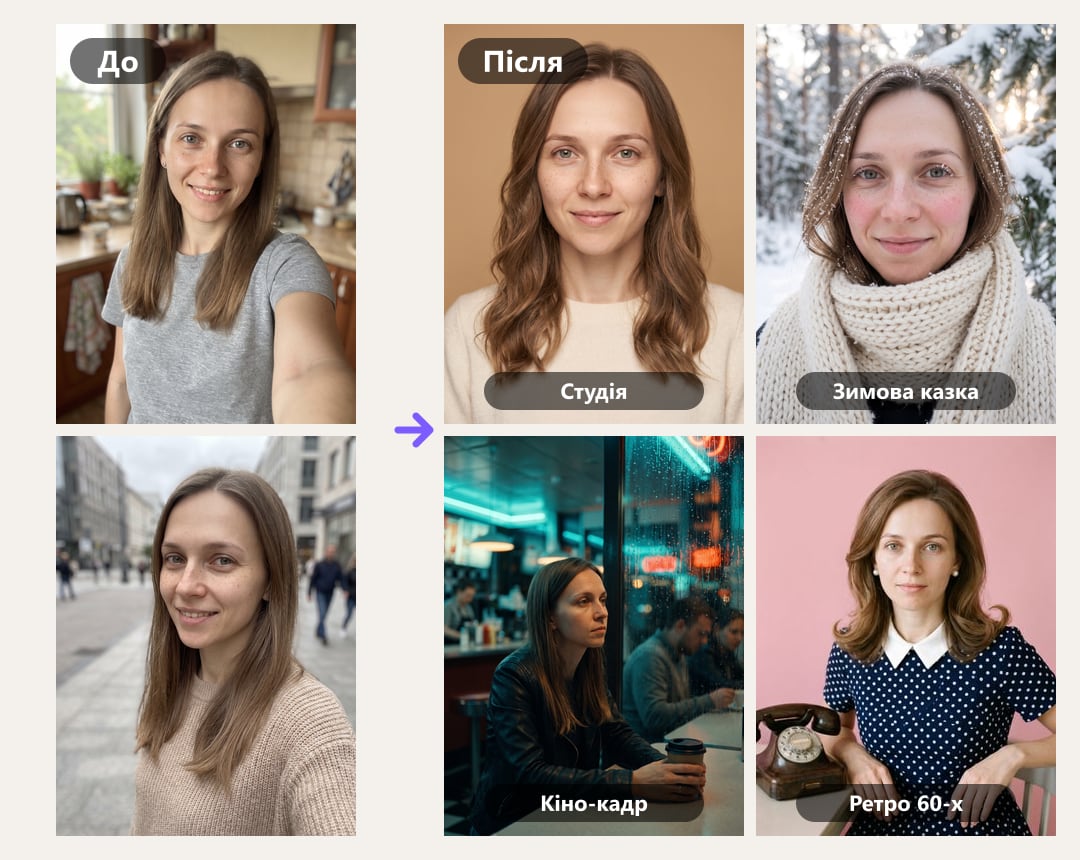
Picture this: the photo is nearly perfect, but the jacket is the wrong color, the table needs a coffee cup, and there’s an awkward poster on the wall. That used to mean hours in an image editor and retoucher-level skills. Now you just describe the change. When you edit photos with text commands, you give the AI an instruction in plain language and the model changes only that detail, leaving the rest of the frame in place.
In this guide, we at WebTerra AI cover which models work this way, how to phrase commands for predictable results, how to keep a person’s face intact after edits, and which jobs you shouldn’t hand to AI. At the end: ready-made commands, common mistakes and FAQs.
How text-based photo editing works
Regular generation creates an image from scratch. An editing model takes your photo plus an instruction and tries to change only what you asked for. Composition, angle, lighting and faces should remain recognizable.
Typical jobs these models handle well:
- changing the color or material of clothing and objects;
- swapping one outfit for another;
- adding or removing an object;
- changing the background, season or time of day;
- restyling a photo as watercolor, a film still or an illustration;
- adding or replacing text.
Which model to choose
Your WebTerra AI dashboard includes several instruction-based editors. They’re similar, but each has its strengths.
| Model | Strength | Price |
|---|---|---|
| FLUX Kontext Pro | Targeted local edits that keep the rest of the image intact | from $0.09 |
| FLUX Kontext Max | Multi-step instructions, keeps the original composition, up to 4 references | from $0.17 |
| Seedream 4.5 Edit | Swaps objects, clothing, background and style while keeping face and lighting | from $0.11 |
| Nano Banana Pro | Preserves faces, complex edits, up to 4K | from $0.30 |
Choosing in practice
- One simple change — a color, an object, a caption: FLUX Kontext Pro.
- Several changes in one request — “remove the background, change the lighting, add a caption”: FLUX Kontext Max.
- Clothing and a person’s look while keeping the face: Seedream 4.5 Edit.
- A complex portrait edit or a final high-resolution version: Nano Banana Pro.
Tip: test the idea in a cheaper model, then produce the final in whichever one handled it best.
How to write commands: five rules
1. Start with a verb
“Change”, “replace”, “add”, “remove”, “make” — the model immediately knows what kind of action you want. “Change the jacket color to red” works better than “a red jacket”.
2. Name the object unambiguously
If there are two people in the frame, “the jacket” is ambiguous. Write “the jacket of the man on the left”.
3. Say what to keep
An explicit “keep everything else unchanged” or “keep the face, pose and lighting the same” noticeably reduces unwanted changes.
4. One change, one step
For most models, several sequential edits beat one command with five items. The exception is FLUX Kontext Max, which is built to understand multi-step instructions.
5. Describe the result, not the process
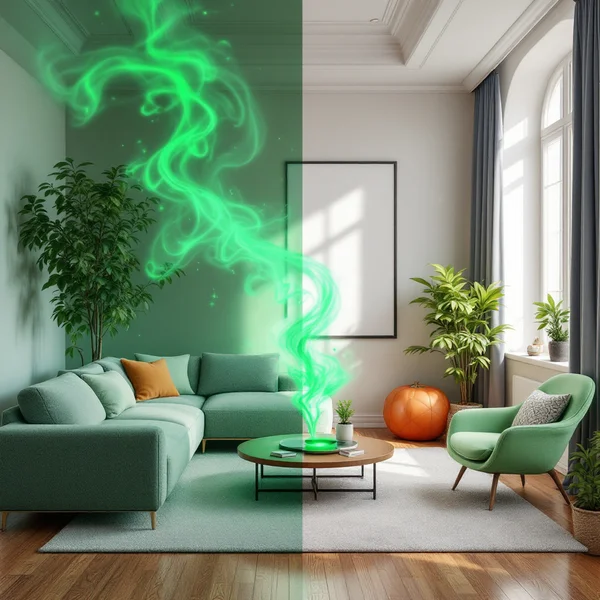
Not “photoshop it so it looks like…”, just “the wall is painted deep green”.
How to keep the face
The most common complaint is “after the edit, that’s not me anymore”. What helps:
- The right model. Seedream 4.5 Edit and Nano Banana Pro are designed to preserve faces.
- An explicit requirement. Add “keep the person's face and identity unchanged”.
- Don’t change everything at once. New outfit, background and style in one command raise the risk that the model redraws the person too.
- A good source photo. The face should be sharp and large enough in the frame.
- Careful with stylization. Turning a photo into a cartoon or anime changes facial features by definition.
Ready-to-use commands
Change a color — for FLUX Kontext Pro.
Change the color of the woman's coat to deep burgundy. Keep everything else unchanged.
Swap clothing — for Seedream 4.5 Edit.
Replace the man's t-shirt with a navy blue linen shirt with rolled-up sleeves. Keep his face, pose and the lighting exactly the same.
Add an object
Add a white ceramic cup of coffee on the table next to the laptop, matching the existing lighting and shadows.
Change the season
Make it winter: cover the street and rooftops with fresh snow, add light snowfall. Keep the buildings and people unchanged.
Several changes at once — for FLUX Kontext Max.
Remove the background clutter and replace it with a plain warm beige wall, make the lighting softer, add the text "NEW COLLECTION" in the top left corner.
Stylization
Turn this photo into a soft watercolor illustration, keep the composition and the main shapes.
Example: a chain of edits, step by step
Say you have a photo from a walk: you in a grey jacket against an autumn park, with a trash bin creeping into the frame. You want a brighter look for social media.
- Clean up. FLUX Kontext Pro: “Remove the trash bin on the right. Keep everything else unchanged.”
- Change the outfit. Seedream 4.5 Edit: “Replace the grey jacket with a mustard yellow wool coat. Keep the face, pose and lighting the same.”
- Add atmosphere. FLUX Kontext Pro: “Add soft golden hour sunlight coming from the left, warm tones.”
- Check. Compare with the original: is the face recognizable, has the pose changed, do the shadows match?
Each step is a separate generation built on the previous result. If one stage fails, you only go back one step instead of starting over.
Where text editing isn’t the right tool
- Pixel-perfect precision. Moving an object exactly 3 mm or placing a logo to brand-book spec is a designer’s job.
- Products for sale. Don’t change the color or shape of a real product in a store photo — customers should receive what they saw.
- Documents and evidence. Editing documents, receipts or news photos in a way that changes their meaning is unacceptable.
- Other people’s photos. Changing someone’s appearance without their consent is unethical.
Common mistakes
- Describing a new picture instead of giving an instruction. The model may generate a different scene rather than an edit.
- Ambiguous objects. “Change the dress” when there are three dresses in the frame.
- Too many changes in one command for models not built for it.
- No “keep the rest unchanged”. The model may tweak things you didn’t ask about.
- Re-editing the same file dozens of times. Quality gradually drops — go back to the original instead.
FAQ
Can I use a second image as a reference?
Yes. FLUX Kontext Max accepts up to 4 references; Seedream 4.5 Edit and Nano Banana Pro accept up to 5. For example, show a photo of a dress and ask the model to put it on the person.
How is this different from generating from scratch?
Generation creates a new scene. Editing keeps your shot and changes just one detail.
What if the result fails?
If a generation fails for technical reasons, the money is refunded to your balance automatically. Current prices are on the pricing page.
Make your first edit
Take one of your photos and start simple — change the color of one object in FLUX Kontext Pro. New users get a free trial balance, valid for 48 hours. Open image generation in your WebTerra AI dashboard or explore all the tools in the AI photo editor.
Try AI models yourself
Models for video, images and audio in one place — a free trial balance when you sign up
Start for free