AI Voiceover for Video: From Script to Finished Voice
A natural narrator without a studio: how to prepare your script, pick a voice and model, control pauses and pronunciation, and put the finished audio on your video.
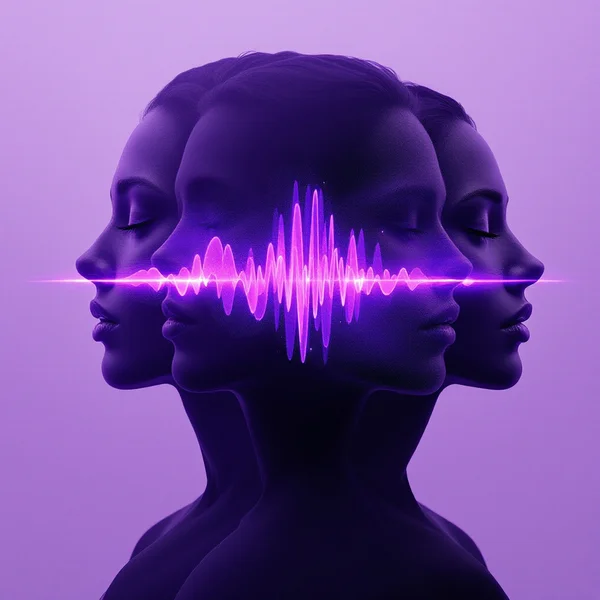
Videos without a voice get watched on mute and scrolled past. Videos with a flat, robotic narrator get scrolled past too. The good news: AI voiceover for video now sounds natural enough that for most jobs — tutorials, reviews, ads, training clips — you no longer need a voice actor or a studio.
In this guide, we at WebTerra AI walk through the whole process, from script to finished video with narration. You’ll learn how to pick a voice and a model, how to mark up your text with pauses and intonation, what to do about tricky pronunciation, and how to put the audio on your video without editing software.
To be upfront: an AI voice won’t replace an actor where you need a complex dramatic performance or the recognizable voice of a specific person. For narration, though, it does a great job.
Step 1. Write for the ear, not the eye
Text that reads well on a page often sounds awkward out loud. Before generating, rewrite your script for speech.
- Short sentences. 10–15 words is comfortable for both listener and model.
- Conversational words. “Use” instead of “utilize”, “so” instead of “in order to”.
- Spell out numbers where pronunciation matters. “Twenty-five percent” is more predictable than “25%”.
- No abbreviations. “etc.”, “e.g.” or “approx.” may be read in unexpected ways.
- Timing. A minute of calm speech is roughly 130–160 English words. Fit your script to the video length before you generate.
Step 2. Choose a voice model
Your WebTerra AI dashboard includes three ElevenLabs speech models.
| Model | Strength | Use it for |
|---|---|---|
| ElevenLabs v3 | Intonation, pauses and emotion close to real speech | Ads, storytelling, anything where mood matters |
| ElevenLabs Multilingual | Natural synthesis in English, Ukrainian and 27 more languages | Tutorials, reviews, multilingual versions |
| ElevenLabs Turbo | The fastest and cheapest option | Long texts, drafts, internal videos |
Pricing depends on text length: from $0.01–$0.03 per 100 characters, so even a full minute of narration is inexpensive. Read more about the flagship in our ElevenLabs v3 review.
Our tip: draft in Turbo to check the timing and wording, then render the final in v3 or Multilingual.
Step 3. Pick the voice
The voice is the face of your video. Choose it for your audience and genre, not just the first one you liked.
How to choose
- Genre. Energetic for ads, calm and clear for tutorials, warm for storytelling.
- Audience. Youth content and corporate training call for different voices.
- Test on one paragraph. Generate the same passage with three or four voices and listen on headphones and on a phone speaker.
- Consistency. For a series or channel, stick with one voice — it becomes recognizable.
ElevenLabs v3 uses the same voices as Multilingual, so the voice you picked for a draft can carry over to the final.
Step 4. Mark up the script: pauses, emotion, stress
The model reads punctuation as stage directions. It’s your main tool for controlling delivery.
Pauses
- Period — a full stop and a closing intonation.
- Comma — a short pause.
- Ellipsis — hesitation, suspense: “And then… we saw the result.”
- Dash — an emphatic pause before something important: “The key is simple — don’t rush.”
- New paragraph — a longer pause and a change of thought.
Emotion
ElevenLabs v3 picks up mood from the text itself. An exclamation mark adds energy; a question lifts the intonation. Emotional context works too: “You won’t believe what happened next!” will sound livelier than a neutral line. If the voice sounds too even, try adjusting the stability setting: a lower value gives more expression, but also less predictability.
Stress and tricky words
If the model stresses the wrong syllable or mispronounces something:
- rephrase the sentence or swap in a synonym;
- write acronyms the way they’re said, letter by letter with hyphens, or spell them out in full;
- write foreign brand names and personal names phonetically;
- generate the problem sentence on its own a few times and pick the best take.
Step 5. Put the voice on your video
Once the track is ready, combine it with your clip. WebTerra AI has a tool for that — Audio Merge. It places a finished audio track on a finished video with no regeneration and no quality loss. The price is fixed at $0.01, whatever the video length.
To keep voice and picture in sync:
- record the narration first, then match the video length to it;
- leave half a second of silence at the start and end;
- if the video already has sound, decide what matters more: ambience or voice.
Need background music too? Generate it separately on the AI music page.
Two practical workflows
Voicing an existing video
You already have footage — a phone clip, a screen recording or an AI video. Watch it with a stopwatch, note what happens when, and write the script to fit those segments. Generate the voice, check that key lines land on the right visuals, and merge the track with Audio Merge. If the voice runs ahead of the picture, add pauses: an ellipsis or a new paragraph.
Building video around the voiceover
For explainers, reviews and ads, it’s often easier to work the other way round: record the narration first, then generate shots for each section. You know exactly how long every segment is and can set the clip length to match in video generation. The edit practically assembles itself.
Ready-to-use scripts
For speech models, the “prompt” is the text that will be spoken. Pay attention to the punctuation.
Ad — energetic, with a pause before the call to action.
Tired of spending hours on editing? There’s an easier way. A few minutes — and your video is ready. Try it today!
Tutorial — calm and clear.
Step one: open your settings. Step two: choose Profile. Done — your changes are saved.
Storytelling — with suspense.
It all started on an ordinary morning… Nobody knew that within a few hours, everything would change — forever.
Channel intro
Welcome back! Today we’re going to show you three simple tricks — and the last one might surprise you.
Common mistakes
- Written style. Long sentences with nested clauses sound like someone reading a contract.
- Script longer than the video. Check timing before generating.
- Settling for one take. If a line sounds off, regenerate just that line, not the whole script.
- Imitating real people. Don’t try to mimic a real person’s voice without their consent.
- Skipping the phone test. Most viewers will hear your video through a phone speaker.
FAQ
What’s the maximum text length?
ElevenLabs v3 accepts up to 5,000 characters per generation. Split long scripts into logical blocks so you can regenerate one fragment at a time.
Can I voice a video in several languages?
Yes. Multilingual supports English, Ukrainian and 27 more languages. Translate the script and generate a separate track for each version.
Can I use AI voiceover in commercial videos?
You can use the generated track in your own projects. Just don’t imitate real people’s voices or mislead viewers about who is speaking.
What if a generation fails?
If a generation fails for technical reasons, the money is refunded to your balance automatically.
Voice your first video
Take a short script, generate it with two or three voices and keep the best. New accounts get a free trial balance, valid for 48 hours — enough for many minutes of narration. Open audio generation in your dashboard or learn more on the AI voice page.
Try AI models yourself
Models for video, images and audio in one place — a free trial balance when you sign up
Start for free