YouTube Thumbnails with AI: Getting a Clickable Preview
Your thumbnail decides whether anyone clicks. Here's how to build one with AI: a strong emotion, high contrast and a short line of text, plus how to test several versions.

Making YouTube thumbnails with AI is the fastest way to stop spending an hour on every preview. Viewers see the thumbnail before they read the title, and it largely decides whether they click. But a pretty picture and a clickable thumbnail are not the same thing.
We at WebTerra AI have put together a working method: how to plan the composition, convey an emotion, build contrast and add a short line of text that still reads on a phone screen. You'll also learn how to generate several versions in the same amount of time and pick the strongest.
One honest caveat up front: no model guarantees a million views. A thumbnail amplifies a good video; it can't rescue a weak one. What it can do is remove technical mistakes and give your video a fair shot.
What makes a thumbnail clickable
Thumbnails are displayed small: in the feed, in recommendations, on mobile. That's why a few simple rules matter so much:
- One main subject. A face, an object or a scene, just one thing that reads in a second.
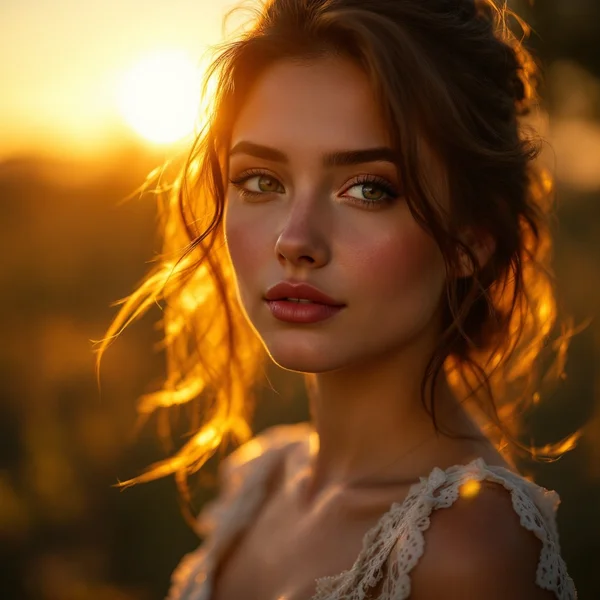
- A clear emotion. Surprise, joy, tension. A neutral face disappears among hundreds of others.
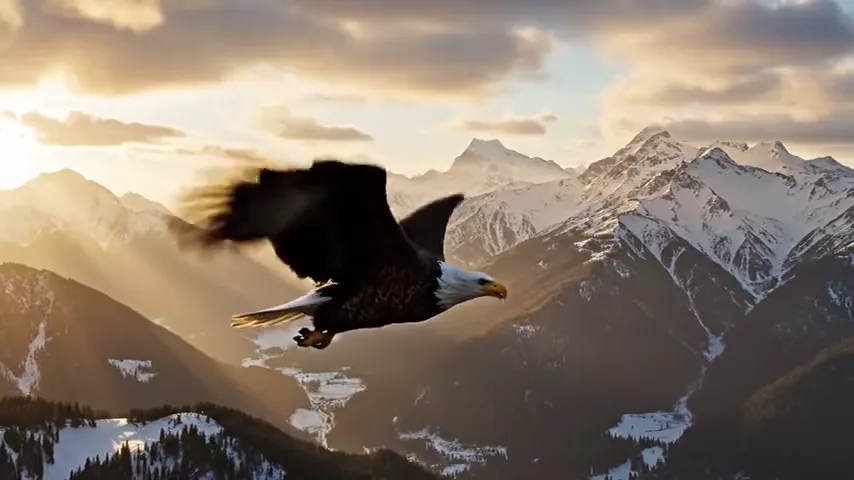
- Contrast. A bright subject on a dark background or the reverse, saturated colours, minimal clutter.
- Short text. Two to four words that add to the title instead of repeating it.
- Curiosity. The thumbnail asks a question the video answers.
Step 1. Plan the composition
Before you generate anything, answer one question: what should the viewer notice first? Then split the frame into three zones: the main subject (usually left or centre), space for text (right or top) and a background that doesn't compete.
Format and safe zones
YouTube thumbnails are horizontal, 16:9. Keep the bottom-right corner clear, because that's where the video duration appears. Add "16:9 composition, empty space on the right for text" to your prompt so the model leaves room for a headline.
Step 2. Choose the right model
| Task | Model | Why |
|---|---|---|
| Thumbnail with lettering | Ideogram V4 | Accurate text in layouts, rich styles |
| Complex scene with many details | GPT Image 2 | Handles long prompts, renders text and diagrams neatly |
| Your photo with a new background or mood | Nano Banana Pro | Edits an uploaded photo and preserves faces |
| Photorealistic object or scene | FLUX.2 Pro | Photorealism, up to 4 references |
Ideogram V4 is our go-to for thumbnails with lettering: text in banners and covers is its speciality, and it starts at just $0.04. For complex scenes with several objects and precise instructions, GPT Image 2 is the better fit. It starts at $0.24 but usually needs fewer retries.
Step 3. Emotion: your own photo or a generated one
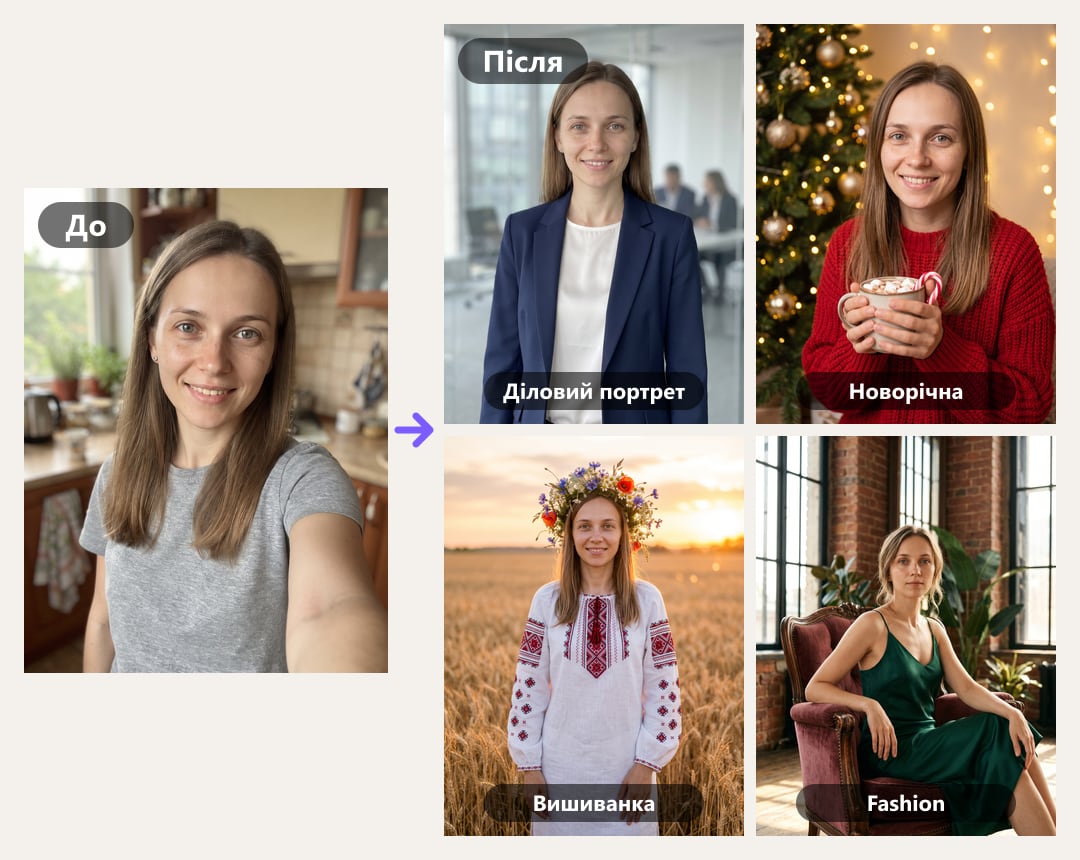
If your channel features your face, viewers already know you. In that case use your own photo rather than generating a lookalike. Upload a shot with a strong expression to Nano Banana Pro and ask it to change the background, add lighting or put an object in your hands. The model preserves faces, so you stay recognizable.
On faceless channels the hero is an object or a scene: a shattered phone, a pile of coins, an empty road. FLUX.2 Pro and GPT Image 2 handle these well.
Be honest with viewers
A thumbnail shouldn't lie. If there's no explosion in the video, don't draw one. Clickbait may earn the click, but the viewer leaves after ten seconds, and YouTube notices.
Step 4. Text on the thumbnail
The simplest approach is to generate the image without text and add the headline in an editor, which gives you full control over font and size. If you'd rather do it in one pass, ask Ideogram V4 to render the text. A few rules:
- Put the exact words in quotes inside the prompt: bold text "30 DAYS".
- Four words maximum.
- Specify colour and style, for example "white bold sans-serif with black outline".
- Check every letter. Even the best models occasionally slip.
Step 5. Test several versions
Instead of chasing one perfect thumbnail, generate three or four different ones: a different emotion, background colour or text placement. Look at them scaled down, the way a viewer sees them in the feed. If your YouTube account lets you test multiple thumbnails, upload the best two or three and let the data decide.
To save money, draft on a cheaper model and render the final version on a stronger one. Current plans are on the pricing page.

Ready-to-use prompts
Replace the topic and text with your own.
Challenge video with a headline (Ideogram V4):
YouTube thumbnail, 16:9, a surprised young man holding a stack of books, bright yellow background, bold white text "30 DAYS" with black outline on the right side, high contrast, clean composition
Faceless finance channel (GPT Image 2):
YouTube thumbnail, 16:9, a glass piggy bank cracked in half with coins spilling out, dramatic dark blue background, red arrow pointing down, large bold text "WHY?" on the right, cinematic lighting
Editing your own photo (Nano Banana Pro):
Keep the person's face and expression unchanged, replace the background with a neon-lit city street at night, add a rim light on the hair, increase contrast, leave empty space on the right
Photorealistic object (FLUX.2 Pro):
Close-up of a vintage film camera on a wooden table, dramatic side light, deep black background, sharp details, product photography, 16:9 composition with empty space on the left
Common mistakes
- Too much detail. On a small screen it turns into noise.
- Long text that just repeats the video title.
- Placing the key element in the bottom-right corner, where the duration badge covers it.
- A face with no emotion, or one that's too small.
- Not proofreading the lettering.
- A thumbnail that promises something the video doesn't deliver.
- Identical thumbnails for every upload, which turns your channel into a grey wall.
FAQ
Which model is best at text on thumbnails?
For lettering we recommend Ideogram V4, since that's its speciality. GPT Image 2 also renders text neatly, especially within complex scenes.
Can I use my own photo?
Yes. Nano Banana Pro edits an uploaded photo and preserves faces, and FLUX.2 Pro and GPT Image 2 can also work from uploaded images.
How many versions should I make?
Three or four distinct ideas is the sweet spot. Comparing different approaches tells you more than twenty near-identical images.
Can I use other brands' logos or characters?
No. Avoid third-party trademarks, logos and celebrity faces. They put your video at risk of complaints and takedowns.
Try it in WebTerra AI
Open the image generator, choose Ideogram V4 and make three thumbnail options for your next upload. You'll find more image tools on the AI images page, and everything is ready in your WebTerra AI dashboard.
Try AI models yourself
Models for video, images and audio in one place — a free trial balance when you sign up
Start for free