Veo 3.1 Fast Review: Google’s Video with Sound, Faster and Cheaper
Veo 3.1 Fast by Google is the faster Veo 3.1: the same physics and synchronized sound at almost a third of the flagship’s price. Modes, pricing, prompts and tips.
This Veo 3.1 Fast review is for anyone who needs AI video with sound built in, without a flagship price tag. Veo 3.1 Fast is the accelerated version of Google’s Veo 3.1 video model. According to the vendor, it keeps the same motion physics and synchronized sound while costing almost a third of the flagship. Clips feel alive from the first generation: footsteps, rushing water, wind or a character’s line are heard together with the picture.
In WebTerra AI, Veo 3.1 Fast runs online alongside other video models — Kling, Seedance, Hailuo, Wan and the full Veo 3.1. It works in three modes: from text, from a photo and from reference images, with a choice of 4, 6 or 8 seconds and 720p, 1080p or 4K resolution.
Below is everything you need before your first generation: capabilities, specs, which mode to pick, how to use Veo 3.1 Fast, Veo 3.1 Fast pricing, prompts, tips, a comparison and the limitations.
What Veo 3.1 Fast can do
The signature feature of the Veo line is video with sound. You do not need to source effects or music separately: the model generates an audio track synchronized with what happens on screen. The Fast version pairs that with a noticeably lower price.
- Text-to-video. Describe the scene, camera movement and sounds, and get a finished clip.
- Image-to-video. Upload a picture and describe how it should come to life.
- Reference-to-video. Up to 3 reference photos — for example a character, a product and a location — so the model keeps their look.
- First and last frame. Set a starting and an ending image, and the model builds the transition.
- Synchronized sound. Ambience, effects and dialogue are described right in the prompt.
Dashboard templates cover typical scenarios: cinematic shot, product video, nature and time-lapse, animate a photo, character line with sound, scene with ambient sound, first-person vlog, food close-up, fantasy scene and sports slow motion.
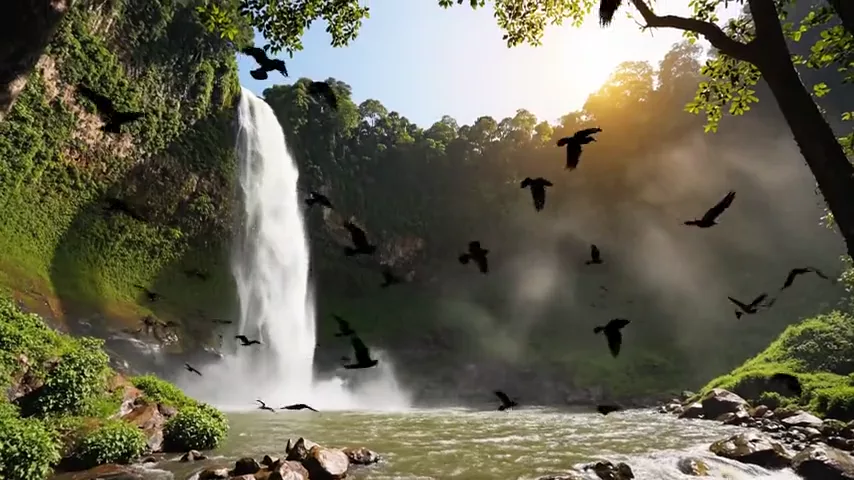
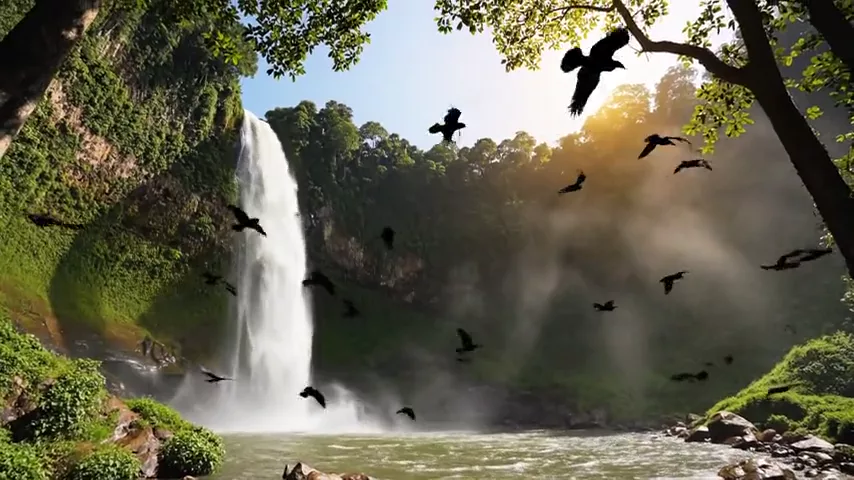
The model’s demo clip shows a waterfall in a green valley with birds flying past as the camera slowly tilts up. Its prompt is included in the examples below.
Veo 3.1 Fast specs
| Parameter | Value |
|---|---|
| Developer | |
| Type | Video generation with sound |
| Input modes | Text-to-video; image-to-video; reference-to-video |
| Reference photos | Up to 3 |
| Duration | 4, 6 or 8 seconds |
| Resolution | 720p, 1080p, 4K |
| Aspect ratios | 16:9, 9:16 |
| First and last frame | Yes |
| Defaults | 8 seconds, 16:9, 720p |
| Base rate | $0.28/s for 720p and 1080p; $0.66/s for 4K |
| Price | from $1.13 for a 4-second clip |
Which mode to choose
Text-to-video — for ideas and atmosphere
The simplest start: all you need is a prompt. It suits landscapes, mood pieces and abstract or fantasy stories where the exact look of objects is not critical. The model decides how characters and locations look, so results can vary from run to run.
Image-to-video — for control over the opening frame
If you already have an image — a product photo, a still from a shoot or a generated illustration — image-to-video guarantees the clip starts from it. The prompt then only describes motion and sound. Add a last frame if you also need a fixed ending.
Reference-to-video — for series and brands
Up to 3 reference photos help keep a product, character or location recognizable, without forcing the clip to open on a specific image. This is handy for ad series where the same product appears in different scenes, and for stories with a recurring hero.
A practical rule: if the result must be recognizable, use a photo or references; if mood matters more than detail, text is enough.
How to use Veo 3.1 Fast in WebTerra AI
- Sign up for WebTerra AI and choose a plan.
- Open the video generator in your dashboard and select Veo 3.1 Fast.
- Choose a mode: text, photo or references. Upload images for photo or reference mode (up to 3 references).
- Optionally set the first and last frame.
- Pick the duration (4, 6 or 8 seconds), aspect ratio (16:9 or 9:16) and resolution.
- Write an English prompt covering the scene, motion, camera and — always — the sound.
- Generate and download your clip with its audio track.
All video models in the service are listed on the AI video generation page.
Veo 3.1 Fast pricing
The cost depends on length and resolution. 720p and 1080p cost the same; 4K costs more. The table shows the price of the shortest clip (4 seconds) at 720p/1080p:
| Plan | Cost, USD |
|---|---|
| Any plan or top-up pack | $1.13 |
An 8-second clip costs roughly twice as much, and 4K is more than twice the price of 1080p for the same length. The free trial balance is not enough for a Veo 3.1 Fast clip, but you can spend it preparing images for image-to-video or reference mode. Plans are on the WebTerra AI pricing page.
Since 720p and 1080p cost the same, 1080p is the sensible default for most tasks. Save 4K for final clips meant for large screens.
Veo 3.1 Fast prompt examples
Write in English and describe the sound in its own sentence — the model will build the track more precisely.
1. Nature (the model’s demo prompt)
Documentary shot of a waterfall in a green valley, birds flying past, natural sunlight, camera slowly tilting up, crisp detail, no text, no captions, no watermark
The demo clip prompt: a documentary nature shot with camera movement.
2. Character line
A young barista behind the counter looks at the camera and says with a smile: "Your coffee is ready!" Cozy café ambience, cups clinking, soft background chatter, warm light, no text
A scene with dialogue: the line goes in quotes, background sounds separately.
3. Atmospheric scene
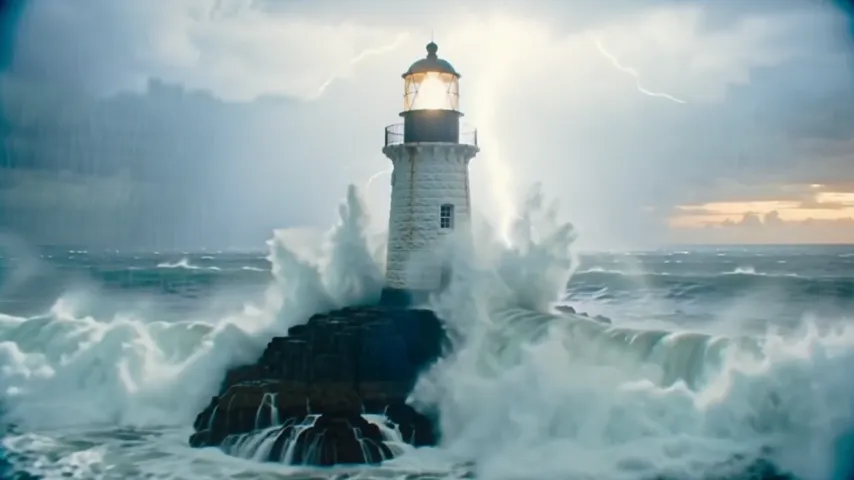
A lonely lighthouse on a cliff during a storm at night, huge waves crashing against the rocks, rain and howling wind, thunder in the distance, slow aerial push-in, cinematic, no text
A shot where sound is half the impact: storm, waves, thunder.
4. Product video
Close-up of a can of sparkling lemonade being opened, fizz and bubbles rising, condensation droplets, satisfying opening sound and fizz, bright summer light, vertical format, no text
An ad for Reels and stories with a satisfying sound.
5. First-person vlog
POV handheld shot walking through a busy night market, food stalls with sizzling grills, people talking, distant music, neon lights, natural phone camera look, no text
A shot that looks filmed on a phone, with a lively atmosphere.
6. Photo to video
The dog in the photo wags its tail and barks happily twice, ears moving, gentle breeze, birds chirping in the background, keep the original lighting
Animating a photo with sound: describe motion and audio, not what is already in the image.
Tips for prompting Veo 3.1 Fast
Always describe the sound
If you leave sound out, the model decides for you. Name the layers: ambience (“café ambience”), specific events (“cups clinking”) and dialogue if needed. Add “no music” if you do not want a score.
Keep lines short and in quotes
For speech, say who speaks and exactly what: “says: "…"”. Short phrases sound more natural and fit within 4–8 seconds.
One action per clip
Four to eight seconds hold one clear event. Instead of “walks in, sits down, drinks coffee, leaves”, choose one action and show it well.
Use references for consistency
If the same product or character must appear across a series, use reference mode and upload the same photos every time.
Match the format to the platform
9:16 for Reels, TikTok and stories; 16:9 for YouTube, websites and presentations. There is no square option.
Draft short
Test prompts on 4-second clips and render the winner at 8 seconds or a higher resolution.
Use cases
- Social media and short-form creators. Reels and TikToks with sound ready, no separate audio edit.
- Advertising and e-commerce. Product clips with tangible sounds of opening, pouring and clicking.
- Restaurants and cafés. Atmospheric videos of the venue and the dishes.
- Travel and lifestyle. Nature, cities and POV shots with a living soundscape.
- Storytelling and education. Short scenes with character lines for explainer videos.
- Agencies. Fast drafts for client approval before rendering in the flagship version.
Veo 3.1 Fast vs other video models
| Model | Focus | Choose it over Veo 3.1 Fast when |
|---|---|---|
| Veo 3.1 | 4K, with sound | It is a final clip that calls for the flagship and the budget allows |
| Veo 3.1 Lite | Budget Veo, 1080p | You want Veo for even less and do not need 4K |
| Kling 3.0 | Top motion quality | Portraits, longer clips (up to 15 s) and a square format matter, and sound can be added separately |
| Seedance 2.0 | Audio + multi-scene | You need a clip with several scenes |
The honest verdict: Veo 3.1 Fast is the balanced choice when you need video with sound at a reasonable price. The flagship makes sense for final renders, Lite for maximum savings. If you do not need sound and the focus is motion and portraits, compare it with Kling 3.0.
Limitations
- Up to 8 seconds. Only 4, 6 and 8 seconds are available; assemble longer videos in an editor.
- Two aspect ratios. 16:9 and 9:16, no square.
- Up to 3 references. For complex scenes, pick the most important objects.
- 4K costs more. The per-second rate in 4K is more than twice that of 1080p.
- The free trial balance is not enough. Even the shortest clip costs more.
FAQ
How much does a Veo 3.1 Fast video cost?
A 4-second clip at 720p or 1080p is $1.13. Longer clips and 4K cost more.
How is Veo 3.1 Fast different from Veo 3.1?
It is the accelerated version with the same physics and synchronized sound, at almost a third of the flagship’s price.
Does the model generate sound?
Yes, synchronized sound is its key feature. Describe effects, ambience and dialogue right in the prompt.
Which resolution should I choose?
720p and 1080p cost the same, so 1080p is usually the better deal. 4K is for final clips shown on large screens.
How many references can I add?
Up to 3 photos in reference-to-video mode.
Can I make vertical video?
Yes, 9:16 works for Reels, TikTok and stories.
Veo 3.1 Fast delivers what people choose Veo for — motion physics and synchronized sound — at a noticeably lower price. Open Veo 3.1 Fast in your WebTerra AI dashboard and create a first clip that sounds as good as it looks.
Try AI models yourself
Models for video, images and audio in one place — a free trial balance when you sign up
Start for free