Pika 2.2 Review: Affordable AI Video With 1080p and Keyframes
Pika 2.2 is the most affordable brand-name video model in the catalog: 5 or 10 seconds, 720p or 1080p, photo animation and keyframes. Pricing, prompts, tips and comparisons.
Pika 2.2 is a video model from Pika, one of the first teams to make AI video generation accessible to a broad audience. In the WebTerra AI catalog it is the most affordable brand-name video model: 5 or 10-second clips at 720p or 1080p, from text or from a photo. In this Pika 2.2 review we cover how the model works online, what it costs, how to use keyframes and which tasks it handles best.
Pika 2.2 sits in a convenient niche: it is cheaper than premium models, yet it gives you Full HD when you need it. For social media, drafts, teasers and first experiments with video, it is a sensible place to start.
It is a good fit for social media managers, creators, marketers, online store owners and anyone who wants to post video regularly without paying for every clip as if it were a professional shoot.
What Pika 2.2 can do
- Text-to-video. Describe a scene and the model generates a clip.
- Photo animation. Image-to-video mode turns a still picture into a video with camera and object motion.
- Up to 5 keyframes. You can set several anchor images and the model builds motion between them, which is great for transitions and transformations.
- Two lengths. 5 or 10 seconds.
- Two resolutions. 720p for social media and drafts, 1080p for higher-quality publishing.
- Seven aspect ratios. 16:9, 9:16, 1:1, 4:5, 5:4, 3:2 and 2:3, including the popular 4:5 feed format.
The dashboard defaults are 5 seconds, 720p and 16:9, the cheapest combination and a good way to get started.
Pika 2.2 specs
| Parameter | Value |
|---|---|
| Developer | Pika |
| Type | Video generation |
| Input modes | Text, image-to-video |
| Keyframes | up to 5 |
| Length | 5 or 10 seconds |
| Resolution | 720p, 1080p |
| Aspect ratios | 16:9, 9:16, 1:1, 4:5, 5:4, 3:2, 2:3 |
| Defaults | 5 s, 720p, 16:9 |
| Base cost per second | 720p: 6.8 credits, 1080p: 15.2 credits |
| Price of a 5-second 720p clip | from 29 credits (about $0.34) |
How to use Pika 2.2 in WebTerra AI
- Sign up for WebTerra AI and get 60 free credits.
- Open the video generator in your dashboard and choose Pika 2.2.
- Pick a mode: text-to-video, photo animation or keyframes.
- Write a prompt or choose a preset such as cinematic shot, nature or product video.
- Set the length (5 or 10 s), resolution (720p or 1080p) and aspect ratio.
- Check the cost and start the generation.
- Review the result and download the video.
Other video models are collected on the AI video generation page.
Pika 2.2 pricing
The model card shows the price of a 5-second 720p clip:
| Plan | Credits for 5 s (720p) | Price in USD |
|---|---|---|
| Starter | 33 | about $0.42 |
| Pro | 31 | about $0.37 |
| Ultra | 29 | about $0.34 |
Estimated base cost of other combinations
Base credits before the plan discount, calculated from the per-second rate:
| Length | 720p | 1080p |
|---|---|---|
| 5 s | ≈ 34 | ≈ 76 |
| 10 s | ≈ 68 | ≈ 152 |
As you can see, 1080p costs more than twice as much as 720p, so save Full HD for final versions. The 60 free credits you get at sign-up cover one 5-second 720p clip with a little to spare. Plans for regular use are on the pricing page.
Pika 2.2 prompt examples
Write prompts in English and always describe the motion.
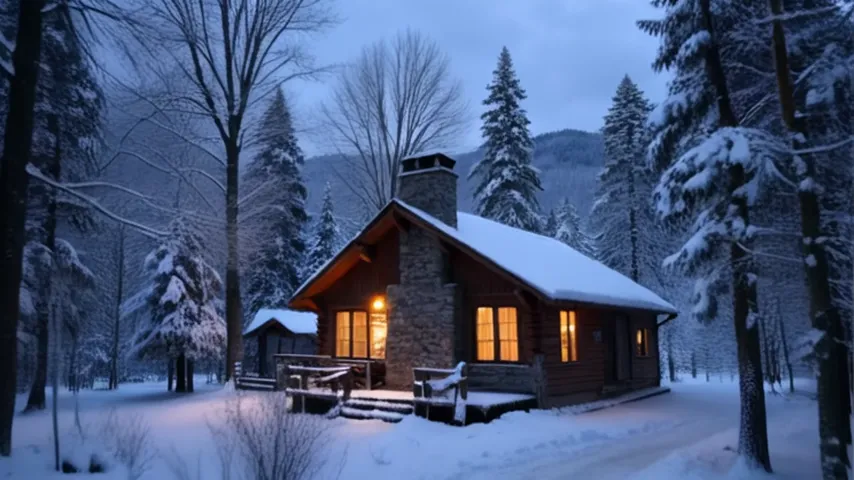
Winter mood (the model’s demo)
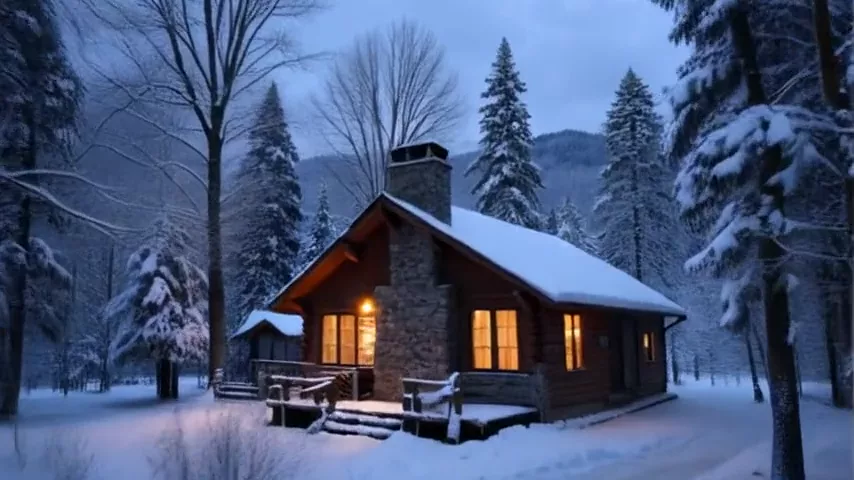
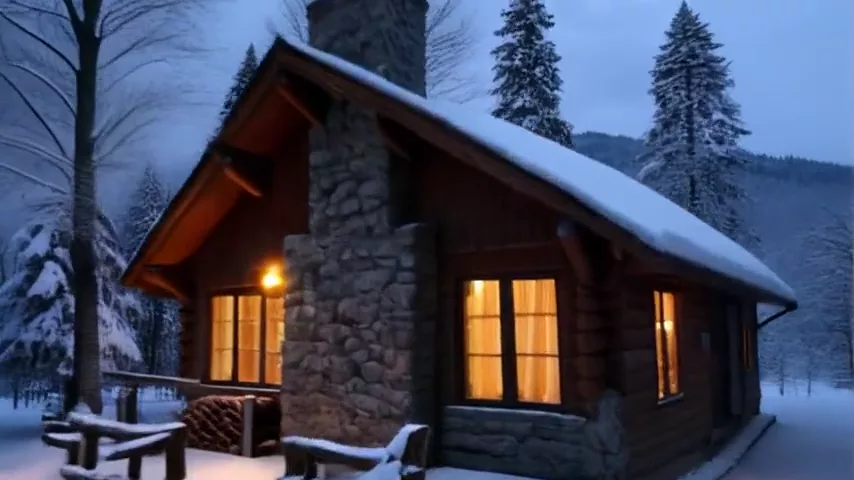
A cozy cabin in a snowy forest at dusk, warm light in the windows, snow falling gently, smoke rising from the chimney, camera slowly pushing in, no text, no captions, no watermark
An atmospheric shot with a slow camera push-in; this is the exact prompt used for the model’s demo clip.
Product video
Perfume bottle on a wet black stone surface, water droplets, slow camera orbit, soft rim light, elegant luxury commercial, no text
A short ad clip for a marketplace or social media.
Nature / time-lapse
Time-lapse of clouds rolling over mountain peaks at sunrise, golden light spreading across the valley, wide cinematic shot
Nature in motion for an intro or a background.
Vertical Reel
Vertical video of a barista pouring latte art in slow motion, close-up, warm cafe lighting, shallow depth of field, cozy morning mood
A short, punchy 9:16 clip.
Interior walkthrough
Smooth camera glide through a bright modern apartment, from living room to kitchen, large windows, natural daylight, real estate video tour
A short video tour of an apartment or house.
Sports slow motion
Slow motion shot of a surfer riding a wave, water spray glittering in the sun, dynamic camera following, high energy
A dynamic moment in slow motion.
First-person vlog
POV shot of hands holding a phone while walking along a sunny seaside promenade, palm trees swaying, people cycling past, authentic handheld travel vlog
A shot that looks filmed on a phone, for travel content.
Fantasy scene
Glowing jellyfish floating through a dark forest at night, bioluminescent light reflecting on wet leaves, slow camera drift, dreamy fantasy atmosphere
A fairy-tale scene for a teaser, a music video or a cover.
Keyframes: how to use them
Setting up to five keyframes is one of the most interesting features of Pika 2.2. You upload several images and the model builds a video that passes through them in order. Here is where that helps:
- Transformations. A bud opens into a flower, a sketch becomes a finished design, day turns into night.
- Product showcases. Several angles of a product joined by smooth motion.
- Before and after. Renovations, makeup, room makeovers.
- Micro-stories. Several scenes of one story with smooth transitions.
Tips: make your keyframes in the same style and aspect ratio, and describe the type of transition in the prompt, such as “smooth morph” or “camera flies from one scene to the next”. You can generate keyframes with any image model in the same dashboard.
720p or 1080p: how to decide
Choosing a resolution in Pika 2.2 is mostly about budget and where the video will be published.
- 720p suits Stories, Reels and social feeds where people watch on a phone. It is also the best choice for drafts: you see the motion and composition while paying the minimum.
- 1080p is worth it for websites, presentations, YouTube and anything viewed on large screens, as well as ads where product detail needs to look sharp.
A practical rule: generate variants at 720p until you get the motion and composition right, then run the same prompt at 1080p. The second generation will not be an exact copy, but you will already know which description works.
Photo animation: what to keep in mind
In image-to-video mode, your photo sets the scene and the prompt only describes the motion. A few tips for predictable results:
- Pick a video format close to the image’s proportions so you do not lose important parts of the frame.
- Use sharp photos without heavy compression; the model carries detail over better.
- Describe moderate motion: a slow camera push, a light breeze, steam from a cup. Abrupt, complex actions on a still photo are more likely to produce artifacts.
- For product clips, use a product photo on a clean background and ask for a smooth camera orbit around it.
Tips for writing Pika 2.2 prompts
Motion comes first
Describe exactly what moves: the camera, a character, water, light. Phrases like “camera slowly pushes in” or “gentle wind moves the leaves” bring the result to life.
One scene per clip
Five or ten seconds is enough for one expressive action. Build complex stories from several clips.
Draft at 720p
Find the idea and the motion at 720p and switch to 1080p only for the final version; the savings add up.
Set the format for the platform
9:16 for Reels and Shorts, 4:5 for the feed, 16:9 for YouTube and websites. The right format at the start gives the right composition.
Remove lettering
Add “no text, no captions, no watermark”, as in the demo prompt. It lowers the risk of random letters in the frame.
Who Pika 2.2 is for
- Social media managers and creators. Regular short videos for Reels, Stories and the feed.
- Online stores. Product clips and animated product photos.
- Real estate and interior design. Short video tours and before-and-after clips.
- Marketing. Teasers and testing ad ideas before a pricier production.
- Creators. Transformations and transitions using keyframes.
- Learners. First steps in AI video at minimal cost.
Pika 2.2 vs other models
| Model | Focus | When to choose it |
|---|---|---|
| Pika 2.2 | Cheap, 1080p, keyframes | Social media, drafts, transitions |
| Wan 2.7 | Open source, affordable | Another budget alternative |
| Veo 3.1 Lite | Budget Veo, 1080p | When you want Full HD from Google |
| Kling 2.5 Turbo Pro | Up to 10 s, realistic | When realistic motion matters more |
| Kling 2.6 Pro | Sound out of the box | When the clip needs sound |
The honest takeaway: Pika 2.2 is a smart choice for budget short videos with optional Full HD and keyframes. If you are looking for an alternative at a similar price, compare it with Wan 2.7 and Veo 3.1 Lite. For more realistic motion, try Kling 2.5 Turbo Pro, and if your clip needs sound straight away, go with Kling 2.6 Pro.
Pika 2.2 limitations
- Only two lengths. 5 or 10 seconds; longer videos are assembled in an editor.
- 1080p costs noticeably more. A second of Full HD costs more than twice as much as 720p.
- No first-and-last-frame mode. Use keyframes to control transitions.
- Sound is not listed on the model card. Add music and voiceover in your edit.
Pika 2.2 FAQ
How much does Pika 2.2 cost?
A 5-second 720p clip costs from 29 credits (about $0.34) on Ultra to 33 credits (about $0.42) on Starter.
Which lengths can I choose?
5 or 10 seconds.
Does the model support 1080p?
Yes, both 720p and 1080p are available. Full HD costs more, so use it for final versions.
What are keyframes?
Up to five images that the model passes through in order, building smooth transitions between them.
How do I make a video longer than 10 seconds?
Generate several clips in the same format and style and edit them together. Keyframes help make transitions between scenes smoother.
Are the free credits enough?
Yes, 60 credits cover one 5-second 720p clip.
Can I animate my own photo?
Yes, that is what image-to-video mode is for: upload your photo and describe in the prompt what kind of motion should appear, such as a slow camera push or a light breeze.
Which aspect ratios are available?
16:9, 9:16, 1:1, 4:5, 5:4, 3:2 and 2:3.
Pika 2.2 is an affordable way to make short videos regularly, from 720p drafts to Full HD finals with eye-catching transitions. Open Pika 2.2 in your WebTerra AI dashboard and generate your first clip today.
Try AI models yourself
Models for video, images and audio in one place — a free trial balance when you sign up
Start for free