How to Animate a Photo with AI: Step-by-Step
A still photo can become a living clip in minutes. Here’s which shot to pick, how to describe motion, which model and duration to use — and what to avoid.
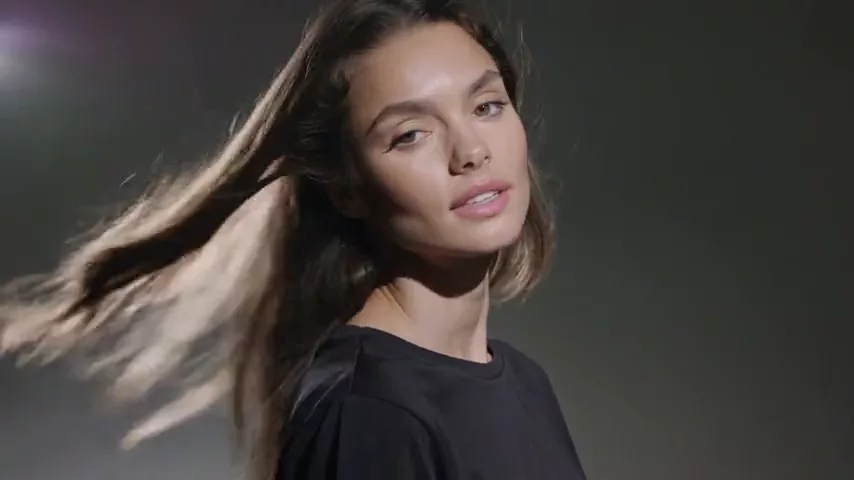
An old vacation snapshot, a profile portrait, a product photo — almost any image can become a short, living clip. In this guide, we at WebTerra AI explain step by step how to animate a photo with AI, from choosing the frame to a finished video you’ll actually want to post.
The mode is called image-to-video: you upload a picture, describe the motion in text, and the model generates the frames that follow. Simple in theory, but the result depends heavily on three things — the quality of your source photo, how precisely you describe motion, and which model you pick. We’ll cover each.
At the end you’ll find ready-to-use prompts, common mistakes and answers to frequent questions. You can follow along in the video generator in your WebTerra AI dashboard.
Step 1. Pick the right photo
The model can’t see what isn’t in the picture. If the photo is blurry, tightly cropped or dark, the AI has to guess — and that’s where strange hands, melting faces and stray objects come from.
Checklist for a good source image
- Sharpness and resolution. Faces and key details should be crisp. Upscale old photos first.
- Room to move. If a person is jammed against the edge of the frame, they have nowhere to turn their head. Leave some breathing space.
- A clear main subject. One person or object works better than a crowd.
- A natural pose. Fully visible hands and a simple angle mean fewer artifacts.
- Aspect ratio. Planning a Reel? Crop vertically from the start so you don’t lose content later.
Fixing a weak photo first
If your image is old, small or damaged, don’t animate it straight away. Run it through the photo editor tools first: an upscaler raises resolution, restoration removes scratches and creases, and object removal gets rid of a random passer-by in the background. A few credits spent on prep often save you several failed video generations.
Step 2. Choose a model for the job
Several models in WebTerra AI can animate photos. Here’s how we suggest choosing.
| Model | Length | When to choose it |
|---|---|---|
| Kling 3.0 | 3–15 s | Portraits, smooth motion, flexible duration; from 73 credits |
| Veo 3.1 | 4, 6 or 8 s | Top quality, up to 4K, synchronized audio out of the box; from 232 credits |
| Hailuo 2.3 | 6 or 10 s | People, facial expressions and emotion at a moderate price; from 40 credits |
| Seedance 2.5 | 4–30 s | Long clips, synchronized sound, character consistency; from 273 credits |
One important caveat: Seedance 2.5 sometimes rejects photos with real faces. For portraits of real people, Kling 3.0 or Veo 3.1 are the safer choice. For landscapes, objects and illustrations, Seedance 2.5 works well.
Prices are per generation with default settings (shortest duration); longer clips and higher resolutions cost more. See pricing for details.
Step 3. Describe motion: subject and camera separately
The most common mistake is describing what’s already in the photo. The model can already see “a woman in a red dress on a beach”. What it needs to know is what changes.
Subject motion
Describe one or two actions with plain verbs: “turns her head toward the camera and smiles”, “hair moves in the wind”, “steam rises from the cup”. Stick to two actions or fewer for a clip of five or six seconds.
Camera motion
Give the camera its own sentence. The main options:
- Slow push in — a slow dolly forward that adds drama.
- Pull back — moves away and reveals the space.
- Pan left / right — a sideways sweep.
- Orbit — circles the subject; great for products.
- Static camera — when only things inside the frame should move.
Pace and mood
Add a word or two about the character of the motion: “slow, gentle”, “calm”, “dynamic”. Without it, the model may make movement jerky or barely noticeable.
Step 4. Choose duration and format
Longer isn’t always better. The longer the clip, the more likely a character starts to drift or the action ends before the video does.
- 3–5 seconds — animated portraits, stories, cutaways. The most reliable option.
- 6–10 seconds — a short scene with one action plus a camera move.
- Over 10 seconds — when you need an extended action; you’ll want a more detailed prompt.
Match the aspect ratio to the platform: 9:16 for Reels and TikTok, 16:9 for YouTube, 1:1 for the feed.
Step 5. Generate, review, refine
Your first result is a draft. Watch it and ask: what exactly is off? Too much motion — add “subtle”. The face changes — shorten the clip. The camera does something unwanted — write “static camera”. Change one thing at a time so you know what worked.
Tip: test your prompt at the shortest duration, then render the final, longer version. You’ll spend far fewer credits on trial and error.
Ready-to-use prompts
Animated portrait — gentle movement without changing the face.
The woman slowly turns her head toward the camera and gives a soft smile, hair gently moving in the breeze. Static camera, calm and natural motion.
Travel landscape
Clouds drift slowly across the sky, waves roll gently onto the shore, palm leaves sway. Slow push in toward the horizon, peaceful atmosphere.
Product
The camera slowly orbits around the perfume bottle on the marble table, light reflections move across the glass. Smooth, elegant motion, studio lighting.
Food
Steam rises from the hot cup of coffee, a few drops of milk swirl on the surface. Very slow push in, cozy morning mood.
Old family photo — delicate, without inventing events.
The couple in the photo blink and smile slightly, subtle natural breathing motion. Static camera, gentle and respectful, keep their faces unchanged.
Common mistakes
- Describing the image instead of the motion. The model sees the photo — describe what changes.
- Too many actions. “Stands up, walks, gets in the car and drives away” won’t fit in five seconds. One or two actions.
- A poor source photo. The AI will reinvent blurry facial features in its own way.
- A long clip on the first try. Test at 3–5 seconds first.
- Other people’s photos without consent. Animating a portrait of someone who doesn’t want it is unethical. Ask relatives and friends before animating their pictures.
- Portraits in Seedance 2.5. It sometimes rejects real faces — use Kling 3.0 or Veo 3.1 instead.
FAQ
How long does generation take?
Usually from one to several minutes, depending on the model, duration and resolution. The result appears in your dashboard, so you don’t need to keep the page open.
Will the video have sound?
Veo 3.1 and Seedance 2.5 generate synchronized sound together with the video. For other models you can add sound separately — we cover that in our sound effects guide.
What if a generation fails?
If a technical error occurs, the credits for it are refunded automatically.
Can I animate a drawing or illustration?
Yes. Illustrations, artwork and 3D renders animate just like photos. Simply describe the motion you want to see.
Bring your first photo to life
Pick a shot using the checklist, grab one of the prompts and start with a short clip in Kling 3.0. New accounts get a free trial balance, valid for 48 hours. Learn more about the mode on the photo-to-video page, or jump straight into your WebTerra AI dashboard.
Try AI models yourself
Models for video, images and audio in one place — a free trial balance when you sign up
Start for free