Luma Uni 1.1 Review: The Image Model That Gets Your Intent
Luma Uni 1.1 by Luma AI reads your intent, not just your words: it creates images from text and edits uploaded photos from a prompt. Features, pricing, prompts.
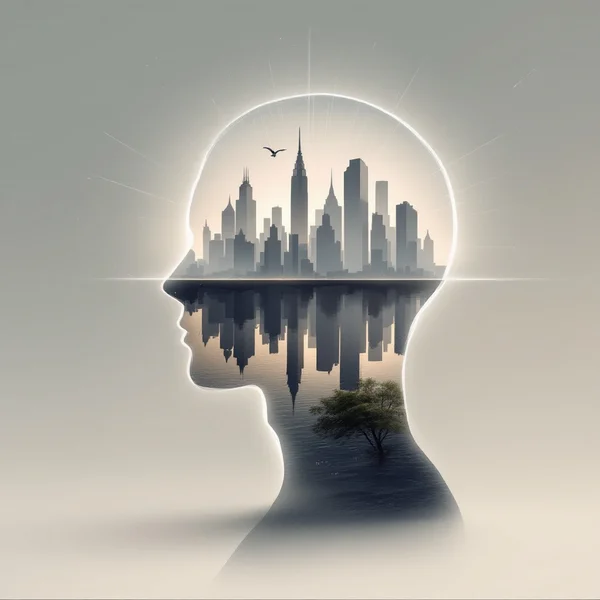
Luma Uni 1.1 is an image model from Luma AI that the developer describes as a “reasoning” model: it tries to understand what you mean rather than simply matching individual words in the prompt. In practice, that means you can talk to it in plain language — describe the task instead of stacking keywords. In this Luma Uni 1.1 review we cover what the model can do, how to use it online, what a generation costs and which jobs it suits best.
Luma AI is best known for its video models and 3D tools. Uni is its line for still images, and version 1.1 combines two scenarios: creating a picture from scratch from a description, and editing an uploaded photo with a text instruction. The model’s catalog tags — “all-round”, “editing”, “illustration” — sum up its profile well: a workhorse for varied tasks rather than a narrow specialist.
It is a good fit for social media managers, marketers, designers, small business owners, and anyone who wants usable images without learning prompt engineering. In WebTerra AI, Luma Uni 1.1 runs in the browser, with nothing to install and no extra accounts.
What Luma Uni 1.1 can do
- Text-to-image. Describe what you need and the model creates it. You can phrase it as a brief — “a cozy cover for a travel podcast, warm and inviting” — instead of a pile of keywords.
- Photo editing from a prompt. Upload an image and write what to change: background, lighting, style, specific details.
- One reference. In image-to-image mode the model works with a single uploaded image.
- Automatic style. The style setting defaults to “auto”: the model infers a fitting look from the description.
- Versatility. Photos, illustrations, social creatives, interiors, concept art — without jumping between models.
As with other image models, the dashboard includes presets: cinematic portrait, product shot, landscape, food photography, social media creative, interior, fashion editorial, lifestyle photo, architecture and exterior, fantasy and concept art. They make a handy starting point you can then refine in your own words.
Luma Uni 1.1 specs
| Parameter | Value |
|---|---|
| Developer | Luma AI |
| Type | Image generation and editing |
| Input modes | Text, image + text (image-to-image) |
| References | Up to 1 image |
| Default style | Auto |
| Price per generation | 6–7 credits (about $0.07–0.09) |
| Where to run it | WebTerra AI dashboard, image generator |
How to use Luma Uni 1.1 in WebTerra AI
- Sign up for WebTerra AI — 60 free credits land in your account.
- Open the image generator in the dashboard and pick Luma Uni 1.1.
- To create from scratch, write a prompt or choose a preset.
- To edit, upload a photo and describe exactly what to change.
- Leave the style on “auto” or pick one manually.
- Run the generation, review the result and refine the instruction if needed.
Because the model focuses on intent, it helps to explain the goal: what the image is for, where it will be published, what impression it should make. That context helps the model make sensible choices about composition and mood.
Luma Uni 1.1 pricing
Cost of one generation with default settings:
| Plan | Credits | Price |
|---|---|---|
| Starter | 7 | about $0.09 |
| Pro | 7 | about $0.08 |
| Ultra | 6 | about $0.07 |
The 60 free credits cover roughly eight Luma Uni 1.1 images on the Starter plan — enough to try both generation from scratch and editing your own photos. Credit packs and higher-plan discounts are on the pricing page.
Luma Uni 1.1 prompt examples
Notice that several of these are written as a task rather than a list of attributes — that is where the model shines.
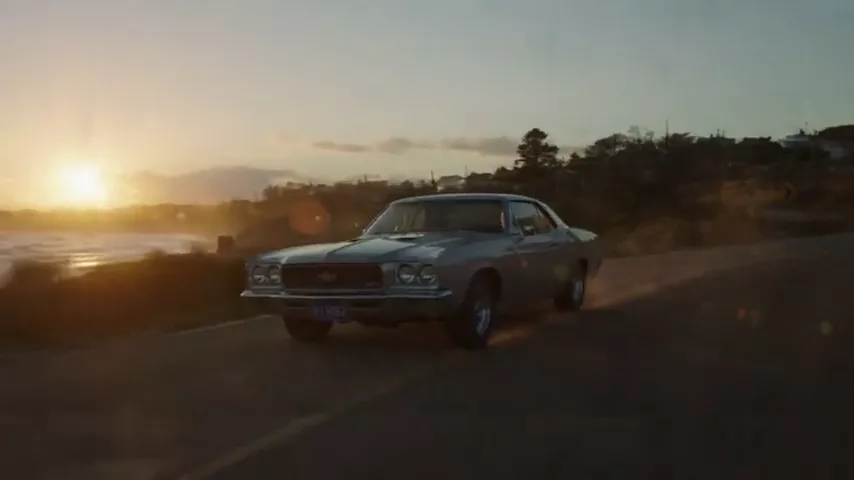
Create a cozy cover image for a travel podcast episode about autumn in the mountains: warm colors, a wooden cabin, steam from a mug, inviting mood
A podcast cover: the model picks a composition that fits the brief.
Product shot of a handmade soy candle in an amber glass jar for an online store, soft natural light, clean background, premium but friendly feel
A product photo for a marketplace or website.
Replace the background with a bright minimalist studio, keep the person and the clothing exactly the same
Editing: a background swap on an uploaded photo that keeps the person intact.
Make this photo look like an evening shot: warm street lights, blue hour sky, keep the composition
Editing: change the time of day and the mood of the shot.
Children’s book illustration of a curious fox reading a map in a forest clearing, soft watercolor style, gentle colors
An illustration for a children’s book or educational content.
Bold social media visual for a summer sale of a coffee shop: iced latte, sunny terrace, vibrant colors, space at the top for text
A social creative with room for a headline you can add in an editor.
Tips for working with Luma Uni 1.1
Write a brief, not a tag list
Instead of “cat, sofa, sunlight, 4k, cozy”, try “a calm Sunday morning photo of a cat napping on a sofa in sunlight”. The model parses the meaning of a sentence, so full phrases often beat keyword lists.
Explain the purpose
“For a cover”, “for a website banner”, “for a café menu” — a detail like that helps the model choose framing, crop and mood even if you did not spell them out.
When editing, say what to keep
An instruction like “replace the background” works better with “keep the person, clothing and pose unchanged”. The clearer you mark what must stay, the fewer surprises.
One change at a time
If you need a new background, new lighting and a different outfit color, do it in several steps. It is easier to control the result and step back if needed.
Trust auto style — mostly
Auto mode is good at inferring style from the description. If you need something specific — watercolor, 3D, photorealism — state it in the prompt or select a style manually.
Leave room for text
If the image will become a banner or cover with a headline, ask for it directly: “space at the top for a headline”, “clean empty area on the left”. Add the text itself in a design tool — that way you control the font, size and spelling, and the model handles only the visual.
Save prompts that work
Once you find a prompt that matches your brand style, save it as a template and change only the subject. Your image series will look consistent.
Luma Uni 1.1 in everyday work
The biggest advantage of an all-round model is covering different tasks without switching tools. Here is what a typical week might look like for a social media manager or small business owner:
- Monday: a few post creatives — text-to-image from a description of a promo or news item.
- Tuesday: refreshing product photos — swapping the background on an existing shot so every catalog card looks consistent.
- Wednesday: an illustration for a blog post — a soft watercolor or minimalist image.
- Thursday: a seasonal remix — the same shot with an autumn mood or evening light.
- Friday: a cover for a podcast, newsletter or webinar.
All of this can be done in one model by changing only how you phrase the task. When you need something highly specialized — large print images, complex typography or vectors — switch to a dedicated model.
Who Luma Uni 1.1 is for
- Social media and content marketing. Regular creatives, covers, post illustrations.
- Marketplaces and online stores. Product shots and background swaps on existing photos.
- Small businesses. Visuals for a café, salon or studio without an in-house designer.
- Bloggers and writers. Article illustrations, podcast and video covers.
- Education and publishing. Illustrations for learning materials and children’s books.
- Designers. Quick concepts and mood boards before detailed work.
More image models are on the image generation page.
Luma Uni 1.1 compared with other models
| Model | Strength | Choose it when |
|---|---|---|
| Luma Uni 1.1 | Reads intent, generates and edits | Varied tasks, natural phrasing, photo edits |
| FLUX 1.1 Pro Ultra | 4 MP with no upscaling | Print and large photorealistic banners |
| FLUX.2 Pro | Photorealism, portraits | Realistic portraits |
| Nano Banana Pro | Premium editor, 4K | Complex high-resolution editing |
| Recraft V3 | Vector graphics | Logos, icons, vectors |
| Seedream 4.0 | Anime, illustrations | Anime and hand-drawn styles |
Luma Uni 1.1 is a solid default when your tasks vary and you have no time to learn model-specific tricks. For large photorealistic frames, read our FLUX 1.1 Pro Ultra review; for portraits, see FLUX.2 Pro. For complex high-resolution editing, look at Nano Banana Pro, and for vector graphics, Recraft V3.
Luma Uni 1.1 limitations
- One reference. You can upload only one image for editing.
- Versatility has a cost. In narrow tasks — vectors, complex typography, large-format print — specialized models may do better.
- Phrasing still matters. “Understanding intent” does not replace a clear instruction: vague requests give vague results.
- Editing is not pixel retouching. When editing from a description, small details may shift; say what needs to stay.
FAQ
What does a “reasoning” image model mean?
That is how the developer describes the model’s ability to parse the meaning of a request and the author’s intent, not just individual words. It makes full-sentence prompts work well.
Can I edit my own photos?
Yes. Upload one image and describe the changes: background, lighting, style, details.
How much does one generation cost?
6–7 credits depending on the plan — roughly $0.07–0.09.
What does the “auto” style setting do?
The model chooses a suitable style based on the description. If you need a specific look, name it in the prompt.
How is Luma Uni 1.1 different from FLUX?
FLUX models are strong at photorealism, and Ultra adds high resolution. Luma Uni 1.1 is more of an all-rounder: it combines generation, editing and illustration and handles natural phrasing well.
Which language should I write prompts in?
English gives the most predictable results. Because the model focuses on meaning, natural task-style descriptions work well — you do not need special keyword formulas.
Can I make several variants of the same image?
Yes. Run the same prompt again or change one detail at a time. At 6–7 credits per image, comparing a few variants before choosing the final one is affordable.
Do I need to install anything?
No, it runs online in the browser.
Try Luma Uni 1.1 online
If you want one model for a range of everyday tasks — from a post creative to a background swap on a product photo — Luma Uni 1.1 is worth a try. Claim your 60 free credits and get started in the WebTerra AI dashboard.
Try AI models yourself
Models for video, images and audio in one place — 60 credits free when you sign up
Start for free