Luma Ray 3.2 Review: Cinematic AI Video With HDR
Luma Ray 3.2 from Luma AI generates video with film-style lighting and physics, supports HDR, photo animation and first/last frames. Modes, pricing, prompts and how it compares.
Luma Ray 3.2 is a video generation model from Luma AI focused on cinematic lighting, believable physics and HDR support. It creates 5 or 10-second clips from text or animates a photo, at resolutions up to 1080p. In this Luma Ray 3.2 review we cover how to use the model online in WebTerra AI, what a generation costs, how to prompt for a filmic look and when another video model is the better pick.
Luma AI is known for its Ray models and Dream Machine, which people like for their cinematic feel. Ray 3.2 continues that line: the focus is on light, flares, reflections and atmosphere. If you need a clip that looks like a moment from a film or a high-end commercial rather than typical AI animation, this is one of the models worth trying first.
It carries a Pro badge in the catalogue and costs more than mass-market video generators, so this review also covers how to plan a budget and where the model pays off. Luma Ray 3.2 is available in the video generation section of WebTerra AI.
What Luma Ray 3.2 can do
- Text-to-video. Describe a scene and the model builds a clip from scratch.
- Photo animation. Upload an image and it becomes the first frame of the video.
- First and last frame. Set how the clip starts and ends, and the model builds the transition between them.
- Keyframes. The model card lists support for up to 64 keyframes to guide motion.
- Cinematic light and HDR. Lens flares, chrome reflections and warm film-style grading.
- Six aspect ratios. 16:9, 9:16, 1:1, 4:3, 3:4 and widescreen 21:9.
- Three resolutions. 540p, 720p and 1080p.
The 21:9 option deserves a mention: it is rare among video models and gives you a true widescreen cinema frame for trailers, intros and moody title sequences.
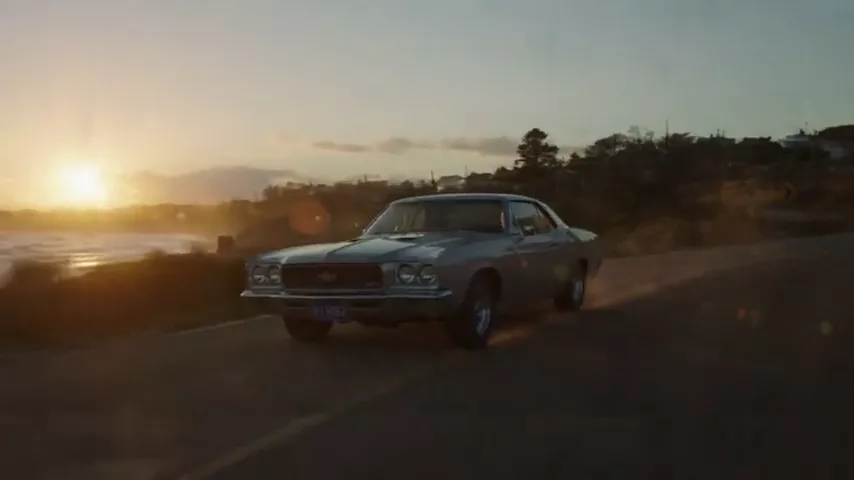
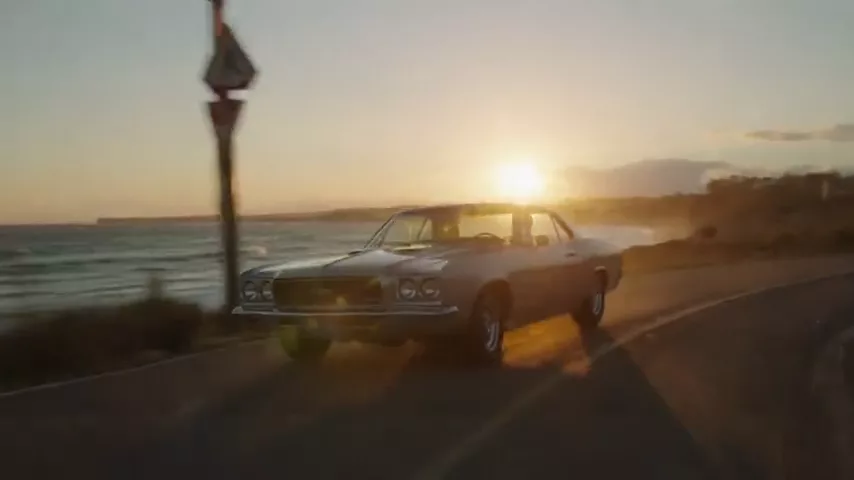
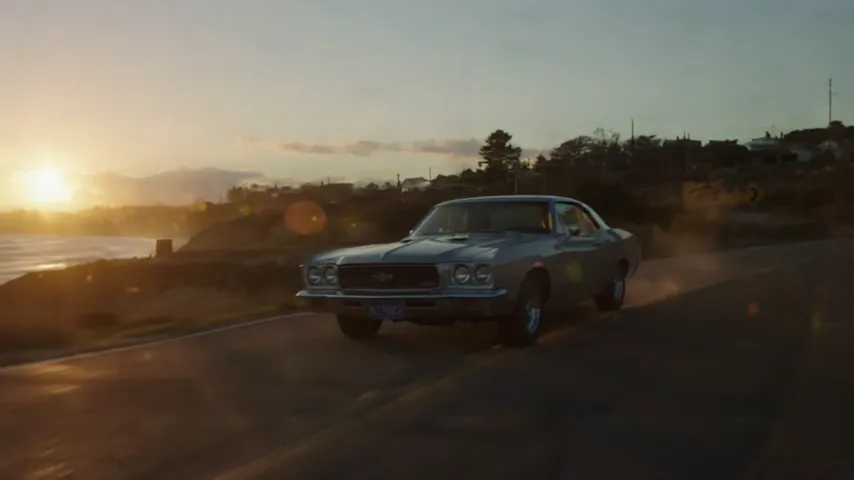
The model's demo clip in the catalogue shows a vintage car driving along a coastal road at sunset, with lens flares and reflections in the chrome. It neatly illustrates what Ray 3.2 does well: complex light, shiny surfaces and a warm colour palette.
Specifications
| Parameter | Value |
|---|---|
| Developer | Luma AI |
| Type | Video generation |
| Input modes | Text-to-video, image-to-video |
| Duration | 5 or 10 seconds |
| Resolution | 540p, 720p, 1080p |
| Aspect ratios | 16:9, 9:16, 1:1, 4:3, 3:4, 21:9 |
| First and last frame | Yes |
| Keyframes | up to 64 |
| Defaults | 5 s, 720p, 16:9 |
| Price per default clip | 145–162 credits (about $1.68–2.07) |
How to use Luma Ray 3.2 in WebTerra AI
- Sign up for WebTerra AI and top up your credits on one of the plans.
- Open the video generator in your dashboard and choose Luma Ray 3.2.
- Pick a mode: text-to-video or photo animation. For the latter, upload an image and, if needed, a last frame too.
- Set the duration (5 or 10 seconds), resolution and aspect ratio. Use 9:16 for social, 16:9 for YouTube and 21:9 for a cinematic intro.
- Write a prompt or start from a preset such as Cinematic shot or Complex camera move.
- Check the cost shown in the dashboard and run the generation.
Luma Ray 3.2 pricing
Here is what one clip at default settings (5 seconds, 720p, 16:9) costs on each plan:
| Plan | Credits per clip | Cost in USD |
|---|---|---|
| Starter | 162 | about $2.07 |
| Pro | 153 | about $1.84 |
| Ultra | 145 | about $1.68 |
Cost scales with resolution and duration. The base rates are 17 credits per second at 540p, 34 at 720p and 68 at 1080p. So a 5-second 540p clip costs half as much as one at 720p, while a 10-second 1080p clip costs four times as much. Pro and Ultra plans apply a discount, so the actual charge is a little below the base figure.
| Resolution | 5 seconds (base) | 10 seconds (base) |
|---|---|---|
| 540p | 85 credits | 170 credits |
| 720p | 170 credits | 340 credits |
| 1080p | 340 credits | 680 credits |
To be upfront about the free credits: the 60 credits you get on sign-up are not enough for a single Luma Ray 3.2 clip, even at 540p. They are handy for testing a prompt on a cheaper model before running the final version in Ray 3.2. Plans and credit packs are on the WebTerra AI pricing page.
How to save credits
- Work out composition and motion at 540p, then switch to 1080p for the final render.
- Start with 5 seconds; if the scene works, extend to 10.
- When animating a photo, prepare the first frame carefully to cut down on failed attempts.
Prompt examples
Ending a prompt with "no text, no captions, no watermark" helps keep stray lettering out of the frame.
1. The model's demo prompt. A vintage car on the coast, a Ray 3.2 classic.
Cinematic HDR shot of a vintage car driving along a coastal road at sunset, lens flare, chrome reflections, warm cinematic grading, no text, no captions, no watermark
2. Product video. An ad for a marketplace or social media.
Slow orbit around a luxury wristwatch on a black marble surface, soft rim light, glinting reflections on the metal, shallow depth of field, premium commercial look, no text, no watermark
3. Complex camera move. A flyover above a landscape.
Drone flyover above a misty mountain valley at sunrise, camera slowly descending toward a winding river, golden light breaking through clouds, cinematic, no text, no watermark
4. Interior walkthrough. A video tour of an apartment.
Smooth gimbal walkthrough of a modern loft apartment, warm evening light from floor lamps, city lights through large windows, slow forward tracking shot, no text, no watermark
5. Food close-up. A clip for a menu or Reels.
Macro close-up of honey slowly dripping onto a stack of pancakes, backlit morning sunlight, glistening texture, slow motion, no text, no watermark
6. Fantasy scene. Film-quality sci-fi in 21:9.
Wide cinematic shot of a lone astronaut walking across a red desert planet, two moons in the sky, dust blowing in the wind, anamorphic lens flare, no text, no watermark
Tips for prompting Luma Ray 3.2
Lead with the light
Lighting is the model's main strength. Specify the time of day (sunset, golden hour, blue hour), the light source (rim light, backlit, neon) and its quality (soft, harsh, glowing). These words do the most to make a shot feel cinematic.
Spell out the camera move
Ray 3.2 handles complex moves well: orbit, tracking shot, drone flyover, slow push-in. One clear camera instruction beats several conflicting ones.
Add reflective surfaces
Chrome, glass, water and wet asphalt all bounce light and give the model room to show off HDR and reflections.
Use first and last frames for transitions
If the scene must land on something specific, such as a product centred on a branded background, set it as the last frame. That gives you more control than text alone.
Keep one idea per clip
Five or ten seconds is enough for one strong moment, not a whole story. Rather than packing several events into one prompt, describe a single action with a clear camera move and build longer sequences from several clips in the edit. Each clip then gets the model's full attention to light and detail.
Choose the aspect ratio up front
Reframing after generation crops away part of the image. Use 9:16 for Reels, 16:9 for YouTube and 21:9 for a cinematic intro from the start.
Use cases
- Ad agencies and brands. Premium product clips with beautiful light.
- Music video makers and directors. Atmospheric shots, transitions, title sequences and animatics.
- Real estate. Interior walkthroughs and flyovers of properties.
- Restaurants and food brands. Mouth-watering slow-motion close-ups.
- Travel and landscape channels. Nature in motion, time-lapses and drone-style flyovers.
- YouTubers. 21:9 intros and cinematic B-roll.
Workflow: a premium product clip
Take a good product photo or generate one in an image model. Upload it as the first frame and ask for a slow camera orbit with rim light and reflections on the surface. If the ending has to be specific, say the product centred on a dark background, set it as the last frame. Find the motion at 540p first, then render the final version at 1080p and add sound and your logo in the edit.
Workflow: a cinematic channel intro
The 21:9 ratio instantly feels like cinema. Describe one atmospheric scene, such as a rainy city at night, a desert at dawn or a misty forest, and add a slow camera move. Ten seconds is plenty for a title sequence with your channel name overlaid.
Luma Ray 3.2 compared with other video models
| Model | Strength | When to choose it |
|---|---|---|
| Luma Ray 3.2 | Cinematic light, HDR, 21:9, keyframes | Atmospheric premium shots |
| Veo 3.1 | 4K, with sound | You need sound built in and maximum resolution |
| Kling 3.0 | Top motion quality | Complex motion of people and objects |
| Kling 2.6 Pro | Sound out of the box | A finished clip with audio, no separate sound pass |
| Wan 2.7 | Open source, affordable | Tight budget, drafts |
Luma Ray 3.2 does not generate audio, so if you need sound straight away, compare it with Veo 3.1 or Kling 2.6 Pro. For complex human motion, look at Kling 3.0. On a tight budget, Wan 2.7 is an affordable option for drafts. And you can add sound to a silent Ray 3.2 clip afterwards with a model like ThinkSound, which analyses the scene on its own.
Limitations and what to keep in mind
- No audio. The model only generates video; add sound with a separate model or in your editor.
- 5 or 10 seconds only. Longer pieces mean stitching several generations together.
- Premium price. A default clip costs about $1.68–2.07, and 1080p at 10 seconds costs noticeably more.
- Free credits will not cover a clip. 60 credits is less than the cheapest Ray 3.2 generation.
- 1080p maximum. For 4K you need an upscale or a different model.
FAQ
How much does one Luma Ray 3.2 clip cost?
At default settings (5 s, 720p), 145–162 credits depending on the plan, roughly $1.68–2.07.
What is the maximum video length?
10 seconds. You can choose 5 or 10.
Can it animate a photo?
Yes, in image-to-video mode. You can also set a last frame to control how the scene ends.
Does Luma Ray 3.2 generate sound?
No. Add audio with a separate video-to-sound model or in your editor.
Which aspect ratios are supported?
16:9, 9:16, 1:1, 4:3, 3:4 and 21:9. The last is a widescreen cinema format, ideal for trailers, intros, title sequences and anything that should look like a frame from a film.
How can I keep test costs down?
Generate drafts at 540p and 5 seconds; that is a quarter of the cost of 1080p at the same length.
Luma Ray 3.2 is the choice when you need a filmic look with expressive light and reflections. Create your first cinematic clip in the WebTerra AI dashboard.
Try AI models yourself
Models for video, images and audio in one place — 60 credits free when you sign up
Start for free