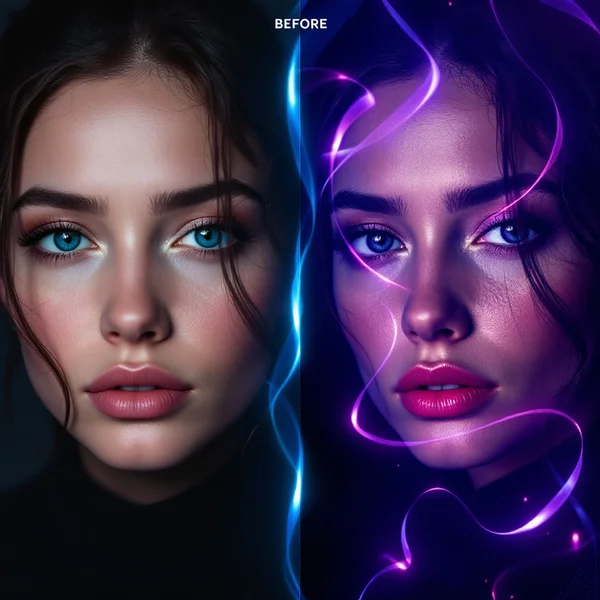
Grok Imagine 2.0 Review: xAI’s Second-Gen Image Generator
Grok Imagine 2.0 from xAI is noticeably better than v1 at faces and composition while staying fast. Features, pricing, prompts and how it compares to FLUX and Nano Banana.

Grok Imagine 2.0 is the second generation of xAI's image generator. It is noticeably better than the first version at faces and composition, and it is still fast. In this Grok Imagine 2.0 review we cover what changed, how to use the model online in WebTerra AI, what a single image costs and which jobs it handles best.
The WebTerra AI catalog tags it with "photorealism", "fast" and "social media", which sums up its profile well. Grok Imagine 2.0 is the model to reach for when you need a realistic image for a post, a story, a product card or a slide — and you want several variations without waiting long for each one.
xAI is best known for its Grok language models; Imagine is its image line. The second version focuses on the two areas where the first one struggled most: believable faces and well-organized frames.
What Grok Imagine 2.0 can do
The main mode is text to image: describe a scene and the model renders it. You can also attach one reference image to guide the style, subject or mood.
- Better faces. Portraits look more convincing than in v1 — the headline improvement of the second generation.
- Stronger composition. Objects are placed in the frame more deliberately, which matters for product shots and ad creatives.
- Speed. It keeps the quick turnaround of its predecessor, so batches and rapid iteration are practical.
- Size by aspect ratio. You pick the frame shape and the model renders at 1K or 2K.
- One reference. Add a single image to the prompt as a visual hint.
Defaults in the dashboard are medium quality, 1K and a square 1:1 frame — a sensible starting point for social posts and testing ideas.
Grok Imagine 2.0 specs
| Parameter | Value |
|---|---|
| Developer | xAI |
| Model type | Image generation |
| Input | Text, plus one reference image |
| Resolution | 1K or 2K (set via aspect ratio) |
| Defaults | Medium quality, 1K, 1:1 |
| Price per image (1024×1024) | from 9 credits (about $0.10) |
How to use Grok Imagine 2.0 in WebTerra AI
- Sign up for WebTerra AI and get 60 free credits.
- Open the image generator in your dashboard and choose Grok Imagine 2.0.
- Write your prompt: who or what is in the frame, where it happens, the lighting and the photographic style.
- Optionally attach one reference image.
- Pick the aspect ratio that suits where the image will live — feed, story or banner — from the options in the dashboard.
- Generate, review, and refine the prompt if needed.
Presets are a quick way in: the dashboard has templates for cinematic portraits, product shots, food photography, interiors, fashion editorials and more. A preset fills in a base description you can then make specific.
Grok Imagine 2.0 pricing
Price of one generation with default settings (1024×1024, medium quality):
| Plan | Credits per image | Price in USD |
|---|---|---|
| Starter | 10 | about $0.13 |
| Pro | 9 | about $0.11 |
| Ultra | 9 | about $0.10 |
The 60 free credits from sign-up cover about six images — enough to test the model on a few real tasks such as a portrait, a product shot and a social creative. Changing resolution, aspect ratio or quality may change the cost. Compare credit packs on the pricing page.
Prompt examples for Grok Imagine 2.0
These prompts build on the dashboard presets. Use them as-is or swap in your own subject.
1. Cinematic portrait
Cinematic portrait of a middle-aged fisherman on a pier at dusk, weathered face, warm side light from a lantern, shallow depth of field, 35mm film look, muted teal and orange tones
Tests the model's main upgrade — faces. A specific light source and film look set the mood.
2. Marketplace product shot
Product shot of a matte black ceramic coffee mug on a light oak table, soft window light from the left, clean minimal background, gentle shadow, high detail, commercial photography
A clean, naturally lit product image for a store listing or website.
3. Food photography for a menu
Overhead food photography of a bowl of ramen with soft-boiled egg, scallions and chili oil, dark stone surface, steam rising, moody restaurant lighting
Top-down angle and visible steam make the dish feel fresh.
4. Social media creative
Bold social media visual, young woman laughing with a bright yellow umbrella on a rainy city street, saturated colors, playful mood, space at the top for a headline
Leaves room for a headline you add later in an editor.
5. Interior
Scandinavian living room interior, light wood floor, linen sofa, large window with morning light, indoor plants, calm neutral palette, architectural photography
A designer space for a mood board, pitch or renovation blog.
6. Architecture and exterior
Modern two-story house with large glass walls and a flat roof, surrounded by pine trees, evening blue hour, warm interior lights glowing, architectural photography, wide angle
Blue hour plus warm windows gives an easy, striking contrast for a project presentation.
7. Fantasy concept art
Epic fantasy landscape, ancient stone city built into a cliff above a misty valley, flocks of birds, golden hour light, concept art, wide shot
A large-scale scene for a game, a book or a cover.
Tips for writing Grok Imagine 2.0 prompts
Describe the shot like a photographer
For photorealism, the structure "subject → action → setting → light → lens → mood" works reliably. Phrases like "soft window light", "shallow depth of field" or "35mm" tell the model what kind of photo you're after.
For portraits, be specific about the face
Faces are where version 2.0 improved most, so go beyond "portrait". Describe age, expression, gaze direction and hair. The more concrete the description, the less randomness.
Plan the composition
If you need space for text, say so: "space at the top for a headline", "subject on the right third". The model composes better when it knows how the image will be used.
Choose the format before generating
Image size is tied to the aspect ratio, so pick the right shape up front. Cropping a square into a vertical frame throws away part of the picture.
Use the reference with intent
A single reference image helps carry over a style or the look of an object. Say in the prompt what to take from it — colors, lighting or the object itself.
Handle text separately
For lettering and posters, the catalog has models that specialize in typography. Use Grok Imagine 2.0 for the image itself and add the headline in an editor or with another model.
Keeping a series consistent
Social feeds and catalogs rarely need a single image; they need a set that looks like it belongs together. A few habits help with Grok Imagine 2.0:
- Lock a style suffix. Write the lighting, palette and photo style once and append that exact fragment to every prompt.
- Change only the subject. In a product series, swap the item name and keep background, angle and light identical.
- Reuse your best frame as a reference. Attach the strongest image of the set to later generations to hold the mood.
- Stick to one format. A consistent aspect ratio makes a feed or catalog look tidier.
Because the model is fast, you can generate a few takes per frame and keep the best. If the final images are going to print, run them through an upscaler from the WebTerra AI photo editor at the end.
Use cases
- Social media managers. Fast creatives for posts and stories, with several options in minutes.
- Marketplace sellers. Product and lifestyle shots without a studio.
- Restaurants and cafés. Food photography for menus, delivery apps and Instagram.
- Interior designers and architects. Mood visuals for client presentations.
- Content creators. Article illustrations, covers and concept art.
- Fashion brands. Editorial-style looks for mood boards and social.
Grok Imagine 2.0 vs other image models
WebTerra AI hosts many image generators, each with its own focus. Here's how Grok Imagine 2.0 compares with the closest alternatives.
| Model | Focus | Pick it when |
|---|---|---|
| Grok Imagine 2.0 | Photorealism, speed, social | You want realistic frames quickly at a moderate price |
| FLUX.2 Pro | Photorealism, portraits | Portrait and photoreal work is the core job |
| Nano Banana 2 | 4K, text in images | You need high resolution or lettering in the image |
| Ideogram V3 | Posters and flyers | Typography and poster layout come first |
| Seedream 4.0 | Anime, illustrations | You want stylized, illustrated or anime art |
If portraits with maximum realism are your main task, compare against FLUX.2 Pro. If you need 4K output or text rendered directly in the image, read the Nano Banana 2 review. For posters, Ideogram V3 is the more logical pick. Grok Imagine 2.0 earns its place where speed, realism and a moderate price matter together: social creatives, products, food and lifestyle.
All of these run on one credit balance, so you can push the same prompt through two or three models and keep the winner. See the full list in the AI images section.
Limitations
- One reference image. For complex edits with several references, choose a different model.
- 1K or 2K output. For large prints, upscale afterwards.
- Size follows the format. You set an aspect ratio, not arbitrary width and height.
- Price depends on settings. The quoted cost is for 1024×1024 at medium quality.
FAQ
How much does a Grok Imagine 2.0 image cost?
With default settings: 10 credits on Starter (about $0.13), 9 on Pro (about $0.11) and 9 on Ultra (about $0.10).
How is it better than the first version?
The second generation is noticeably more accurate with faces and composition while keeping the same speed.
Can I upload my own image as a reference?
Yes, you can attach one reference image to the prompt.
What resolution does it produce?
1K or 2K, with the size determined by the aspect ratio you choose.
Can I try it for free?
Yes. The 60 welcome credits cover about six images at default settings.
Can Grok Imagine 2.0 put text on images?
It's built for realistic imagery rather than typography. For posters, logos and legible lettering, models focused on text — such as Ideogram V3 or Nano Banana 2 — are the safer choice.
Which quality setting should I use?
Start with the default medium quality at 1K to explore ideas cheaply, then switch settings only for the frames you plan to publish.
Do I need to install anything?
No. Grok Imagine 2.0 runs online in the WebTerra AI dashboard — just a browser.
Grok Imagine 2.0 is a fast, affordable generator for everyday realistic images. Create a WebTerra AI account, claim 60 free credits and make your first images online today.
Try AI models yourself
Models for video, images and audio in one place — 60 credits free when you sign up
Start for free