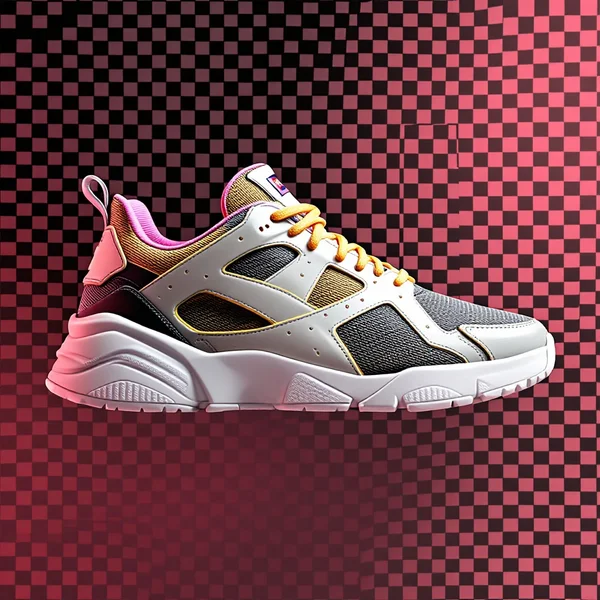
Product Videos for Your Online Store: Animate a Photo in a Minute
How to turn one photo into product videos for your online store: slow rotations, smooth camera moves, detail close-ups and short clips for listings and Stories, with no shoot.
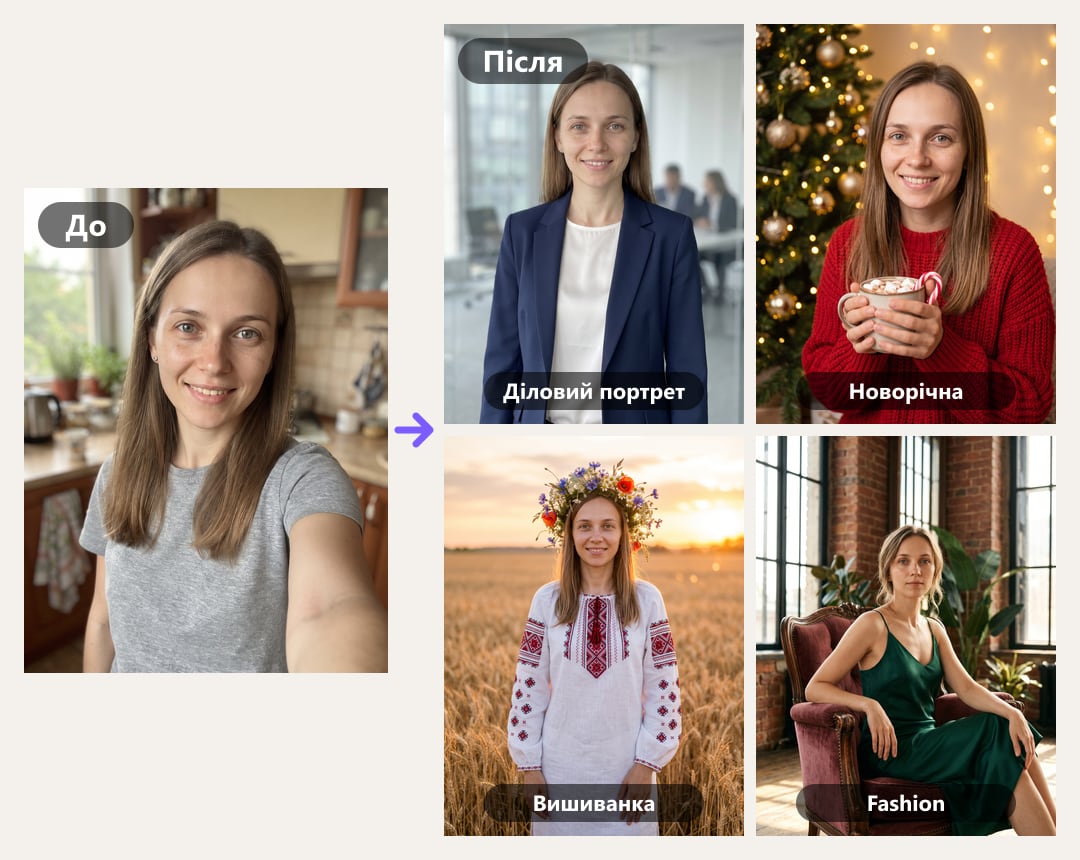
Product videos for your online store let shoppers inspect an item the way they would in their hands: the texture, the shine, the volume, how fabric moves or how a lid opens. But filming a separate clip for every item in the catalog is slow and costly. That is where generating video from a photo comes in.
We at WebTerra AI will show you how to turn one good still into a short clip for a product page or Stories: which kinds of motion work best, which model fits which job, how to write the prompt and how to avoid distorting the product itself. Ready-to-use prompts, common mistakes and an FAQ are at the end.
What kind of clips work on a product page
A listing doesn't need cinema. Simple, readable moves of four to eight seconds work best.
- Rotation. The product turns slowly on a pedestal, showing its shape from every side.
- Push-in. The camera glides towards a detail: a seam, a clasp, a texture.
- Orbit. The camera circles the product while light slides across the surface.
- Product in action. Steam over a mug, fabric swaying, a dab of cream on skin.
- Atmosphere. The product in an interior, light shifting, gentle motion in the background.
One or two clips per listing is usually enough: a rotation to show shape and a close-up to show quality. Save atmosphere clips for Stories and ads, where catching attention matters more than detail.
Preparing the photo for a product video
A video model continues whatever it sees in the photo. If the source is soft, the clip will be worse.
- High resolution and sharpness, especially on details the camera will show up close.
- A clean background or a tidy scene without clutter.
- A little free space around the product so the camera has room to move.
- Soft, even light with no blown highlights.
- An aspect ratio that matches the placement: vertical for Stories, square for the listing.
Which model to choose
All four models are in the video generator, and all of them can start from your photo.
| Model | Duration | Strength | From |
|---|---|---|---|
| Kling 3.0 | 3–15 s | Smooth motion, physics, 16:9, 9:16, 1:1 | $0.93 |
| Veo 3.1 | 4, 6, 8 s | Up to 4K, synchronized sound | $4.17 |
| Hailuo 2.3 | 6, 10 s | Facial expressions and emotion | $0.52 |
| Seedance 2.5 | 4–30 s | Six aspect ratios, sound, up to 30 s | $4.20 |
Kling 3.0 for most products
Kling 3.0 brings improved physics and smooth motion, which is exactly what rotations and push-ins need. It offers flexible durations from 3 to 15 seconds and lets you set a first and last frame, for example a full view and a detail close-up. From $0.93.
Veo 3.1 for premium items
Veo 3.1 from Google offers up to 4K and synchronized sound: rustling paper during an unboxing, clinking glass, the click of a clasp. Durations are 4, 6 or 8 seconds. Starting at $4.17, it's best kept for flagship products and ad clips.
Hailuo 2.3 when a person is in the frame
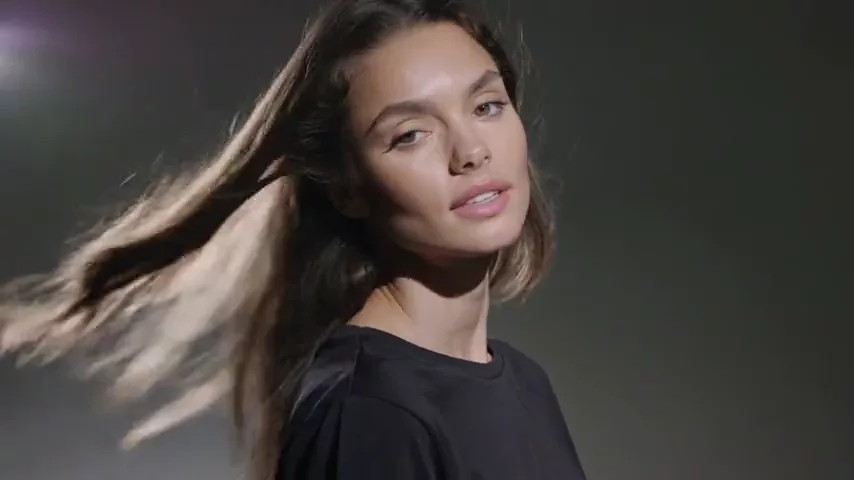
Hailuo 2.3 is noticeably better than its predecessor at facial expressions and emotion, so it suits clips where someone holds the product, smiles or tries a cream. Durations are 6 or 10 seconds, from $0.52, the most affordable of the four.

Seedance 2.5 for longer clips and many formats
Seedance 2.5 is ByteDance's flagship. It generates up to 30 seconds, supports 16:9, 9:16, 1:1, 4:3, 3:4 and 21:9 with synchronized sound, and accepts references. Note that it sometimes rejects photos with real faces, so for clips with people Kling 3.0 or Veo 3.1 are the safer choice. For the product alone, Seedance 2.5 works well.
How to write a product video prompt
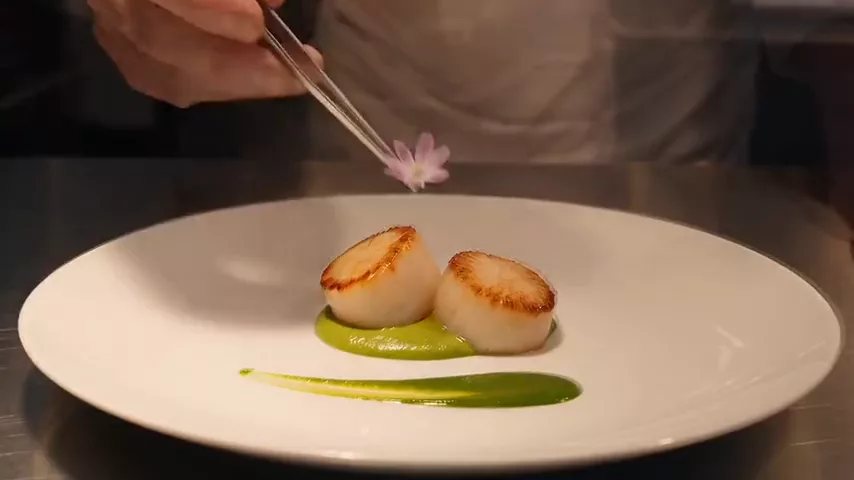
A photo-to-video prompt doesn't describe the product, which the model can already see. It describes motion. The structure is simple:
- Camera move: slow push-in, orbit, pull-back.
- Motion in frame: the product rotates, steam rises, fabric sways.
- Light: "soft light sweeps across the surface".
- Constraints: "keep the product unchanged, no new objects, no text".
The simpler the motion, the more stable the result. Test complex actions like opening, folding or pouring at short durations first.
Workflow: from photo to published clip
- Test. First run at minimum duration and resolution, just to check the model understood the motion.
- Adjust. If the product warps, simplify the motion and add constraints. If the motion is weak, specify camera direction and speed.
- Final render. Now raise duration and resolution.
- Review. Scrub through frames where the logo, label or fine details are visible.
- Publish. Put the clip first or second in the listing gallery, and share it separately in Stories with a product link.
Other places to use the clip
- Your own site's product page, next to the photos.
- Stories and Reels announcing a new arrival.
- Email: a short clip converted to a GIF draws the eye.
- Ad campaigns, as a video creative tested against a static banner.
Ready-to-use prompts
Pedestal rotation (Kling 3.0):
The product slowly rotates 360 degrees on a white pedestal, soft studio light, clean background, smooth steady motion, keep the product shape, color and logo unchanged
Push-in to a detail (Kling 3.0, first frame a full view, last frame a close-up):
Smooth camera push-in from the full product view to a close-up of the stitching, soft light, shallow depth of field, no extra objects
Premium clip with sound (Veo 3.1):
Slow orbit around a glass perfume bottle on a black reflective surface, a beam of light sweeps across the glass, subtle sparkle, soft ambient sound, elegant mood
Person with the product (Hailuo 2.3):
A smiling woman gently applies cream to her hand and looks at the camera with a pleased expression, soft daylight, natural motion, the jar stays clearly visible
Common mistakes
- Describing the product instead of the motion, which invites the model to redraw it.
- Asking for complex hand actions on the first try.
- Using a soft photo; flaws become more obvious in motion.
- Making long clips for a listing when five to eight seconds is plenty.
- Not checking the logo and label throughout the clip.
- Uploading photos with people to Seedance 2.5 and being surprised by a rejection.
Examples made with Kling 3.0
Full gallery →FAQ
How much does one clip cost?
From $0.52 in Hailuo 2.3 and from $0.93 in Kling 3.0. Price depends on duration and resolution, and the money for a failed generation is refunded to your balance.
Can I animate a photo on a white background?
Yes. Rotations and push-ins on white look clean and suit listings well. More ideas are on our photo to video page.
Will the model keep the logo and packaging text?
Usually, with simple motion, but small text can drift. Always watch the whole clip before publishing.
Can I use the clips in ads?
Files are yours and download without watermarks; commercial use is allowed regardless of your plan.
Animate your first product
Take the best photo in your catalog and turn it into a 5-second rotation in Kling 3.0. More layout ideas are on our product cards page. New users get a free trial balance valid for 48 hours. Start in your WebTerra AI dashboard.
Try AI models yourself
Models for video, images and audio in one place — a free trial balance when you sign up
Start for free