Trends with a voice: how to change the greeting text
Birthday and New Year greetings and “Influencer review”: what you can replace in quotes and how to write a line so it’s heard in full.
Three trends speak out loud: “Birthday greeting”, “New Year greeting” and “Influencer review”. They run on Veo 3.1 Lite and Veo 3.1 Fast, models with sound that can speak different languages. The character’s line sits in the prompt in quotes, and you can replace it with your own text.
How to change the text
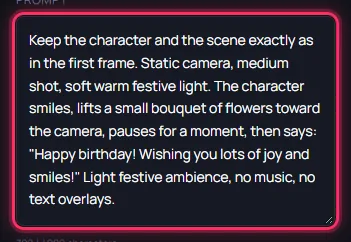
- Open the trend — the prompt is already in the field (see the screenshot).
- Find the quoted phrase after says: (or say:) at the end of the prompt — for example, "Happy birthday! Wishing you lots of joy and smiles!"
- Replace only the text in quotes. Keep the rest of the prompt — the scene description in English — as it is: it keeps the character, framing and motion.
- Add the character’s photo (for “Influencer review” — also the product photo) and run the generation.
Rules for the line
- 1–2 short sentences. The clip is 8 s long, enough for one or two sentences to sound natural. A longer text gets cut off or rushed.
- Want another language? Name it: says in Spanish: "…". Without that the model may speak with an accent or switch to English.
- Start with a clear word: a lone one-letter word at the very start is often swallowed on the first frame.
- Names — tricky ones can be hinted with a stress mark or spelled the way they are pronounced.
- Keep the pause before the line (pauses for a moment, after a short pause) — so the voice doesn’t overlap the start of the motion.
Under the prompt field the form warns you if the line is too long or starts with a lone consonant. More examples — in Prompt language and spoken lines.
Need a long greeting? Voice the text separately and animate the photo to that track — see Talking avatar.