MiniMax H3 Review: Long Scenes up to 15 Seconds, Smooth Motion
MiniMax H3 is the new generation of MiniMax video models: long scenes up to 15 seconds, high resolution and smooth motion. We cover modes, pricing, prompts and limits.
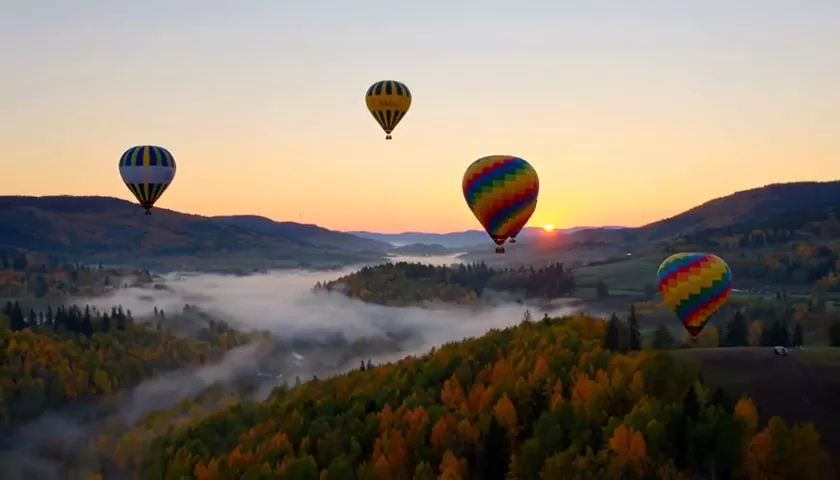
MiniMax H3 is the new generation of video models from MiniMax, built for long scenes of up to 15 seconds and high resolution. Its main strength is smooth motion: slow camera glides, drifting objects, gentle transitions. In this MiniMax H3 review we cover what the model can do, what a clip costs in WebTerra AI, how to choose a resolution for the job and how to write prompts that make motion look natural.
In generative video, MiniMax is best known for its Hailuo line, valued for realistic motion. H3 continues that direction, adding longer clips and a wider choice of resolutions.
The model suits marketers, social media managers, real estate agents, travel and hospitality brands, and bloggers — anyone who needs atmospheric clips with a smooth camera. MiniMax H3 runs online, in your browser.
What MiniMax H3 can do
The model combines two generation modes with flexible settings for duration, aspect ratio and quality.
- Text to video. Describe a scene and get a clip.
- Image to video. Upload a picture and the model adds motion to it.
- Duration from 5 to 15 seconds. Any value in one-second steps.
- Four resolution levels. 480P, 768P, 2K and 4K — from cheap drafts to maximum detail.
- Six aspect ratios. 16:9, 9:16, 1:1, 4:3, 3:4 and 21:9.
- First and last frame. You can set how the clip starts and ends.
- Smooth motion. The model is strong at gentle, consistent movement — glides, pans and slow action.
Dashboard presets cover typical scenarios: “Cinematic shot”, “Product video”, “Nature / time-lapse”, “Animate a photo (image-to-video)”, “Multi-shot scene”, “First-person vlog”, “Food close-up”, “Fantasy scene”, “Sports slow motion” and “Interior walkthrough” — a video tour of an apartment or house.
MiniMax H3 specs
| Parameter | Value |
|---|---|
| Developer | MiniMax |
| Type | Video generation |
| Input modes | Text to video, image to video |
| Duration | 5–15 seconds (1 s steps) |
| Resolution | 480P, 768P, 2K, 4K |
| Aspect ratios | 16:9, 9:16, 1:1, 4:3, 3:4, 21:9 |
| First / last frame | Yes |
| Default settings | 5 s, 768P, 16:9 |
| Default price | 44–49 credits (about $0.51–0.63 depending on plan) |
How to use MiniMax H3 in WebTerra AI
- Log in or sign up and open the video generation dashboard. New users get 60 free credits.
- Choose MiniMax H3 from the model list. All video models are listed on the AI video generation page.
- Pick a mode: text to video or photo animation. For animation, upload an image.
- Set the first and last frame if needed.
- Choose the duration (5–15 s), resolution and aspect ratio.
- Write a prompt or use a preset. Be sure to describe how the camera and objects move.
- Check the price and start the generation. You can then preview and download the clip.
MiniMax H3 pricing
The price depends on duration and resolution. With the default settings (5 seconds, 768P, 16:9), one generation costs:
| Plan | Credits per clip | Price in USD |
|---|---|---|
| Starter | 49 | about $0.63 |
| Pro | 46 | about $0.56 |
| Ultra | 44 | about $0.51 |
Base rates per second: 8.4 credits at 480P, 10.11 at 768P, 22 at 2K and 27.11 at 4K, with your plan discount applied on top. Approximate base amounts before the discount:
| Duration | 480P | 768P | 2K | 4K |
|---|---|---|---|---|
| 5 s | 42 | about 51 | 110 | about 136 |
| 10 s | 84 | about 101 | 220 | about 271 |
| 15 s | 126 | about 152 | 330 | about 407 |
The 60 free credits you get on sign-up cover one clip at default settings — a great way to judge the smoothness of motion on your own idea. Credit packs are on the WebTerra AI pricing page.
Prompt examples
Write prompts in English. The first example is the prompt from the model’s demo clip.
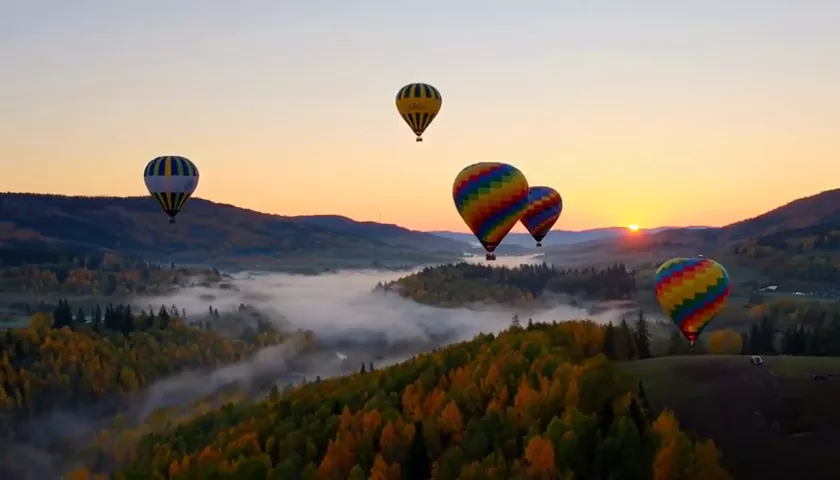
Hot air balloons over a valley (model demo)
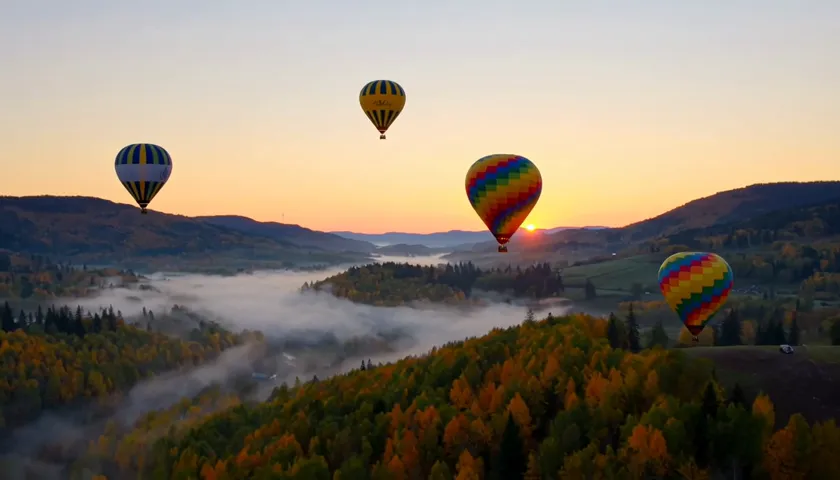
Ultra-wide cinematic shot of hot air balloons drifting over an autumn valley at sunrise, mist in the valley, amber and orange palette, no text, no captions, no watermark
Balloons drift over an autumn valley at sunrise with mist below — a classic showcase of smooth motion.
Interior walkthrough
Smooth gimbal walkthrough of a modern apartment, starting at the front door, moving through a bright living room with large windows, ending at a balcony with a city view, natural daylight, real estate video
A video tour for a real estate agent or interior designer.
Product video
Slow dolly-in on a pair of white sneakers on a concrete pedestal, soft shadows, light dust particles in the air, clean studio background, premium commercial look, no text
A slow camera push-in on a product for a marketplace listing or an ad.
Nature
Aerial drone shot gliding over a turquoise mountain lake surrounded by pine forest, early morning light, gentle ripples on the water, cinematic and calm
A calm drone glide — the kind of scene where smooth motion shows best.
Multi-shot scene
A barista prepares coffee: first a close-up of beans being ground, then milk being steamed, finally latte art poured into a cup, warm cafe lighting, smooth transitions
A sequence of actions within one longer clip.
Fantasy scene
A giant whale slowly swimming through clouds above a sleeping city at night, moonlight, soft glow, dreamy atmosphere, slow camera tilt up
A fantasy shot with slow, hypnotic movement.
Tips for prompting MiniMax H3
Describe the camera move
Smooth motion is the model’s strength, so specify it: “slow dolly-in”, “aerial drone shot gliding”, “smooth gimbal walkthrough”, “slow pan left”, “tilt up”. Without a description, the camera may behave unpredictably.
A long scene is a sequence of events
For 10–15 seconds, describe what happens at the start, in the middle and at the end. Words like “first”, “then” and “finally” help the model spread events over time.
Draft at 480P or 768P
Test the idea at a lower resolution — it costs several times less than 2K or 4K. Once motion and composition work, rerun the generation at higher quality.
First and last frame for a precise ending
If the clip must end on a specific image — a house facade, a package, a logo — set the last frame. For photo animation, the starting image defines the style and makeup of the scene.
Less chaos, smoother motion
Scenes with dozens of objects moving fast in different directions are hard for any model. For the best results, keep the focus on one or two main movements.
A clean frame
Add “no text, no captions, no watermark” to keep random lettering out of the clip.
Which resolution to choose
Four quality levels are one of MiniMax H3’s distinguishing features, and choosing well has a noticeable effect on your budget.
- 480P — the cheapest option for testing ideas, storyboarding and checking motion.
- 768P — the default; a sensible balance for Stories, Reels and social feeds, where video gets compressed anyway.
- 2K — for websites, presentations and ads that will be watched on large screens.
- 4K — maximum detail for premium shots, property tours and later editing with cropping.
A practical rule: explore the idea at 480P or 768P, and make the final version in 2K or 4K only once the scene is exactly right.
Workflow: from idea to finished clip
For predictable results without overspending, follow a simple plan.
- Prepare a starting frame. Generate an image in an image model or use your own photo. That way you control style, lighting and composition from the outset.
- Make a draft. Run image-to-video at 480P or 768P for 5 seconds and see how the model moves the camera and objects.
- Refine the prompt. If the motion is too abrupt or heads the wrong way, describe the camera path more precisely or simplify the scene.
- Set the ending. For an ad, add a last frame with the product or logo.
- Generate the final version. Increase the duration as needed and choose 2K or 4K if the clip is headed for large screens.
- Add sound in editing. Music, voice or effects can be created with separate audio models and layered in a video editor.
Use cases
- Real estate and interiors — video tours of apartments and houses with a smooth camera glide.
- Travel and hospitality — atmospheric landscapes, flyovers, morning scenes.
- E-commerce — product clips with a slow push-in or rotation.
- Social media and bloggers — vertical 9:16 clips, POV vlogs, intros.
- Restaurants — appetizing close-ups of dishes.
- Creators — fantasy and cinematic scenes for music videos and teasers.
Comparison with other video models
Here is how MiniMax H3 compares with its closest neighbors in the WebTerra AI catalog.
| Model | Profile | When to choose it |
|---|---|---|
| MiniMax H3 | Up to 15 s, 480P to 4K, smooth motion | Long, smooth scenes with a flexible choice of quality |
| Hailuo 02 | Fast photo-to-video | You need to animate a photo quickly |
| Kling 2.5 Turbo Pro | Up to 10 s, realistic | A short, realistic clip |
| Veo 3.1 | 4K, with sound | You need sound generated together with the video |
| Seedance 2.0 | Audio + multi-scene | A clip made of several scenes, with sound |
The honest verdict: sound generation isn’t listed for MiniMax H3, so if your clip needs audio out of the box, look at Veo 3.1 or Seedance 2.0. On the other hand, MiniMax H3 stands out with long scenes of up to 15 seconds, smooth motion and a wide range of resolutions — from cheap drafts to 4K — at an affordable price on default settings.
Limitations
- 15 seconds maximum. Longer videos have to be assembled from several generations.
- No sound listed. Audio has to be added separately during editing.
- No intermediate keyframes. Only the first and last frame can be set.
- High resolution costs more. 15 seconds at 4K costs roughly eight times as much as the standard 5 seconds at 768P.
- No 2:1 format. For widescreen shots, 21:9 is available.
FAQ
How much does MiniMax H3 cost?
A default clip (5 s, 768P) costs 49 credits (about $0.63) on Starter, 46 (about $0.56) on Pro and 44 (about $0.51) on Ultra.
What is the maximum video length?
15 seconds. The minimum is 5 seconds, in one-second steps.
Which resolutions are available?
480P, 768P, 2K and 4K.
Does MiniMax H3 generate sound?
Sound generation isn’t listed for this model. If you need audio right away, choose a model with sound, such as Veo 3.1.
Can I try it for free?
Yes, the 60 free credits cover one 5-second clip at 768P.
Can I animate a photo?
Yes, in image-to-video mode. You can also set the first and last frame.
MiniMax H3 is a good choice for long, smooth, atmospheric scenes on a flexible budget. Open the WebTerra AI dashboard and create your first clip with your free credits.
Try AI models yourself
Models for video, images and audio in one place — 60 credits free when you sign up
Start for free